
Website Not Secure? What the Warning Means and How to Fix It (2026)
That “Not Secure” label next to your web address is costing you enquiries. This guide explains what the warning actually means, how to diagnose which of the four common causes applies to your site, and how to fix it — usually for free — on WordPress, site builders and custom sites.
 Ali RehmanFull Stack Web Developer
On this page 9 sections
A customer emails you: “When I open your website it says Not Secure — is it safe to fill in the form?” Or you open your own site on a new phone and there it is, in the address bar, next to your business name. It reads like an accusation. Most owners' first fear is that the site has been hacked; the more common reality is a missing, expired or incompletely installed SSL/TLS certificate — a fixable configuration problem, and often a free fix.
That doesn't make it harmless. A trust warning at the exact moment someone decides whether to contact you is one of the quiet ways a website loses customers without anyone telling you why. This guide explains what the warning actually means in plain English, how to work out which of the four common causes applies to your site, the step-by-step fix on any platform, and what certificates really cost in 2026 (usually: nothing).
What “Not Secure” actually means (and what it doesn't)
Websites talk to browsers over one of two protocols. HTTP sends everything as readable text: anyone positioned between the visitor and your server — on public Wi‑Fi, for example — could read or tamper with what passes through, including whatever gets typed into your forms. HTTPS is the same protocol wrapped in TLS encryption (people still call it SSL, the name of the older technology it replaced). It scrambles the traffic and verifies the visitor is talking to the real domain, not an impostor.
Since mid‑2018, Chrome has labelled every plain-HTTP page “Not secure”, and other major browsers followed with similar treatment. The label describes the connection, not your intentions — an honest small-business site on HTTP gets the same warning as anything else. The reverse is also worth understanding: a padlock or a “secure” label only means the connection is encrypted. It does not certify that a site is trustworthy, well-run or malware-free — phishing sites use HTTPS too. Encryption is one layer of website security, not the whole of it.
And to answer the anxious version of the question directly: “Not Secure” does not mean hacked. It is a configuration state. If you're seeing defaced pages, spam content or strange redirects, that's a different, more urgent problem — the security guide covers the incident-response steps. If the site looks normal apart from the label, you're almost certainly dealing with a certificate or content issue, and the rest of this article is the fix.
Why the warning is costing you enquiries and rankings
The obvious cost is trust. A visitor comparing two local businesses — one with a normal address bar, one flagged “Not Secure” — doesn't need to understand TLS to pick the safer-feeling option. The warning is most damaging exactly where your site earns its keep: contact forms, quote requests and checkouts. On plain HTTP, browsers escalate — Chrome shows a more alarming red warning when someone starts typing into a form on an insecure page. The visitors you paid to attract through content and traffic work hesitate at the last step.
There is a search-engine cost too, though it's worth stating honestly. Google confirmed HTTPS as a ranking signal back in 2014 and described it as lightweight — a tie-breaker, not a rocket. Migrating to HTTPS will not leapfrog you above competitors with better content. But running on HTTP in 2026 puts you on the wrong side of every one of those small signals at once: browser labels, user hesitation, and a checklist item every audit flags. It's one of the first things I look at in a technical SEO review, right alongside crawlability and page speed. If your site also has visibility problems, fix HTTPS as part of the broader work — not as a magic bullet, but because diagnosing search problems is easier when the basics aren't muddying the picture.
The 15-minute diagnosis: which of these four cases is yours?

“Not Secure” is one label with several different causes, and the fix depends on which one you have. Open your site in Chrome, click the icon to the left of the address (a tune/settings icon on HTTP pages, a padlock elsewhere), then choose Connection is secure → Certificate is valid (or the warning equivalents) to see the certificate details. Now match your situation:
- 1Case A — No certificate at all. Your site loads at
http://and there's no certificate to inspect. Typical for older sites that were never migrated. You need to issue a certificate and set up redirects — the full fix below. - 2Case B — The certificate expired. The site worked yesterday; today visitors see a full-page warning naming an expired or invalid certificate. Certificates have fixed lifetimes and this is the classic “why is my website suddenly not secure” cause: an auto-renewal that silently failed, a lapsed paid certificate, or a domain/DNS change that broke reissuance.
- 3Case C — Valid certificate, but the label persists (or appears on some pages). The certificate viewer says everything is fine, yet Chrome still won't show the page as fully secure. This is almost always mixed content — an HTTPS page pulling images, scripts or styles over plain HTTP. It gets its own section below.
- 4Case D — Works on one version of the domain, not the other.
https://www.yourdomain.comis fine buthttps://yourdomain.comwarns (or vice versa), or a subdomain fails. The certificate doesn't cover every hostname in use, or one variant was never pointed at the right configuration. The fix is a certificate covering both names (standard with most host-issued certificates) plus a redirect to one canonical version.
For a second opinion beyond the browser, run your domain through Qualys SSL Labs' free server test. It reports what certificate is installed, which hostnames it covers, when it expires and whether the configuration has known weaknesses — in plain enough terms to forward to your host or developer.
The fix, step by step (any platform)
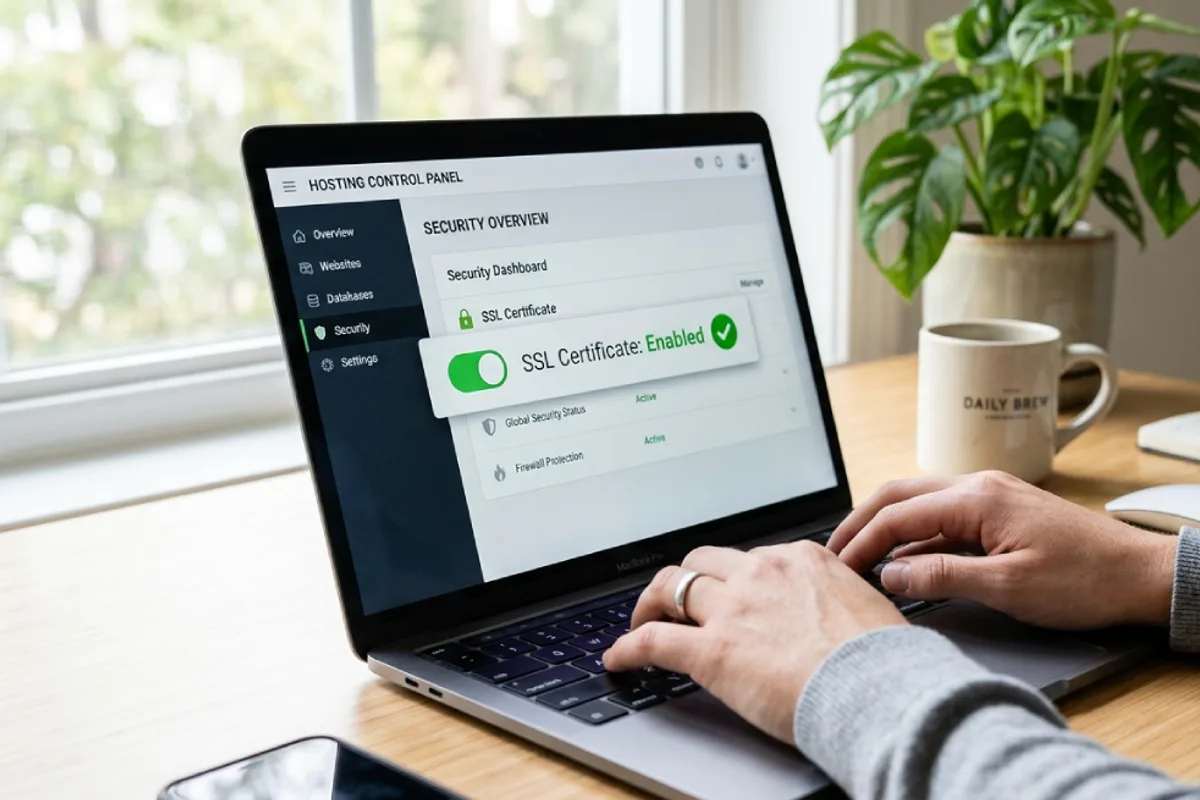
The complete fix has five parts. On a managed platform some of them happen automatically; on self-managed hosting you (or your developer) walk through each one:
- 1Get a certificate. Check your hosting control panel first — most reputable hosts now include free certificates (their own or via Let's Encrypt, the free certificate authority) with automatic renewal, and it's a one-click enable. If your host charges for basic single-domain certificates while competitors include them, that's a data point worth weighing next time you're evaluating hosting. An alternative route is a proxy service such as Cloudflare's free plan, which terminates HTTPS at its edge — useful, but configure it properly (“Full (strict)” mode with a valid origin certificate) rather than leaving the connection to your server unencrypted.
- 2Install and verify it. On shared hosting this is usually automatic once enabled. Then confirm: load the site at
https://, click the certificate viewer, and check the expiry date and that bothwwwand non-wwwversions are covered (Case D above). - 3Redirect all HTTP traffic to HTTPS. A site that answers on both protocols still exposes visitors (and old links) to the insecure version. Set a permanent 301 redirect from every
http://URL to itshttps://equivalent — a host-panel toggle on many platforms, or a few lines of server configuration. Redirect to one canonical hostname at the same time (pickwwwor bare domain, not both). - 4Update the site itself. Change the site URL in your CMS settings so internally generated links use HTTPS, and fix hardcoded
http://references in content, themes and templates — this is the mixed-content cleanup covered in detail below. - 5Tell Google (lightly). Google treats HTTP and HTTPS as different URLs. With 301s in place it will consolidate on its own, but you can help: make sure Search Console has the HTTPS version of your property, your sitemap lists HTTPS URLs, and your analytics property matches. Expect some reshuffling in reports for a few weeks; that's the address change being processed, not a penalty. The same hygiene applies whenever URLs change — it's why redirect mapping features in every launch checklist I write.
Time and cost, honestly stated: on a modern managed host or site builder this is under an hour, often free. On older self-managed hosting with hardcoded content, budget a few hours — mostly for the cleanup step. If you'd rather hand it off, it's a small, well-defined job; the developer pricing guide explains hourly-versus-fixed engagement so you can sanity-check a quote.
Platform notes: WordPress, site builders and hosts
The same five steps apply everywhere, but the buttons live in different places — and the search data shows people overwhelmingly hit this problem on specific platforms, so here are the specifics.
WordPress
Issue the certificate at the hosting level (cPanel-style hosts often call it AutoSSL; managed WordPress hosts enable it per-site). Then update both address fields under Settings → General to https://, and clean up old http:// references stored inside your content and database — a search-and-replace done carefully, with a backup first. SSL plugins exist and can get a site over the line quickly, but they mask underlying HTTP references rather than fixing them; I prefer the database actually updated. While you're in there, it's a natural moment for the housekeeping that keeps WordPress healthy — the same discipline as speed work: fewer patches over problems, more actual fixes. If the site is business-critical and you don't want to touch the database yourself, this is squarely the kind of job I handle under WordPress development.
Squarespace, Wix, Shopify and other builders
Managed builders issue and renew certificates automatically — you never buy one. When “Not Secure” appears anyway, it's almost always one of three things: the platform's SSL setting is switched off or set to “insecure” (Squarespace has an explicit SSL panel — set it to Secure with HSTS), a custom domain was connected recently and the certificate hasn't finished issuing (DNS changes can take from minutes to about 48 hours to settle — the same propagation you deal with when setting up domain email), or the domain's DNS records don't match what the platform expects. Fix the domain connection and the certificate follows. If you're migrating between platforms, plan the HTTPS cutover as part of the move — the Wix-to-WordPress migration guide shows how redirects and DNS changes fit together so rankings survive the switch.
“My host wants to sell me a certificate”
Some hosts and registrars still market paid single-domain certificates prominently. Before paying, check whether your plan already includes a free one (many do, a menu away from the upsell), and compare what the paid product actually adds for your situation — for a typical small-business site, the answer is often “nothing you need.” The genuine reasons to pay are covered in the cost section below.
“Certificate valid, still not secure”: fixing mixed content

This is the case that confuses everyone, because the certificate checks out and yet the browser refuses to call the page secure. Mixed content means the page itself loads over HTTPS, but something on it — an image, stylesheet, script or embed — is still requested over plain HTTP. The browser can't call the result fully secure, because part of it isn't. Google's developer documentation splits it in two: browsers now block most active mixed content like scripts outright (which can break page features), and they try to auto-upgrade or flag passive content like images.
Finding it is straightforward: open the affected page, press F12 for developer tools, and read the Console tab — mixed-content warnings name the exact insecure URLs. Common culprits are hardcoded http:// image links pasted into old posts and page builders, theme or template files referencing HTTP assets, and third-party embeds (maps, widgets, tracking pixels) added years ago. The fixes, in order of preference: update each reference to https:// (nearly everything supports it now), replace or remove anything that genuinely doesn't, and only then consider a blanket rewrite tool — rewriting hides the reference, it doesn't correct it. On WordPress the bulk of these fall to the same database search-and-replace from the platform section above.
One prevention habit: whenever you add embeds or paste media URLs, use HTTPS (or protocol-relative) sources from the start. It's a five-second check that saves the next cleanup.
What SSL certificates actually cost in 2026
For most small-business websites, the honest number is $0. Let's Encrypt issues free, automated, browser-trusted certificates and most competitive hosts have built them (or equivalents) into their plans; managed builders include certificates in the subscription. What you're really “paying” is the automation dependency: free certificates are short-lived by design, so renewal must be automatic and monitored. That expectation is tightening industry-wide — browser and certificate-authority rules are progressively shortening maximum certificate lifetimes over the next few years, which makes manual once-a-year renewal an increasingly fragile plan. Expired-certificate outages (Case B) are exactly the kind of quiet failure a maintenance routine exists to catch: whoever looks after your site should be monitoring expiry, not discovering it from customers.
Paid certificates still have legitimate uses. OV and EV certificates validate the organisation behind the domain — relevant for some larger companies' policies — and paid products can bundle warranties and management tooling. But browsers stopped giving EV certificates special visual treatment years ago, so a paid certificate does not change what your visitors see in the address bar. Prices vary so widely by vendor and product that quoting a “typical” figure would be misleading — check current vendor pricing if you genuinely need OV/EV, and be sceptical of anyone insisting a small local-business site does. If you're commissioning a new site, HTTPS from day one should simply be part of the build — it's baked into the budgets in the website cost guide, not a line item to negotiate.
FAQ: quick answers
Is fixing “Not Secure” free?
Usually. The certificate itself is free on most modern hosting and on every mainstream site builder. Costs appear when a site has years of hardcoded HTTP content to clean up, or when hosting is so old it lacks free-certificate support — in which case the honest fix may be moving to better hosting rather than paying certificate fees forever.
Why is my website suddenly not secure when it was fine before?
An expired certificate is the most common cause — an auto-renewal failed, a paid certificate lapsed, or DNS/domain changes broke reissuance. Check the expiry date in the browser's certificate viewer. Recently changed something (host, domain, CDN, theme)? New mixed content or an incomplete certificate on the new setup are the next suspects.
Does “Not Secure” mean my website has been hacked?
No — it means the connection isn't encrypted, which is a configuration state, not evidence of compromise. Hacked sites show different symptoms: altered content, redirects, spam pages, security emails from your host. If you see those, follow an incident-response process; otherwise, fix the certificate and move on.
Will switching to HTTPS improve my Google rankings?
Modestly at best. Google has described HTTPS as a lightweight ranking signal — worth having, not a strategy. The bigger practical effects are user trust at forms and checkouts, and removing a red flag that undermines everything else you invest in content and SEO. Set up 301 redirects properly and temporary reporting fluctuations settle; the gains from there come from the actual work: content, relevance and site quality.
How long does the fix take?
On a managed host or builder: minutes to an hour, mostly waiting for issuance or DNS. On self-managed hosting with an older site: a few hours including the mixed-content cleanup. If a custom domain was just connected, allow up to about 48 hours for DNS to settle before assuming something is broken.
Do I need to buy the SSL certificate my registrar keeps advertising?
Almost certainly not for a typical small-business site. Check your hosting plan for an included free certificate first. Paid OV/EV products exist for organisational-validation needs, but they don't change the padlock your visitors see, and they don't make the connection “more encrypted.”
Bottom line
“Not Secure” is a solvable configuration problem with an outsized cost: it undermines trust at the exact moment a visitor decides to contact you. Diagnose which case you have (missing, expired, mixed content, or coverage), enable the free certificate your host almost certainly offers, redirect HTTP to HTTPS once, clean up the stragglers and put certificate expiry on a monitoring list rather than a memory. Then treat it as the first rung of the ladder — encryption protects the connection, while the rest of your security posture protects the site itself.
Written by
Ali Rehman - Full Stack Developer
I build fast, scalable web applications with React, Next.js, Node.js & TypeScript. Have a project in mind? Send me a message and get a written plan with a fixed quote - start here.
More articles by Ali Rehman →