
WordPress Permalinks Not Working? Fix 404s Without Changing Your URLs
A working homepage and broken inner pages point to a routing problem—but not always the same one. Identify the failed URL, preserve your existing structure, and choose the right repair for WordPress, your server or a genuine content move.
 Ali RehmanFreelance Web Developer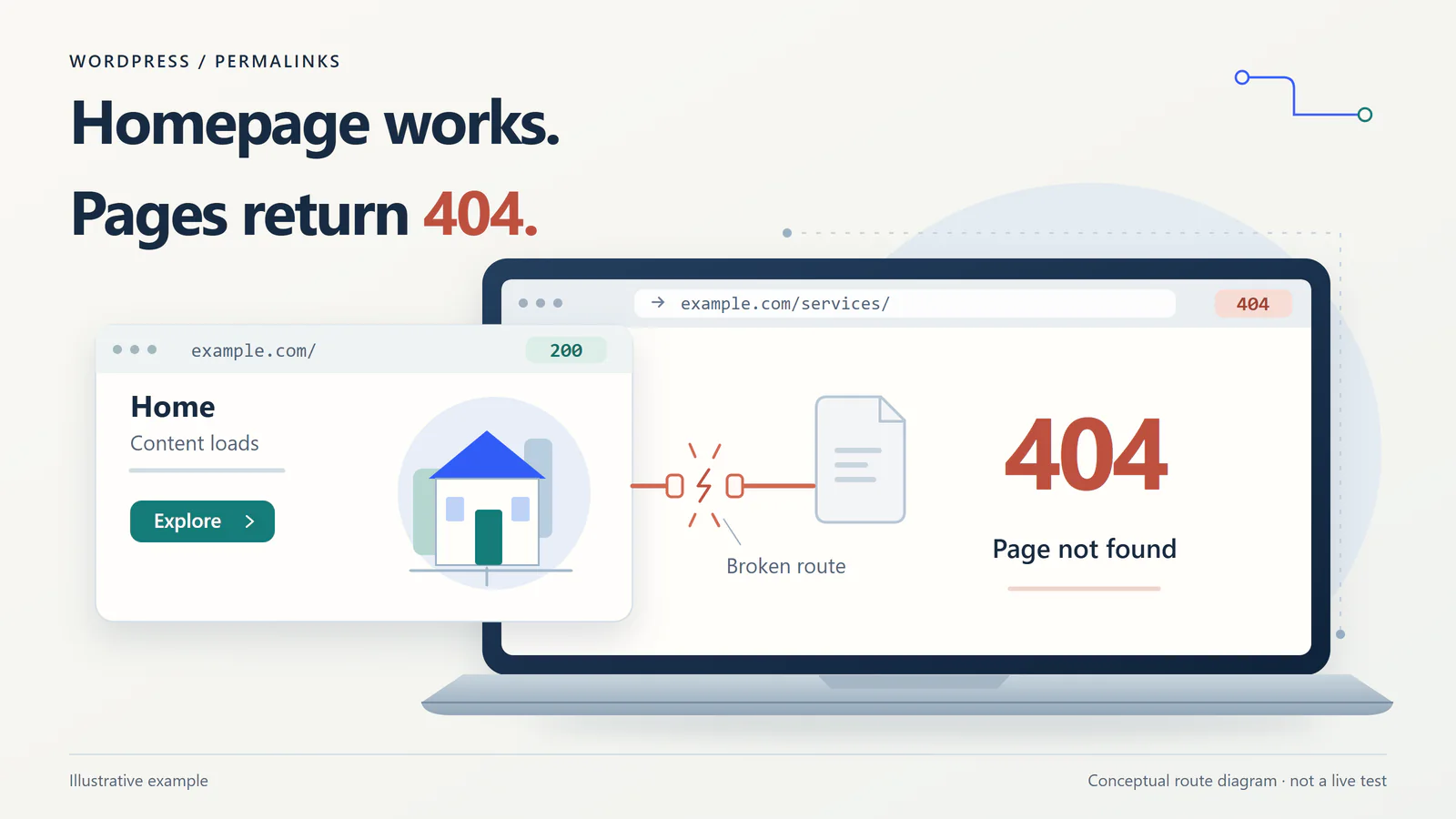
On this page 12 sections
Your homepage opens, the menu looks normal, and then every service page says 404 Not Found. The pages may still be sitting in the WordPress dashboard. Before changing their slugs, installing another plugin or restoring yesterday's database, work out whether the request is failing at the link, the content, WordPress's rewrite rules or the web server.
That is a focused first repair, not proof that every 404 has the same cause. A moved page needs a correct redirect; a private page should stay private; a genuinely missing page may need no repair at all. This guide separates those cases and finishes with a small acceptance test you can repeat after the fix.
Start here: one page, all inner pages, or a different error?
A permalink is the address of a post, page or archive. A readable path such as /services/ does not usually correspond to a physical folder. The server passes an appropriate request into WordPress, and WordPress resolves it to content. The official permalink guide explains the different URL formats and the hosting support they require.
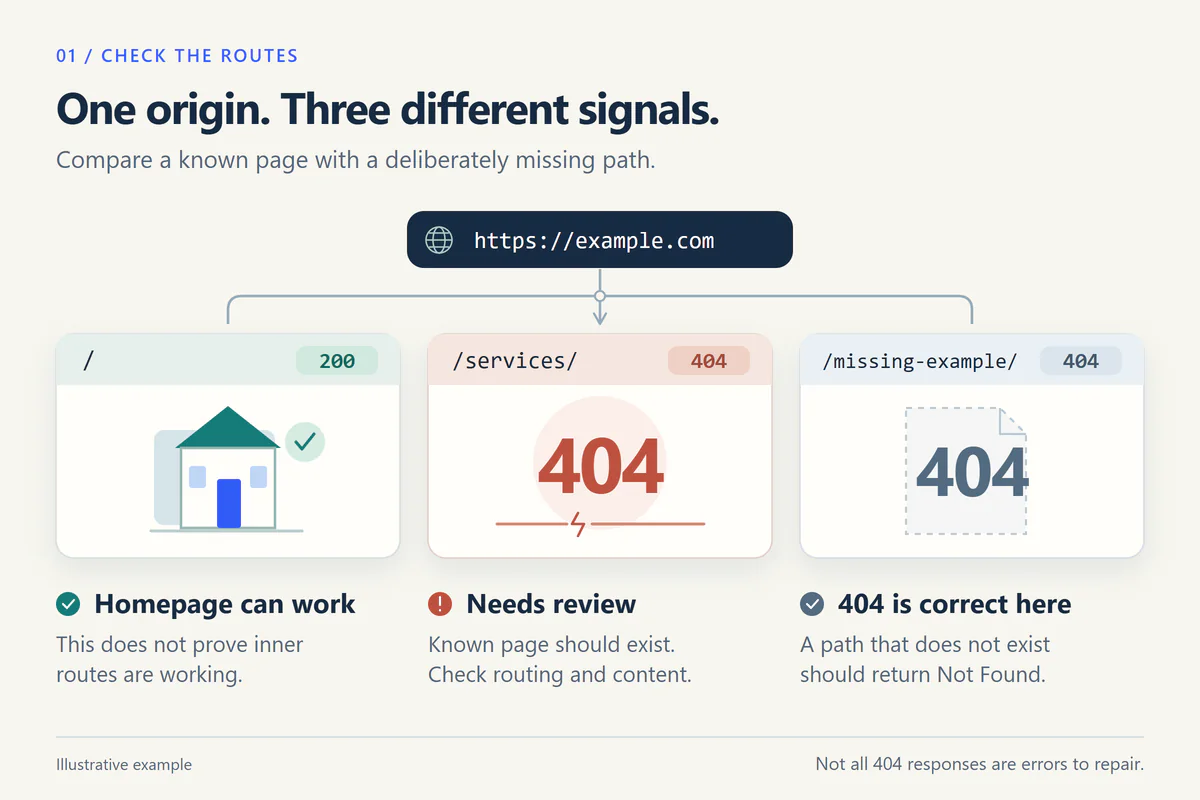
When the homepage works but other pages return 404, rewrite handling is a useful lead—not a confirmed diagnosis. The homepage could be cached, a navigation menu could contain old links, or a migration could have connected the new domain to the wrong installation. Start with the scope of the failure:
- One expected page fails: check its actual public permalink, status, parent path and any recent move before touching sitewide settings.
- Several unrelated posts and pages fail: compare the current permalink structure and host routing. A shared rewrite problem becomes more plausible.
- Only products, events or another content type fail: inspect the plugin or code that registers that type and its URL base.
- The homepage, login and static assets all fail: ask the host to check the domain mapping, document root and deployment. Do not assume a permalink flush can repair a missing installation.
Check the main document request in your browser's Network panel after reloading. A missing favicon is not a missing page. A 403 response, redirect loop or 500 error needs a different investigation. Use the separate guides for WordPress login problems, missing images or a WordPress critical error when those match what is actually failing.
1. Check the exact URL and whether the page should be public
Open the affected item under Pages or Posts and copy its current permalink. Compare that complete address with the failing menu link or bookmark: scheme, hostname, subdirectory, parent page and slug. A page displayed at /services/repairs/ will not necessarily exist at /repairs/. A title change also does not prove the slug changed.
Check whether the content is published, scheduled, a draft, in Trash or intentionally restricted. An administrator's preview is not a public-access test. Open the intended public address in a logged-out/private window. Do not publish confidential or unfinished content merely to remove a 404. If it was accidentally trashed, restore the correct item only after confirming that it should be public.
If the copied permalink works but a menu link fails, correct the link. A stale link in a button, footer or manually authored block is not fixed by resetting all permalinks. If the content genuinely moved, keep a note of the old and new URLs for the redirect decision later. Do not create a second copy of the page as a routing workaround.
2. Refresh rewrite rules without changing your URL structure
Before a repair, confirm a recent backup of the files and database, who can restore it, and a way to reach the hosting account if admin access breaks. Record the current permalink structure and any category, tag or product bases. If custom server rules exist, have the maintainer preserve a separate copy before they can be regenerated.
- 1Open Settings → Permalinks in the intended WordPress installation.
- 2Keep the existing selection and custom fields exactly as they are. Do not change Day and name to Post name, or temporarily switch the live site to Plain.
- 3Click Save Changes once and read any warning about writing configuration.
- 4Reload one affected public page, one other content type and the homepage while logged out. Record the result rather than repeatedly saving.
There is a useful detail in the official Settings Permalinks documentation: simply visiting that screen already triggers a rewrite-rule flush. Saving unchanged settings is a convenient deliberate check, not a special deeper repair. On a compatible Apache setup, WordPress may update its rewrite block if it has the required access. It cannot rewrite a standalone Nginx server configuration.
If it works, continue to the verification matrix rather than changing more settings. If the same failure returns after a plugin update or a scheduled deployment, the refresh treated a symptom. Record the timing and investigate what overwrote or regenerated the rules; repeatedly flushing them is not a durable solution.
3. If saving permalinks fails, check the right web server
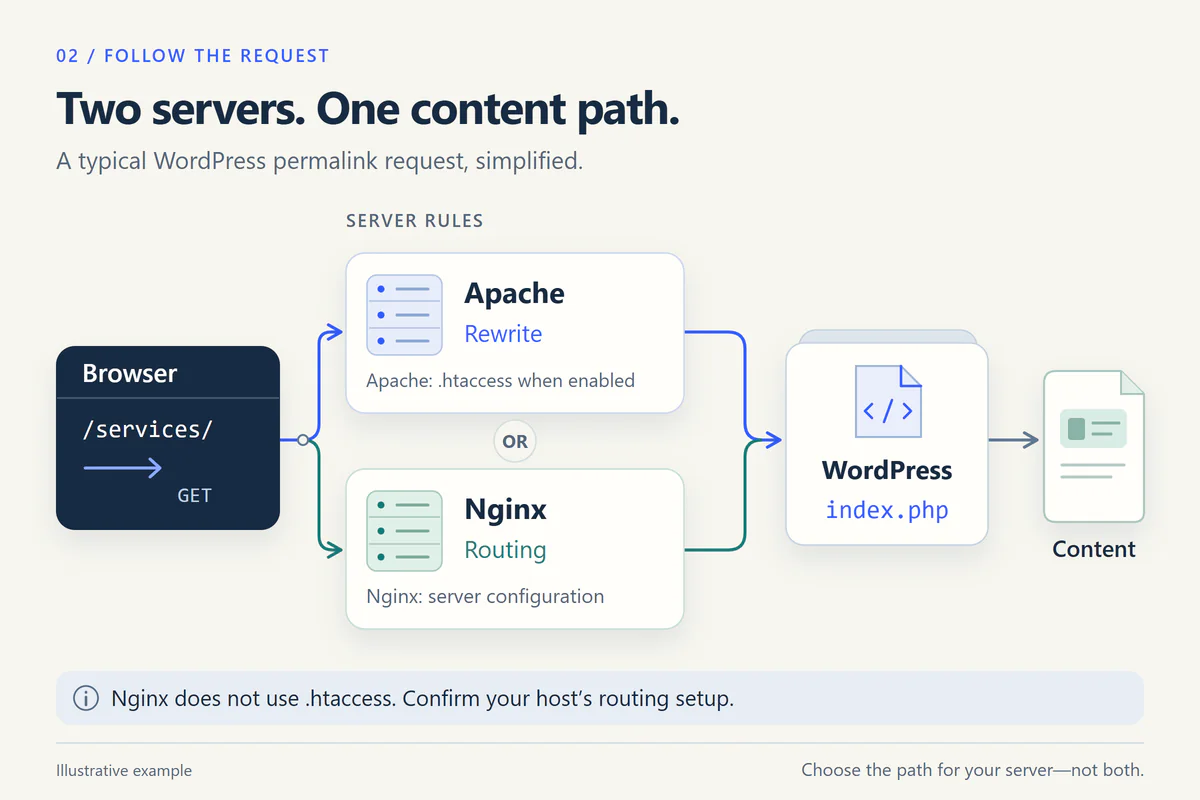
Ask the hosting provider which layer actually routes WordPress requests. A Server response header is only a clue: Nginx may be a reverse proxy in front of Apache. Managed hosting may keep the important rules outside your file manager. Use the relevant branch, not every server recipe you can find online.
Apache: check the active rewrite rules, not just the file name
On Apache, WordPress commonly uses a hidden .htaccess file, but an administrator can configure routing centrally instead. Confirm the active document root and the correct rule location. A file can look perfect in one folder while the public domain serves a different folder or inherited configuration.
- Ask whether
mod_rewriteis enabled and whether the relevant directory permits the required directives throughAllowOverrideorAllowOverrideList. - Compare the WordPress-managed block with the rules appropriate to this installation. Single-site, subdirectory and Multisite configurations are not interchangeable.
- Preserve HTTPS redirects, access restrictions, security headers and plugin/host rules outside that block. Do not replace the whole configuration file with a generic snippet.
- If WordPress cannot write the file, have the host check ownership and the minimum permissions needed. Do not make files world-writable with 666 or 777 as a routine fix.
The WordPress Apache reference provides different configurations, and the Apache documentation explains why directory overrides can be ignored or restricted. Have the maintainer validate the exact change and its rollback. Do not deliberately insert invalid configuration into a live site to test whether Apache reads it.
Nginx: the host must check the server configuration
Standalone Nginx does not read .htaccess. Its active server/location configuration needs to route requests for WordPress content into the appropriate front controller, usually index.php, while preserving required query arguments. Adding an Apache file or repeatedly saving WordPress settings will not correct a missing server-level rule.
Ask the host to verify the correct virtual host, document root, existing-file handling and WordPress fallback for your actual installation path. A root-domain example can be wrong for a site under a subdirectory. The WordPress Nginx guide explains the distinction; it is not a reason to replace a working TLS, PHP or security configuration with a full example. The administrator should syntax-check a proposed change before an appropriate reload.
If the platform uses LiteSpeed, IIS, a hosting control panel or a managed reverse proxy, use that provider's supported procedure. Do not assume every server honours Apache directives. A useful support request includes the failing URL and observed status, not a demand to paste one particular configuration.
4. Check what changed during a migration
A WordPress 404 after migration can mean either the old URL is no longer correct or the new host is not routing the unchanged URL properly. First establish whether the domain and paths were meant to change. Moving to a different hosting company does not automatically require different public URLs.
- Same domain and paths: verify that the domain reaches the intended installation, its files/database are present, and the new host supports the existing rewrites. Do not mass-replace URLs merely because hosting changed.
- New domain or subdirectory: compare the intended public address, WordPress location, internal links and old-to-new URL map. Test the new destination before enabling a redirect.
- Wrong host or inconsistent results: ask support to confirm domain/virtual-host mapping and whether requests are reaching old versus new infrastructure. A cached homepage alone cannot settle that question.
Under General settings, Site Address describes the public site, while WordPress Address describes the location of the WordPress files. They are often identical, but can legitimately differ when WordPress is installed in its own directory. Do not force them to match without understanding the setup. Hard-coded settings can also override what an admin screen lets you change.
The official migration documentation warns that blind database search-and-replace can break serialized values. Any necessary replacement should be backed up, narrowly scoped, serialization-aware and previewed where the tool supports it. On an active shop, restoring an old database can erase orders and customer updates. A rewrite repair is not permission to roll back business data.
A platform change needs its own migration plan as well. The Wix-to-WordPress migration guide covers the wider mapping task; this article focuses on diagnosing the page URLs that fail after the move.
5. Isolate recurring plugin or custom-post-type problems
Compare the failure time with the change history: a redirect plugin update, a theme switch, new language routing, a product URL base or custom code. A change immediately before the error is a lead, not automatic proof of responsibility. Record installed versions and reproduce the same failing URL before testing an alternative.
Use a protected staging copy for disruptive plugin or theme tests. It should reproduce the relevant routing and server configuration; a clone on a different stack may not reproduce an origin rewrite problem. Disable real payments, outbound customer emails, webhooks and fulfilment integrations on that copy before testing. Staging is not isolated simply because its URL contains the word staging.
Test one change at a time and retest the same routes. Do not deactivate every plugin on a trading or membership site as a casual first step. If a plugin registers the very product or event type you are testing, disabling it can remove that route by design. That result does not prove the plugin caused the original failure.
For custom post types, a developer should review registration timing, the intended public-query behaviour, rewrite slug and conflicting URL bases. Archive settings matter when an archive is the failing route, not as a universal switch for single pages. The registration reference documents these separate controls.
Do not add a rewrite flush to every page load as a permanent workaround. WordPress describes flushing rewrite rules as an expensive operation. The required registrations must exist before a necessary refresh, and the application should not keep rebuilding rules on ordinary requests.
6. Clear a cached 404 after fixing the underlying cause
Some hosts and CDNs cache error responses. That can leave a visitor seeing an old 404 after the origin has been repaired. Confirm the fix, then purge the affected URL from the relevant page cache and host/CDN layer using the provider's supported method. Avoid a global purge unless there is evidence the wider cache needs clearing.
A private window changes cookies and browser storage; it does not bypass a shared CDN cache. Similarly, a query string is not a guaranteed cache bypass. Compare the exact URL and account state, record any available cache headers, and let the host confirm what the origin is returning rather than exposing an origin address or disabling protection.
Retest as a visitor after the purge. If logged-in users see the page but logged-out users do not, also recheck visibility and access rules instead of assuming caching. The WordPress cache troubleshooting guide provides more detail when content is saved correctly but an old response persists.
7. Repair, redirect or keep a genuine 404
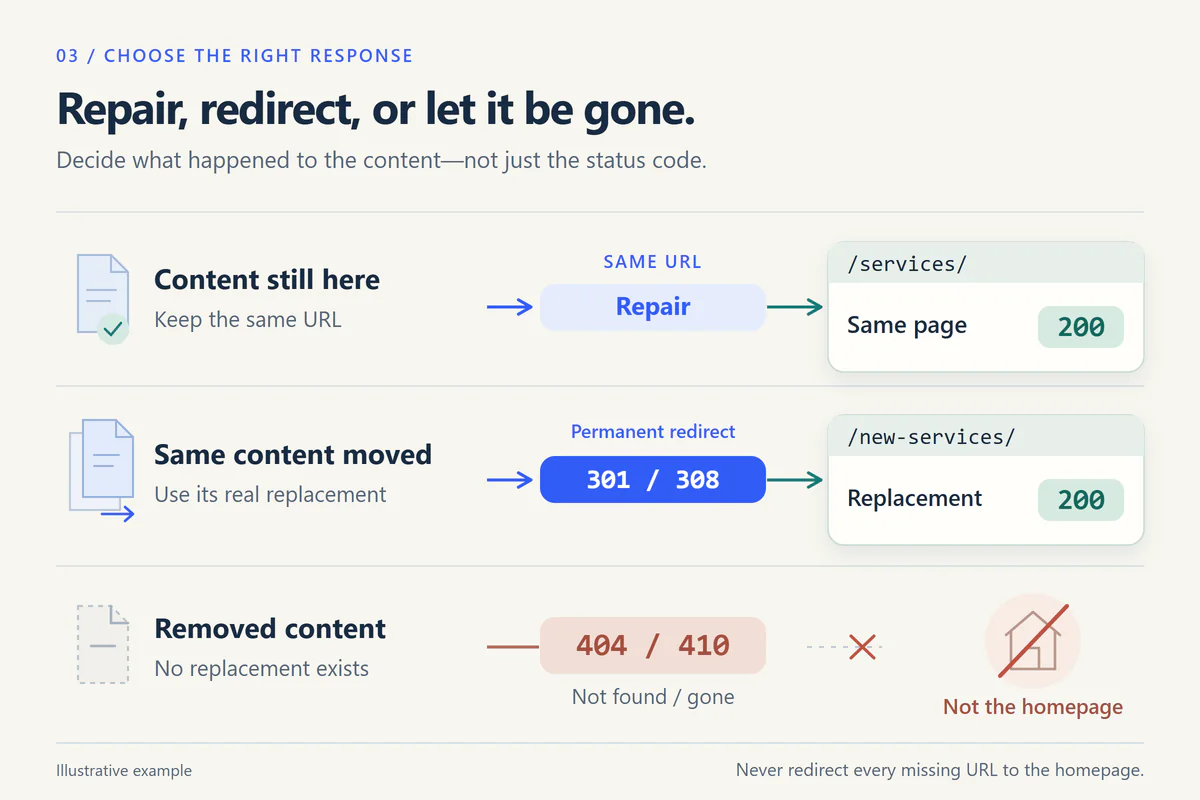
Choose the response based on what happened to the content. A redirect is a move instruction, not a substitute for fixing a still-valid page. Use these three decisions:
- 1The content still belongs at this URL: repair its publication/routing issue and return the intended content with a normal successful response.
- 2The same content moved or was genuinely consolidated: use a permanent
301or308redirect to the correct replacement. Check that the destination actually works and meets the original request. - 3The content was removed and has no replacement: return a real
404, or an appropriate410for content deliberately gone. Provide useful navigation without pretending that an unrelated page is its replacement.
Do not redirect all missing pages to the homepage. Google's site-move guidance warns that irrelevant redirects can be treated as soft 404s. It recommends direct permanent redirects, updated internal links and consistent canonical/sitemap URLs. For genuine migrations, retain redirects long-term rather than deleting them as soon as the new page appears in search.
A page that says Not Found but returns 200 can also create a soft-404 problem. Google's status-code documentation makes clear that a successful HTTP response does not guarantee indexing. Check both the content and the status; making the browser show something is not the whole acceptance test.
Verify the fix with a small URL test matrix
Write down a handful of representative URLs before changing anything. After the repair, check the same addresses while logged out and record the main document response plus the content displayed. Start with this matrix and add any business-critical routes:
- Homepage: the expected site loads, not a temporary holding page or a different installation.
- Previously failing page and blog post: their existing URLs show the correct public content; the repair has not changed their slugs.
- Affected archive or custom content type: an actual category, product or event route behaves as intended.
- A moved URL, if applicable: one direct permanent redirect reaches the correct working replacement, without a loop or a second missing page.
- A deliberately nonexistent URL: still returns a genuine 404, rather than being redirected to the homepage or returning a success code with an error message.
- Important navigation: menu links, buttons and any updated sitemap/canonical references point to the correct current URLs.
For a store or membership application, the agreed verification may also include login and checkout routing, but do not place a real payment merely to test a permalink. Use an isolated test environment for transactional checks. Keep the before/after record so a recurrence can be compared with facts instead of memory.
In Search Console, distinguish the indexed record from a live URL test. The indexed record can still describe the earlier failure. Follow the URL Inspection guidance, inspect a redirect's actual destination separately, and request indexing for repaired pages that should be indexed. A valid live test is not a promise of inclusion or rankings. The technical SEO checklist covers the wider crawlability review.
Send your host a useful, non-secret incident brief
If saving unchanged permalinks did not work, stop cycling through unrelated fixes. Send a concise record to the host or developer. One reproducible example, its time and timezone, and the last change are more useful than a screenshot saying only that the site is broken.
WordPress page-routing incident

Public affected URL: [one example]
First noticed: [date, time, timezone]
Main document status: [observed code]
Expected content: [what should appear]
Homepage result: [works / fails / different site]
Scope: [one page / inner pages / one content type]
Recent change: [migration, plugin, theme, configuration]
Current permalink structure: [recorded value]
Unchanged settings refreshed: [yes/no + result]
Cache layer checked: [which one + result]
Please confirm: active origin, document root and rewrite handling
Rollback contact: [responsible person, not credentials]
Do not send passwords, authentication cookies, secret query strings, full database exports or unredacted customer logs through a public form. Agree a secure access method if hands-on help is needed. For scoped assistance, see WordPress development and fixes or website maintenance, then describe the affected public URL and what changed.
Frequently asked questions
Why does the homepage work while WordPress posts return 404?
The homepage and a readable post path can take different routes through the server. Missing or incorrect rewrite handling is one possibility, but cached content, old menu URLs and an incomplete migration can produce similar symptoms. Confirm that several existing public URLs fail before treating it as a sitewide permalink problem.
Will saving permalinks change my URLs?
Saving the existing settings without changing the selected structure or fields is intended to keep those values. Selecting a new structure, changing a base or editing a slug is different and can change URLs. Record the original settings first, preserve custom rules and test the exact public links afterwards.
Why did saving permalinks not fix the 404?
WordPress may have refreshed its rules while the server still ignores them, serves a different document root or lacks a required Nginx fallback. The content might also be moved, private or registered by a missing plugin. Follow the symptom and server checks rather than repeatedly clicking Save.
Should I redirect every 404 to the homepage?
No. Redirect a moved resource to its genuine replacement, repair a page that still belongs at its current address, and keep an appropriate missing/gone response for removed content without a replacement. A catch-all homepage redirect can confuse visitors and create soft-404 signals.
Does editing the 404 template fix the missing page?
No. A clearer 404 template can help a visitor find another useful page, but it does not restore the requested content or fix routing. Keep the correct HTTP status on the missing address. Do not replace the error with a success response just to hide it from a report.
Sources and review scope
Reviewed on 18 October 2026 against the WordPress, Apache and Google documentation linked beside the relevant guidance. Hosting implementations, plugins and admin screens vary. The four images are original explanatory illustrations with fictional routes, not screenshots or measured results from a repaired WordPress site. This guide does not claim that every server configuration has been tested.
Written by
Ali Rehman - Freelance Web Developer
I work on WordPress websites, practical fixes and scoped web applications. Read my background and skill scope, or send a project brief to discuss a written plan and quote - start here.
More articles by Ali Rehman →