
“There Has Been a Critical Error on This Website”: How to Fix WordPress (2026)
The critical-error screen looks alarming, but it usually means one plugin, theme or PHP setting failed. This guide walks a business owner through the recovery email, the manual fallback, the debug log and a safe restore, without making the outage worse.
 Ali RehmanFreelance Web Developer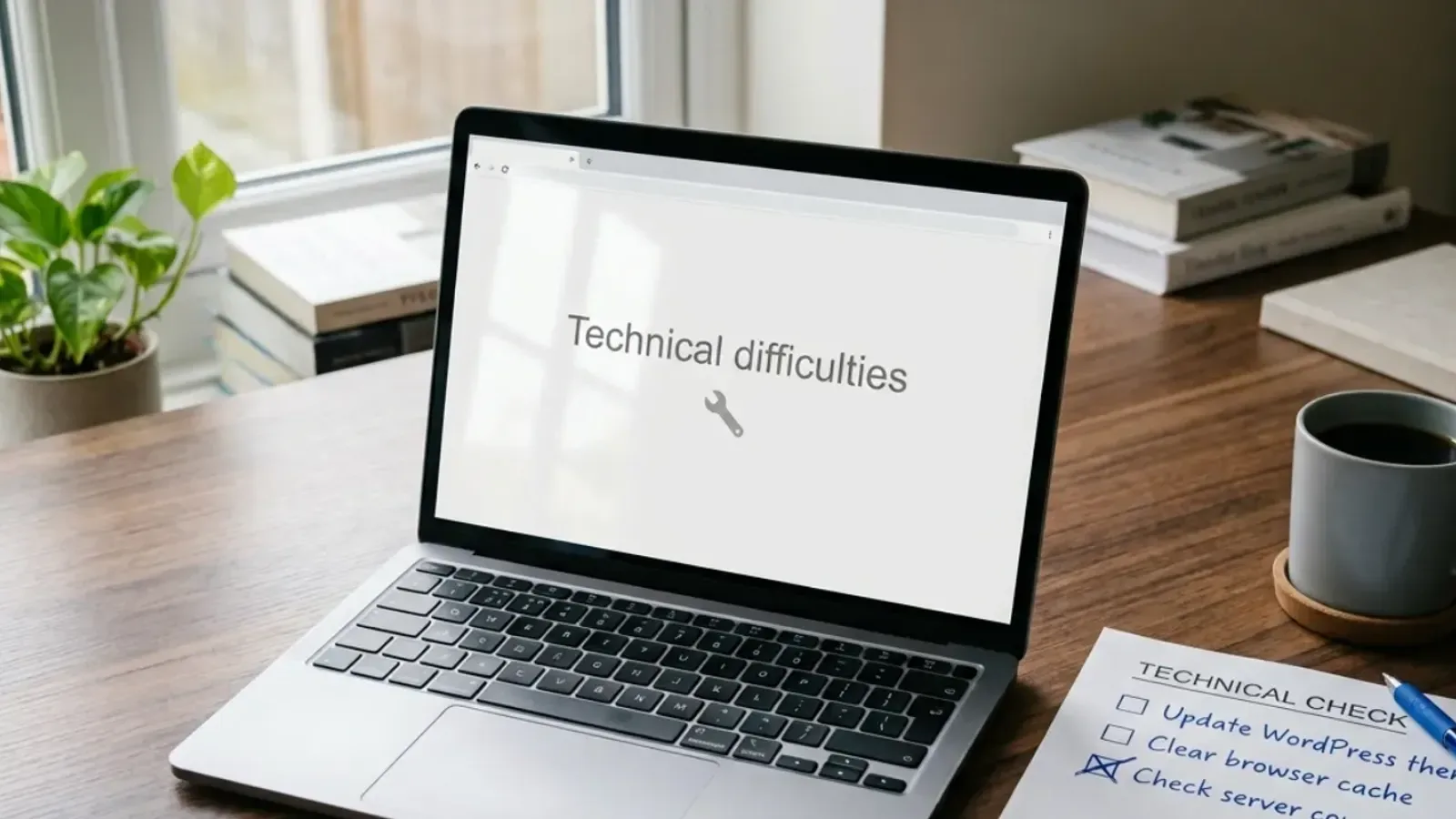
On this page 10 sections
Your website worked yesterday. Today every page shows one line: “There has been a critical error on this website. Please check your site admin email inbox for instructions.” Customers see it too. Before you reinstall anything or call the host in a panic, understand what the message actually means: WordPress hit a fatal PHP error, most often from a plugin, theme or PHP version change, and stopped the page to protect the site.
This is the owner-level version of the process I follow. It separates steps you can safely do yourself from steps that belong with a developer or your hosting support. It does not require guessing at code. Some sites are back within minutes; others need a restore, and this guide covers both outcomes honestly.
What the critical error message actually means
Since WordPress 5.2, a built-in fatal error handler catches a PHP crash, replaces the old blank “white screen of death” with the technical-difficulties message, and emails the site's admin address a private recovery link. The message itself is not the problem; it is WordPress reporting that some code on the site can no longer run.
The official common-errors documentation lists the usual causes: a plugin conflict, a theme compatibility problem, an incompatible PHP version, the PHP memory limit being exhausted, or corrupted WordPress files. In practice the trigger is often a recent change: a plugin or theme update, a WordPress core update, or the host moving the account to a newer PHP version.
Two related screens are worth telling apart. A completely blank page is the older white-screen symptom, and the same isolation steps apply. “Error establishing a database connection” is different: WordPress cannot reach its database at all, which points to wrong credentials in wp-config.php, a database that is down or over quota, or in rarer cases a compromise. That path is covered in the FAQ below.
1. Read the recovery email before touching anything
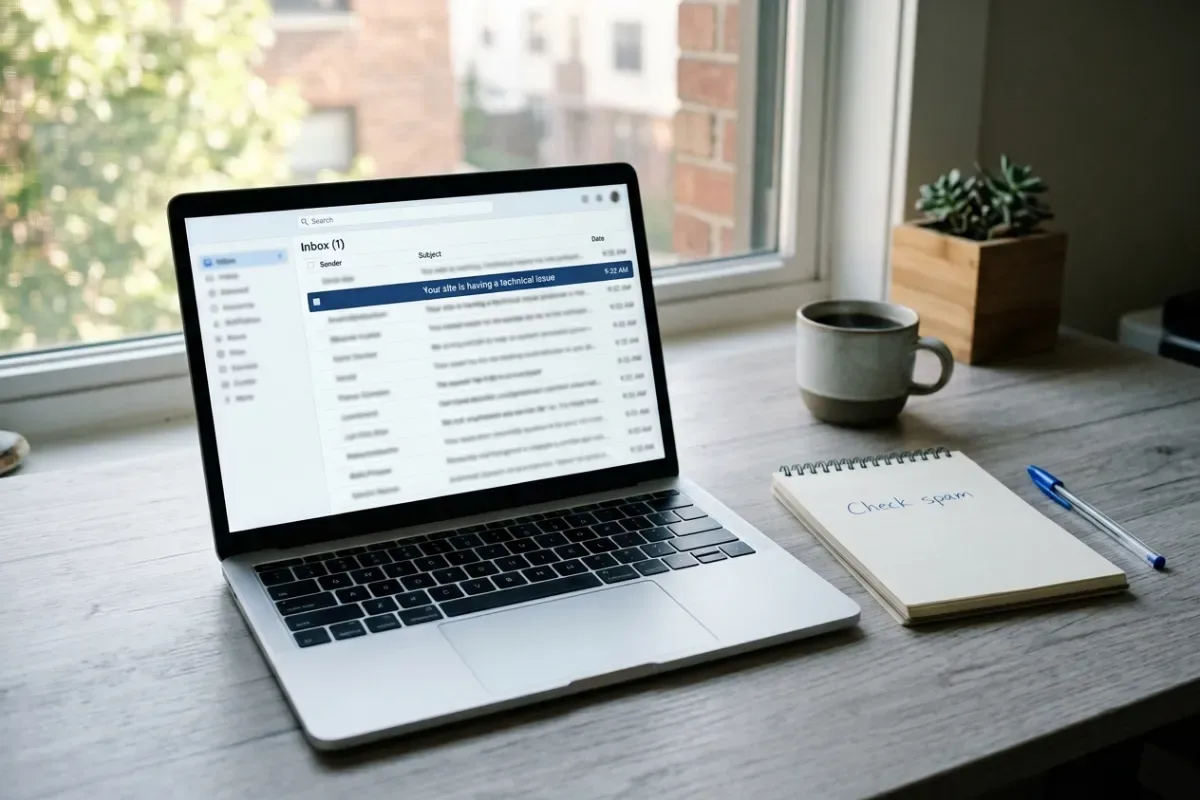
Open the mailbox that WordPress uses as the site administration email. Search for a message from your own site about a technical issue. It names the plugin or theme that failed and includes a link to recovery mode. Check the spam folder too: the message comes from your own server, and server-sent mail can be filtered for the same reasons covered in the contact-form email guide.
Recovery mode works through a cookie in the browser where you opened the link. WordPress pauses the failing extension for you only; visitors still see the error until you act. Log in, read the notice at the top of the dashboard, and either deactivate the extension, update it, or reactivate it after a fix. Then click Exit Recovery Mode and reload the public site in a private window to confirm.
- Email arrived: use the link, deactivate the named plugin or theme, and verify the public site loads. Note the plugin name and version for the next step.
- Link does not work: by default WordPress sends one recovery email per day and the link stays valid for about a day, per the core reference. If it has expired or fails, do not wait for a new one while the site is down; use the manual path below.
- No email at all: the admin address may be wrong, unmonitored, or mail from the server may be failing. Continue with the manual path, and fix outgoing email once the site is stable.
2. Back up before the manual fix
If recovery mode is not available, you will be working in the hosting control panel. First take a backup of both the files and the database; the WordPress backup guidance is explicit that a full restore needs both. Most hosts offer a one-click backup or snapshot. If your host keeps automatic backups, confirm a recent one exists and note its date before changing anything.
A backup taken now captures the broken state, which sounds pointless but is not: it protects your content if a later step goes wrong, and it lets a developer compare the broken and working versions. Keep the backup from before the incident as well; you may need it in step 5.
Do not skip this because the site is already down. The fastest way to turn a one-plugin outage into a lost-content emergency is to edit or delete files without a copy. If you are unsure how to back up on your host, this is a reasonable moment to ask their support or a developer rather than experimenting.
3. Isolate the failing plugin or theme
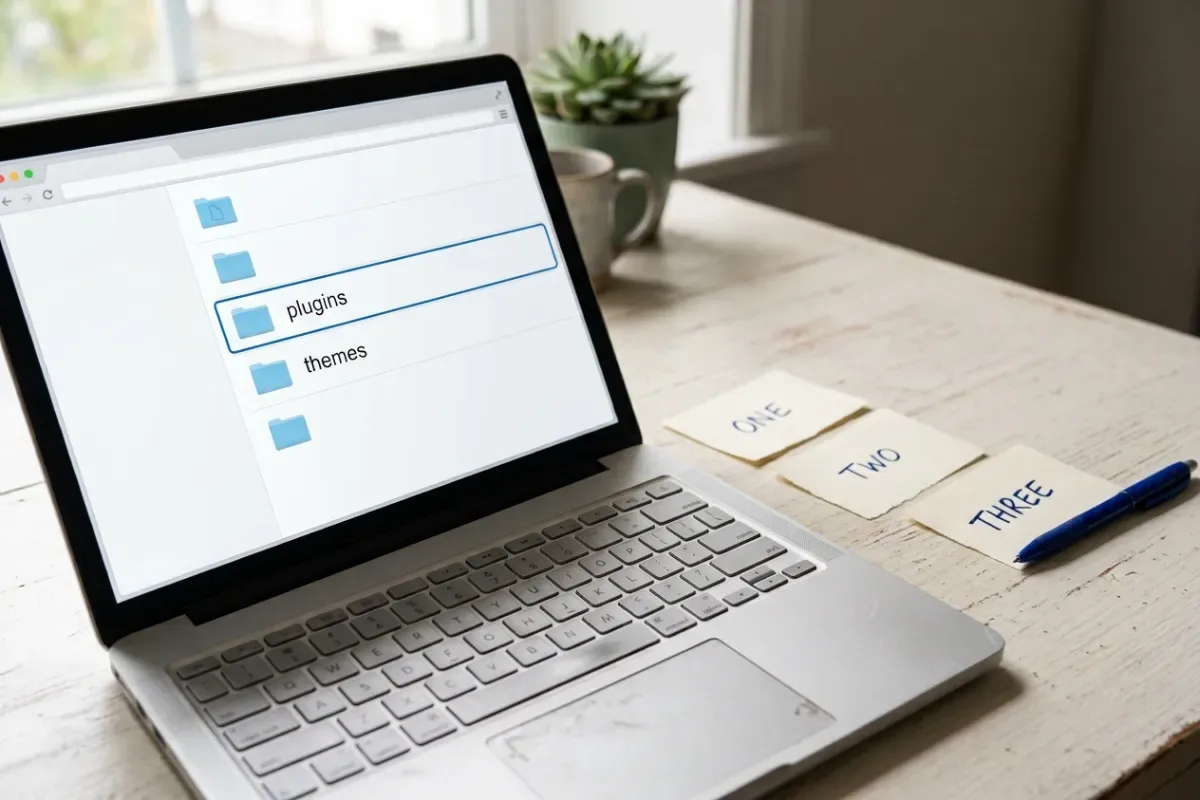
WordPress's own troubleshooting FAQ describes the standard method when you cannot reach the dashboard. Using your host's file manager or FTP, open wp-content and rename the plugins folder to something like plugins.hold. Load yoursite.com/wp-admin. WordPress will report the plugins as missing and deactivate them, while keeping their settings. Rename the folder back to plugins.
- 1If the dashboard now loads, the fault was a plugin. To find which one, reactivate plugins one at a time and reload the public site after each. Ideally do this on a staging copy; on a live site, accept that the error will briefly return when you hit the culprit, and deactivate it again immediately.
- 2If the dashboard still fails, open
wp-content/themesand rename your active theme's folder. WordPress falls back to a default theme if one is installed. If the site loads, the theme is the cause. - 3If neither helps, the cause is likely PHP version, memory, corrupted core files or the database; continue to the next steps rather than repeating renames.
Once you know which plugin or theme failed, check its changelog and support forum for a known issue with your WordPress or PHP version. Update it if a fix exists, replace it if it is abandoned, or leave it deactivated until the developer responds. Once identified, keep the broken plugin off the live site; test any fix or update on a staging copy first.
4. Check PHP version and memory limit
If the error appeared right after your host changed the PHP version, or after a plugin update that requires a newer PHP, the fix is alignment, not more renaming. WordPress recommends PHP 8.3 or newer and notes that older end-of-life versions may expose the site to vulnerabilities. Plugins and themes that were never updated for modern PHP are the common casualty when a host upgrades.
In the hosting panel you can usually pick the PHP version per site. Moving back one version can restore the site quickly, but treat it as a temporary bridge, not the fix. Note which plugin breaks on the newer version, update or replace it, and move forward again. Running an old PHP version indefinitely to keep one abandoned plugin alive trades an outage today for a security problem later.
Memory errors read like Allowed memory size of … bytes exhausted. The wp-config reference explains the WP_MEMORY_LIMIT constant; some hosts cap it and must raise it themselves. If a single plugin needs far more memory than everything else, ask why before raising limits.
5. Read the error log instead of guessing
When the cause is still unclear, the exact error text is worth more than any forum thread. The debugging documentation describes three constants in wp-config.php, placed above the line that says That's all, stop editing!: set WP_DEBUG to true, WP_DEBUG_LOG to true and WP_DEBUG_DISPLAY to false, with the values unquoted. Errors then go to wp-content/debug.log rather than onto the public page. Reload the broken page once, then read the log.
The log line names the file and line that failed, which almost always includes a plugin or theme folder name. That tells you exactly what to deactivate or update. Your host's PHP error log shows the same information from the server side, and support can usually locate it for you.
Two cautions from the same documentation: debugging is not meant to stay on for live sites, and a debug log left in a public folder is a security risk. When you are done, turn the constants back off and delete the log or protect it. If any of this feels outside your comfort zone, stop here and hand the log to a developer; the information is already collected.
6. Restore from backup when the fix is unclear
If you cannot identify the cause, or the isolation steps did not bring the site back, restore the most recent backup from before the incident. Follow the order in the backup documentation: files first, then the database. Host-managed restores usually handle both together. Confirm the site loads, then check the admin dashboard and one or two important pages before announcing it fixed.
A restore returns you to a working past state; it does not stop the same update from breaking the site again. After restoring, delay the suspected update, or apply it on a staging copy first. If the incident began with a PHP version change at the host, the restore alone will not help; handle the PHP step above.
Restoring also rolls back content changes made after the backup, such as new orders, posts or form entries stored in the database. Weigh that loss against the outage. If it matters, a developer can often export recent data from the broken copy before restoring.
7. Verify, then prevent the next one
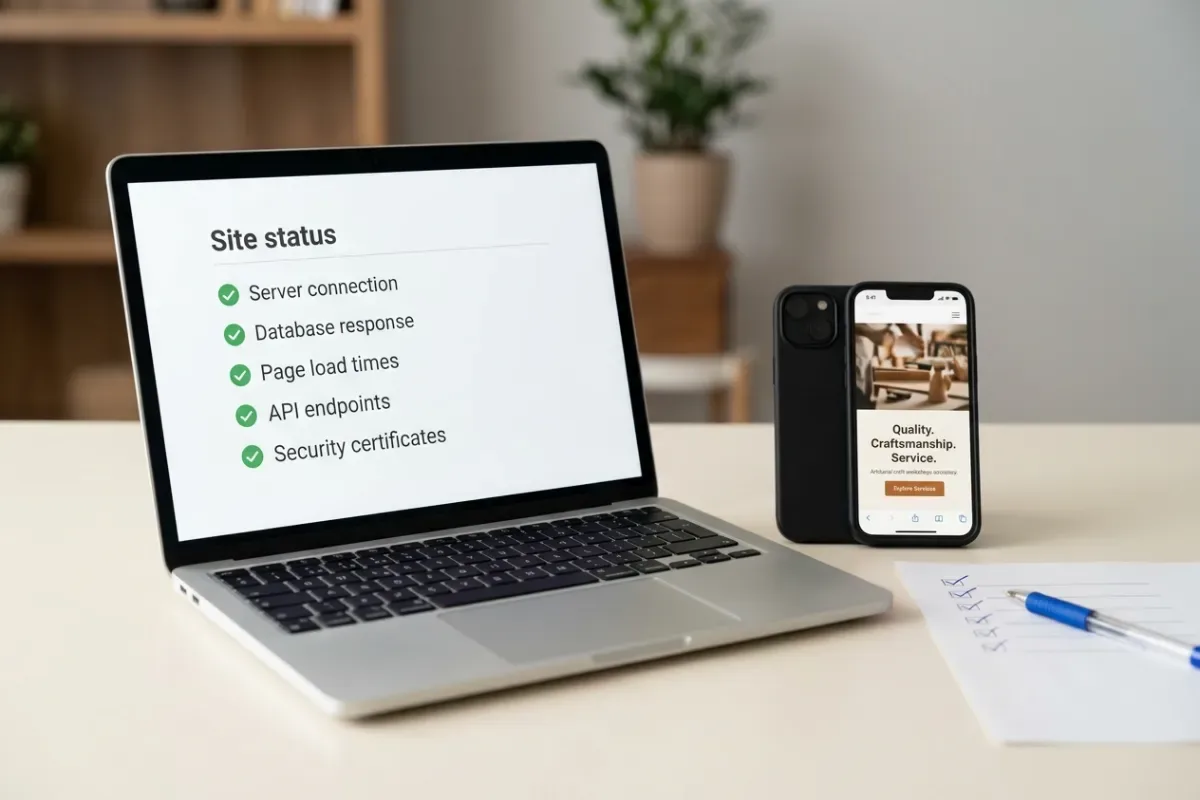
Once the public site loads, verify properly: open the home page, a service page and the contact page in a private window and on a phone; log in and check Tools → Site Health. The Site Health screen flags an outdated PHP version, errors displayed to visitors, a publicly reachable debug log and plugins waiting for updates. Its Info tab also exports the technical details a developer will ask for.
- 1Confirm the admin email address is correct and actually receives mail. Without it, the next recovery link never reaches you.
- 2Update WordPress, the theme and remaining plugins in a controlled way: one at a time, or on a staging copy first for sites that earn revenue.
- 3Remove plugins you no longer use. Every inactive-but-installed extension is still code that has to keep up with PHP.
- 4Keep at least three recent backups in more than one place, and test one restore so you know the process before you need it.
- 5Write down what broke, what fixed it and the date. The next outage is much shorter when the history is in front of you.
This is the practical content of a good maintenance routine: controlled updates, working backups, a monitored admin inbox and a periodic Site Health check. If you would rather not be the person doing this at 9 a.m. on a Monday, that is a reasonable thing to delegate, and the website maintenance service is built around exactly these tasks.
Frequently asked questions
Is the critical error a hack?
Usually not. The message is triggered by a code error, most often after an update or PHP change. Signs that point to a compromise are different: unfamiliar admin users, redirects, spam pages or files you did not add. If you see those, follow the incident steps in the website security guide and involve your host.
Why did the error appear after a PHP update?
Hosts retire old PHP versions, and plugins or themes that were never updated for newer PHP fail when the switch happens. Identify the failing extension via recovery mode or the debug log, update or replace it, and stay on a supported PHP version rather than rolling back permanently.
Recovery mode is not working or I never got the email
The admin email may be wrong or the server's mail may be undeliverable, and WordPress limits recovery emails to one per day by default. Use the manual method: back up, rename the plugins folder through your host's file manager, and switch to a default theme. Fix the email problem afterwards so future recovery links arrive.
What does “Error establishing a database connection” mean?
WordPress cannot reach its database. Common causes are incorrect database name, user, password or host in wp-config.php, a database server that is down, or an account over its database quota. Check with your host first; if credentials and the server are fine, treat it as a possible security incident.
Will I lose content if I restore a backup?
You lose anything created after that backup was taken: posts, orders, form entries and settings changes. Choose the newest backup from before the incident and, if recent data matters, ask a developer to export it from the broken copy first.
Can I just delete the plugin that caused it?
Deactivating it is enough to bring the site back. Before deleting, check whether the plugin holds data or settings you need and whether an update fixes the issue. If it is abandoned or unnecessary, remove it after the site is stable and you have a fresh backup.
When to hand it over
Stop and get help if the manual steps do not bring the site back, if the log points at WordPress core or the database rather than a plugin, if you suspect a compromise, or if the site takes orders and every hour matters. A useful handover includes: the exact error text, the recovery email if any, what changed in the last few days, the Site Health Info export, and the date of your last good backup. Never share hosting passwords or database credentials in chat or email; use your host's access-sharing feature or change them afterwards.
Written by
Ali Rehman - Freelance Web Developer
I work on WordPress websites, practical fixes and scoped web applications. Read my background and skill scope, or send a project brief to discuss a written plan and quote - start here.
More articles by Ali Rehman →