
WordPress Changes Not Showing? Find the Cache That Is Hiding Them (2026)
A saved edit and an unchanged live page usually means a cache is still serving the old copy, but not always. Confirm the page was actually published, test as a visitor, then clear each cache layer in order and verify the result.
 Ali RehmanFreelance Web Developer
On this page 10 sections
You fixed a price, swapped a photo or rewrote a paragraph, clicked Update, and the public page still shows the old version. WordPress changes not showing is one of the most common owner complaints, and in most cases nothing is broken: a stored copy of the page is being served instead of the fresh one. Sometimes, though, the edit was never published, the wrong page was edited, or a theme file quietly overrode your work.
This guide walks through that order using official WordPress, Elementor, browser and CDN documentation, checked in October 2026. It is written for business owners and site maintainers, not server administrators, and it is not a report about any particular client site.
Start by naming the exact symptom
Different symptoms point to different layers. Before clearing anything, write down which of these matches your situation:
- You see the change while logged in, visitors do not: almost always a page cache. Many caching setups skip the cache for logged-in administrators, so the dashboard view is not what the public receives.
- Nobody sees the change, including you in a private window: check publish status, the correct URL and your editor first. A cache cannot hide an edit that was never saved to the live page.
- Text updated but images, colours or layout did not: styles, scripts and media are cached separately from the HTML, often by the browser and the CDN for much longer.
- Desktop shows the change, your phone does not: the phone has its own browser cache, may be on a different network and may receive a different cached copy from a CDN. Clear the phone's browser too before blaming the site.
- Changes made in Elementor are missing but ordinary WordPress edits appear: Elementor keeps its own generated CSS files and element cache, which need their own regeneration step.
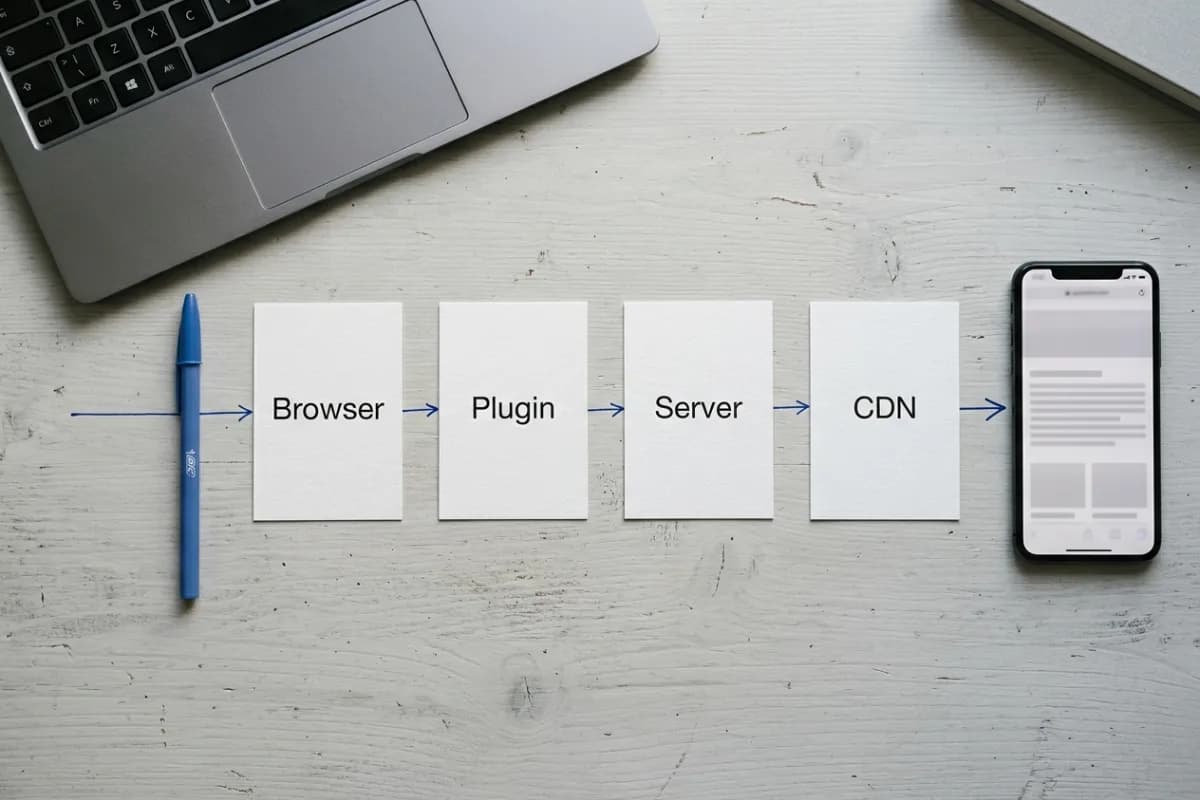
Also note the time of the change and anything else that happened around it: a plugin update, a new caching tool, a hosting migration, a DNS change or a theme update. A clear timeline makes the later steps faster and gives a developer or host something concrete to work with.
1. Confirm the edit was published, not just saved
In the block editor, Save draft and Publish are different actions. WordPress's block editor guide explains that saving a draft stores your work without making it public, while Publish makes the page available to everyone. On an already-published page the button reads Update; until you click it, visitors keep seeing the previous version.
- 1Open the page in the editor and check the status in the settings sidebar. It should say Published, not Draft, Pending, Scheduled or Private. A Scheduled page appears only after its publish time; a Private page is visible only to editors and administrators.
- 2If you restored an older revision or an autosave, click Update again afterwards. WordPress's revisions documentation notes that autosaves are stored separately and do not overwrite published content on their own.
- 3Use the View menu to open the live page in a new tab rather than trusting the editor canvas. The View feature guide describes the canvas as a preview of your current changes, which can differ from the public page.
- 4Check that the live URL in your browser is the one you edited. Duplicated pages, old slugs, staging copies and translated versions look alike. Opening the editor from the live page's admin bar removes the guesswork.
If your homepage looks unchanged, confirm which page is actually the homepage. Under Settings → Reading, the site can show latest posts or a specific static page; editing a different page called Home changes nothing on the front page.
Elementor users have an extra distinction. Elementor's preview and publish guide explains that the preview link is different from the real page link, and that the arrow next to Update lets you save work as a draft without changing the published page. If you chose Save Draft, the public page is intentionally unchanged.
2. Look at the page the way a visitor does
Log out, or open a private window in your browser, and load the public URL. Then load it on a different device or network if you can. A phone on mobile data is a useful second opinion because it does not share your computer's cache or your office network.
Compare the two views. If the private window already shows the new version, the problem was your own browser, and the fix is in the next section. If both views show the old version, a shared cache between your server and visitors is involved, which the later steps cover. If the private window shows the change but your normal window does not even after a reload, you have confirmed a browser-level issue without touching the site.
One caveat: a private window is a comparison tool, not proof. It also drops your login cookie, so pages that show different content to members, customers or specific roles will legitimately look different. On a membership or store site, log in with a test account that has the same role as the visitor who reported the problem before deciding anything is cached.
3. Clear your own browser cache properly
Browsers store copies of pages, stylesheets, scripts and images so repeat visits are faster. MDN's HTTP caching guide explains that a normal reload asks the server to validate the stored copy, while a forced reload tells the browser to ignore its cache entirely. If a plain refresh did nothing, try the forced version: in Chrome, Edge and Firefox on Windows that is Ctrl + Shift + R; on a Mac it is Cmd + Shift + R.
If a forced reload still shows old styling or images, delete the cached files. Google's Chrome instructions cover the Delete browsing data dialog; choose cached images and files, and keep cookies if you want to stay signed in to other sites. Other browsers have an equivalent setting. On a phone, clear the mobile browser's cache the same way; a desktop fix does nothing for the copy stored on your phone.
The important limitation is that this only fixes your computer. Visitors who have already loaded the old file keep it until it expires. web.dev's HTTP cache guide explains the practical workaround: give changed files a new name or version so browsers treat them as new. Uploading hero-v2.jpg instead of overwriting hero.jpg avoids weeks of stale images for returning visitors. Good themes and plugins already version their stylesheets this way.
If you edited CSS directly in a theme file and nothing changed, this is also where to pause. Ask whether the stylesheet is actually loaded, whether a caching or minification plugin bundled the old copy, and whether a theme update replaced your edit. Section 6 covers those possibilities.
4. Purge the WordPress page cache, then Elementor's files
Caching plugins and managed hosts store finished HTML so the server does not rebuild each page for every visitor. The WordPress caching handbook describes this page caching alongside browser caching, persistent object caching and server-level caching. Most setups clear the stored copy automatically when you update a page, but that automation can be misconfigured, disabled for certain content types, or absent for widgets, menus and theme settings.
- 1Find the caching tool in your dashboard. Common plugins add a Clear cache, Delete cache or Purge all link to the top admin bar or their settings page. Managed hosts often add their own cache menu to the dashboard or hosting panel.
- 2Clear the single page first if the tool offers it, then check the live page in a private window. Clear everything only if the single-page purge did not help; a full purge makes every page slower for the next visitor while the cache rebuilds.
- 3Run only one full-page caching plugin at a time. Two plugins caching the same pages is a common reason purges appear to do nothing: one plugin clears its copy while the other keeps serving its own.
- 4If your host provides server-level caching such as Varnish, LiteSpeed or Nginx FastCGI, purge it from the hosting panel or ask support to do it. A plugin's button may not reach that layer.
- 5If your host or plugin uses a persistent object cache such as Redis or Memcached, flush it too when settings or menus are stale. Object caching stores database results, not pages, so it behaves differently from page caching.
You can also clear the WordPress cache without a plugin button if the caching is handled by your host: the host's control panel or support team is the right route. Deleting a caching plugin as a way to clear the cache is a last resort, because the plugin's settings and exclusions disappear with it. If the site has no caching at all and you still see stale content, the cause is a different layer.
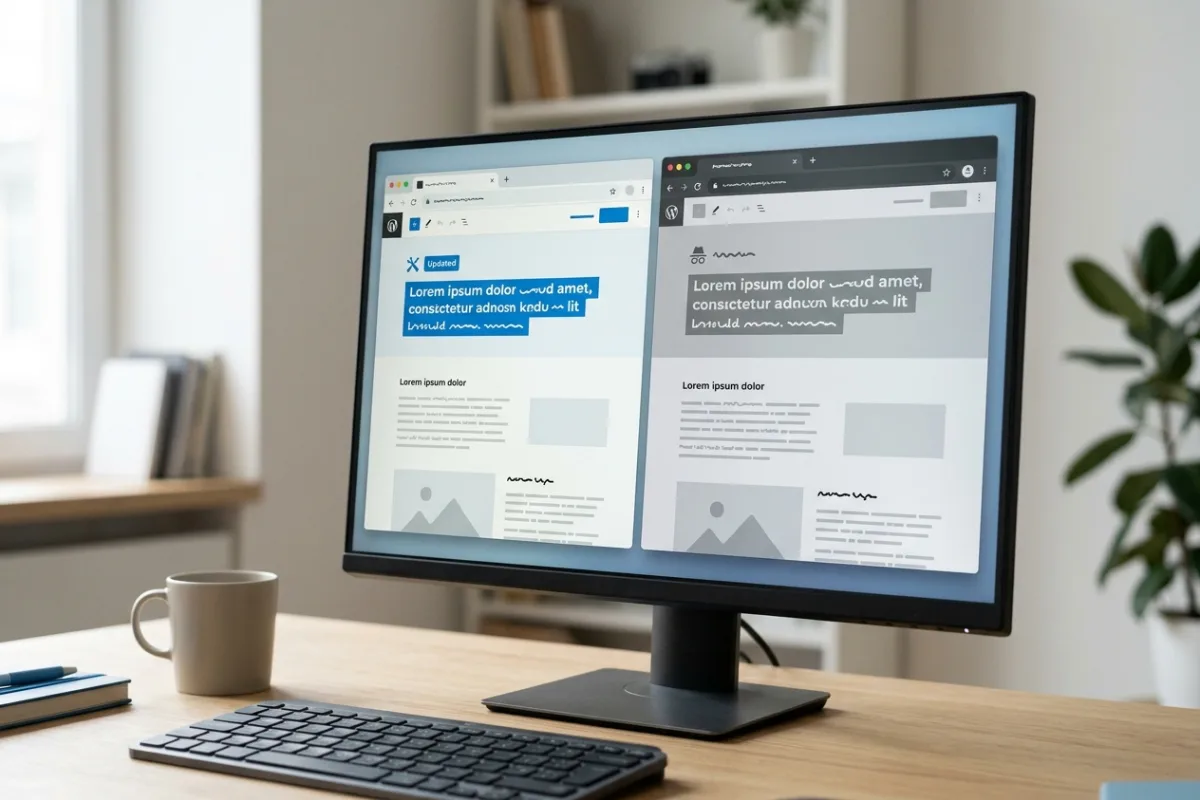
Elementor adds one more step. Its design settings are written to generated CSS files, and Elementor's guide My changes do not appear online lists stale files, caching and optimisation plugins, server configuration and unclosed custom code as causes. The vendor's first recommendation is Clear Files and Data under Elementor → Tools, which regenerates those CSS files. Elementor warns to back up the site first, so make sure a restorable backup exists. After regenerating, purge the page cache again, because the old HTML may still reference the old stylesheet.
The same Elementor guide notes that its Element Caching feature stores Elementor elements separately. If non-Elementor text updates but Elementor widgets do not, that feature or a stale element cache is a likely lead. Follow the vendor's instructions to clear or temporarily disable it rather than deleting the plugin. If the Elementor editor itself will not open, that is a different problem covered in the Elementor editor not loading guide.
5. Purge the CDN or edge cache and confirm it worked
A content delivery network stores copies of your files on servers around the world. The WordPress optimisation handbook notes that some CDNs also cache the full HTML of your pages, not just images and scripts. If your site uses Cloudflare or a similar service, a plugin purge does not reach that layer unless the plugin is integrated with it.
Cloudflare's purge documentation recommends purging by single URL rather than everything, and makes an important point: a successful purge request returns a confirmation that the request was received, which does not prove anything was removed. To verify, request the page again and check that the CF-Cache-Status response header is no longer HIT. Cloudflare's cache status reference explains the values; MISS, EXPIRED or DYNAMIC after a purge means the fresh copy came from your server.
Two Cloudflare settings cause confusion here. Development Mode bypasses the edge cache for three hours but does not purge anything, so it is a testing aid rather than a fix. And according to Cloudflare's Browser Cache TTL documentation, purging Cloudflare's cache does not affect files already stored in a visitor's browser; a long browser TTL means repeat visitors keep seeing old assets until that time passes. Versioned file names, from section 3, are the practical answer.
If you are not sure whether a CDN sits in front of the site, your host or developer can read the response headers in a few seconds. Do not disable the CDN or change DNS records on a hunch; a misconfigured switch can take the site offline or break HTTPS, which is a bigger problem than a stale image. The website-not-secure guide covers what happens when certificates and hostnames stop matching.
6. When it is not a cache at all
If every layer is clear and a visitor still sees the old content, stop purging and look at what was actually changed. These are the non-cache causes that produce the same symptom.
- The theme file you edited is not the one in use. If the site runs a child theme, edits to the parent theme's files may be ignored, and vice versa. The WordPress child theme documentation also notes that a child theme's style.css is only loaded if the parent theme or the child theme enqueues it. A file that is never loaded cannot change anything.
- A theme or plugin update overwrote your edit. WordPress's Customizer documentation warns that directly modified theme files can be lost when the theme is updated. Changes made through Additional CSS, a child theme or a code-snippet plugin survive updates; edits made inside the theme's own files do not.
- A later rule overrides yours. Custom CSS added in several places, such as the Customizer, Elementor's page settings and a theme option, can conflict. The rule you see in the editor may be defeated by one you forgot about.
- Broken custom code. Elementor's troubleshooting guide lists unclosed HTML tags and invalid CSS as reasons a change does not render. One missing bracket can silently cancel everything after it.
- You are looking at a different site. Staging copies, old installations in a subfolder, a www and non-www split or an old DNS record can all serve a different WordPress than the one you edited. Compare the admin URL you logged into with the public URL you are testing.
- Visibility and permissions. Content restricted to certain roles, password-protected pages and membership plugins show different versions to different people by design. Test with the same role as the person reporting the problem.
If a recent change took the public site down rather than leaving it stale, use the WordPress critical-error guide instead. And if pages are consistently slow as well as stale, the WordPress speed guide explains how caching should be set up so it helps visitors without hiding your updates.
Verify the fix, then write down which layer it was
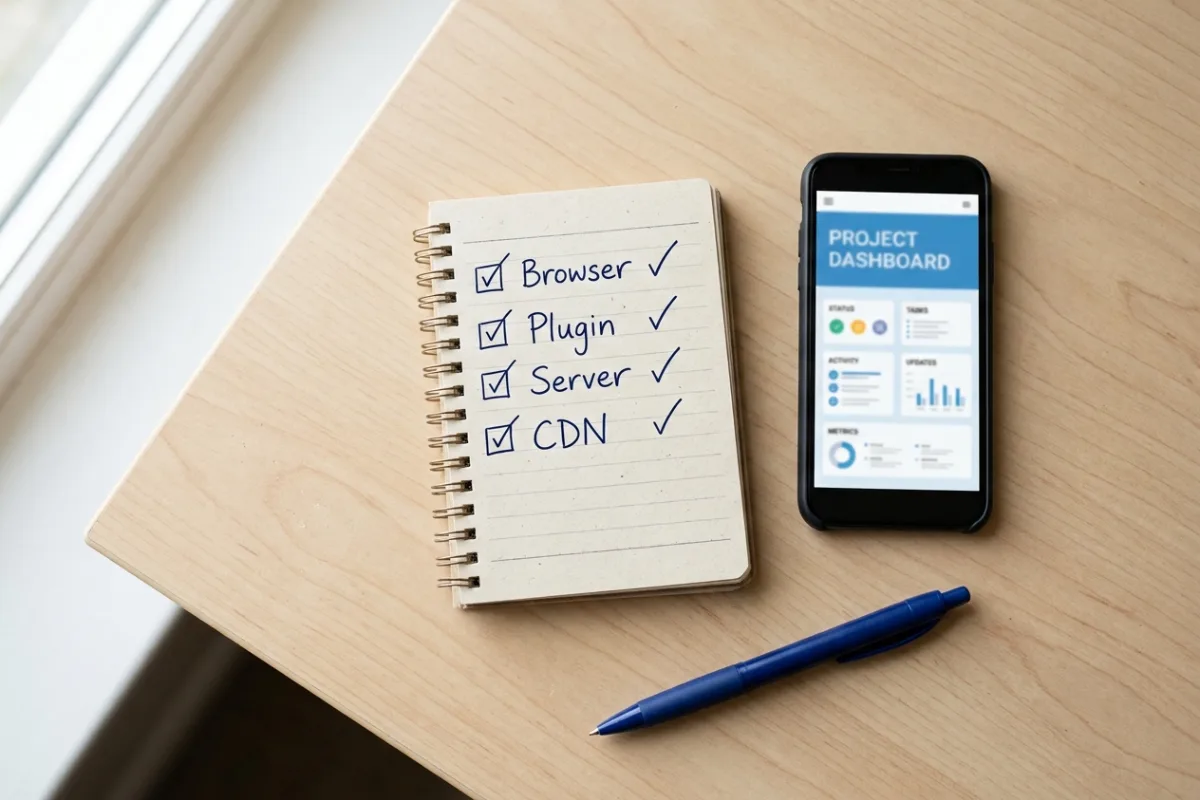
After the live page shows the change, run a short confirmation so the problem does not come back on the next edit:
- 1Load the page in a private window on desktop and on a phone using mobile data. Both should show the new version.
- 2Check one more page you edited recently, not just the one you were watching. A misconfigured cache usually affects more than one URL.
- 3Make a small harmless edit on a test page, click Update, and confirm it appears for a logged-out visitor within a minute. If it does not, the automatic cache clearing is still not working and needs a configuration fix, not another manual purge.
- 4If you changed any caching settings during the investigation, write down what they were before and after. Restore anything that was only switched off for testing.
Keep a one-line note of which layer was responsible: browser, plugin, host, CDN, Elementor files or not a cache at all. Recurring problems with the same layer usually mean a configuration issue worth fixing once, which is exactly the kind of task a maintenance arrangement should cover. If the site is being rebuilt or moved, the website launch checklist includes the cache and CDN checks that prevent this after a release.
Frequently asked questions
Why are my WordPress changes not showing when I am logged out?
Many caching plugins and hosts skip the cache for logged-in users so administrators always see fresh pages, while visitors receive the stored copy. If the change appears only while logged in, purge the page cache and any server or CDN cache, then recheck in a private window. If it still does not appear, confirm the page is published and not restricted to certain roles.
Why are WordPress changes not showing on mobile but fine on desktop?
Your phone has its own browser cache and may be receiving a different cached copy from a CDN server near it. Clear the phone's browser cache or test in a private tab on the phone, and purge the CDN if you use one. Some caching plugins also keep separate mobile copies of pages, which need purging too.
How long should WordPress take to show an update?
Immediately. A correctly configured site clears the relevant cache when you click Update, so the public page changes within seconds. Waiting hours or days is a sign that a cache layer is not being cleared automatically or that the browser is holding an old file; it is not normal behaviour to accept.
Why are my CSS changes not showing in WordPress?
Stylesheets are cached more aggressively than HTML, by the browser, by minification plugins and by CDNs. Force-reload the page, purge the caching plugin and CDN, and confirm the file you edited is actually loaded by the active theme. If you edited a theme file directly, check whether a theme update replaced it; a child theme or Additional CSS is the durable place for custom styles.
Why are Elementor changes not showing on my website?
Elementor stores design settings in generated CSS files that can go stale after updates or caching changes. Back up the site, use Clear Files and Data under Elementor → Tools, then purge your page cache and CDN. If widgets specifically do not update, check Elementor's Element Caching feature and any optimisation plugins that combine or delay CSS.
Should I just delete my caching plugin?
Not as a first step. The plugin is doing a useful job for visitors, and deleting it removes its settings and exclusions. Clear its cache, make sure only one full-page caching plugin is active, and fix the automatic purge settings. Replace the plugin only if it cannot be configured to clear pages when you update them.
When to involve a WordPress developer
Get help when caches are clearing but content is still stale, when you cannot tell which caching layers the site has, when an edit disappeared after an update, or when the site takes orders and you do not want to experiment on it. Ask for a diagnosis that names the layer, a narrow fix, and a check that updates appear automatically afterwards.
Written by
Ali Rehman - Freelance Web Developer
I work on WordPress websites, practical fixes and scoped web applications. Read my background and skill scope, or send a project brief to discuss a written plan and quote - start here.
More articles by Ali Rehman →