
WordPress Images Not Showing? Find the Broken Link Between File and Page (2026)
A missing image is either a file that is not there, a page pointing at the wrong address, or a browser or server refusing to serve it. Work out which one you have, fix that layer, and confirm it on a visitor's device.
 Ali RehmanFreelance Web Developer
On this page 10 sections
You open a page and see a grey box, a tiny broken icon or just empty space where a photo used to be. The media library may show thumbnails or may be blank too. WordPress images not showing is one of the most common complaints after a site move, an HTTPS switch or a hosting change, and the good news is that an image is only ever missing for one of three reasons: the file is not where WordPress thinks it is, the page is pointing at the wrong address, or something between the server and the browser is refusing to deliver it.
This guide uses official WordPress, Mozilla and Google documentation checked in October 2026. It is written for business owners and site maintainers rather than server administrators, and it is not a report about any particular client site. Where a step needs file or database access it says so, and where a step can make things worse it tells you what to back up first.
Start with the image's own address
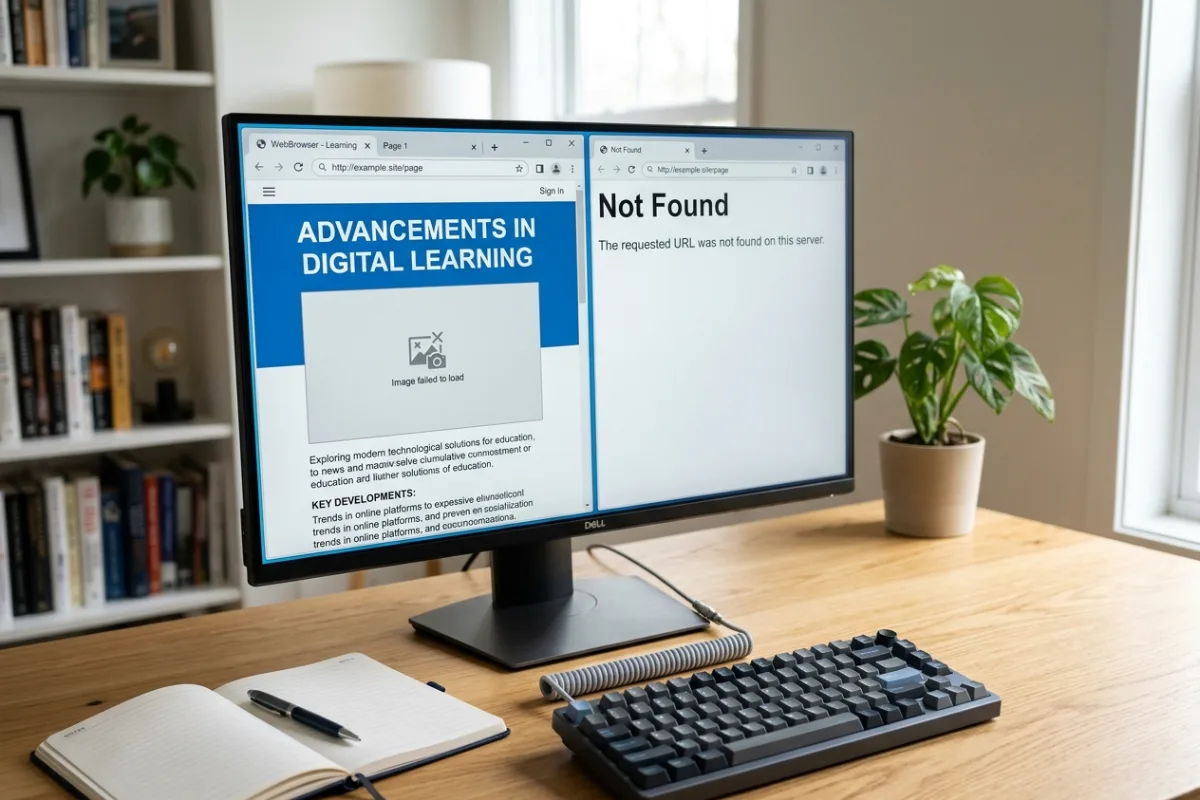
Before clearing caches or changing settings, find out what the browser is actually being asked to load. Right-click the empty space where the image should be and choose Open image in new tab or Copy image address; on a phone, use the desktop view or ask someone with a laptop. Paste the address into a new tab and note what happens:
- The image loads on its own but not in the page: the file is fine. Suspect a cache, a lazy-loading or optimisation plugin, a mixed-content block or a theme issue. Go to steps 4 and 5.
- You get a 404 or a hosting error page: the address points somewhere empty. Either the file was never copied, or the address is wrong after a move. Go to steps 1 and 2.
- You get a 403 or a permissions error: the file exists but the server will not serve it. Go to step 2.
- The address starts with http:// while your site is https://, or shows an old domain or a staging address: a classic migration or HTTPS leftover. Go to step 1.
- The address shows a different size suffix, such as -300x200, than the file you uploaded: WordPress generated resized copies and that copy is missing. Go to step 3.
Also note when it started. Images that vanished right after a migration, a domain change, an SSL certificate, a hosting move, an optimisation plugin or a theme update almost always vanished because of that change, which shortens the search considerably.
1. Fix addresses left over from a move or an HTTPS switch
WordPress stores the full address of every image inside your page content, not just the file name. The WordPress migration documentation is explicit that image links live in the post_content column and keep pointing at the old domain, the old folder or the old http:// address after a move. The files may have come across perfectly; the pages are still asking for them from the old place.
- 1Check Settings → General first. Both the WordPress Address and the Site Address should use the live domain and
https://, with no trailing slash, as the migration guide specifies. If either still shows the old address, correct it and save. - 2If the pages still reference old addresses, run a search-and-replace across the database with a maintained plugin or, if your host provides it, the WP-CLI
search-replacecommand. The migration guide names both options and warns that a plain find-and-replace in the database can corrupt serialised data stored by themes and widgets, so use a tool that understands WordPress rather than editing by hand. - 3Back up the database before running any replacement, and never change the
guidcolumn. The documentation is blunt that the GUID must never be altered, even when the domain changes; good tools skip it by default. - 4Clear transients or let the tool do so. The guide notes that cached addresses can live in transient options and resurface the old domain even after a replacement.
The HTTPS case deserves its own explanation because browsers now handle it quietly. A page served over https:// that asks for an image over http:// is mixed content. Mozilla's mixed content reference explains that modern Chrome, Edge and Firefox automatically upgrade plain image requests to https://, so the image appears if a secure copy exists and silently fails if it does not. Safari does not upgrade, and any image addressed by a bare IP address is blocked outright. Google's mixed content guide adds that Chrome lists every upgraded or blocked resource in the DevTools Issues tab, which is the fastest way to confirm this is your problem. The fix is the same search-and-replace from above, swapping http://yourdomain for https://yourdomain. If the certificate itself is the issue, the website not secure guide covers it.
2. Confirm the files exist and the server can read them
If the image's own address returns an error, look at the server. WordPress keeps uploads in wp-content/uploads, and the Media Settings documentation explains that by default they are organised into year and month folders, so a photo uploaded in June 2024 lives at wp-content/uploads/2024/06/. Open that path over SFTP or your host's file manager and check whether the file is there.
- The folder or file is missing: the migration did not copy the uploads folder, or copied it incompletely. Restore the folder from the old host or a backup. Large upload folders often fail halfway through a transfer; compare file counts between old and new.
- The file is there but the address returns 403: permissions or ownership are wrong. The WordPress file permissions guide gives the normal scheme: folders
755, files644, owned by your hosting account rather than the web server user. It also warns in plain language never to use777, even on upload folders, because that hands write access to every process on the server. - The file is there, permissions look right, and it still will not load: some hosts block direct access to image files through hotlink protection or a security rule. Check the hosting panel's security section, or ask support whether anything is blocking
wp-content/uploads. - Pretty permalinks also return 404s: WordPress's common errors guide notes that broken permalinks and a blank screen on image upload can share one cause: the server's rewrite module is not enabled or the
.htaccessfile is missing after a move. Resetting permalinks from Settings → Permalinks regenerates the file; if that fails, your host needs to enable rewriting.
Do not start changing permissions across the whole site to see what happens. The permissions guide recommends starting restrictive and loosening one step at a time, and it is explicit that wrong permissions can take a site offline. If you are not comfortable with the file manager, this is a reasonable point to ask your host; the request is simply to check that wp-content/uploads is readable by the web server and owned by your account.
3. Repair the media library and missing sizes
WordPress does not store one copy of each image. When you upload a photo it generates several resized versions, and the sizes it makes are set in Settings → Media. Themes and plugins often add their own. The media library and your pages then use whichever size fits the spot, which creates two specific failure modes.
- The original loads but a resized copy does not. The address ends in a size suffix like
-768x512.jpgand that file does not exist on the server. This happens when images were copied from another site without their generated sizes, or when a theme switch introduced new sizes. Regenerating thumbnails with a maintained plugin or WP-CLI rebuilds the missing copies from the originals; it reads every image and can take a while on large libraries, so run it once rather than repeatedly. - The media library shows blank squares even though the files exist. The library displays thumbnail sizes. If those were never generated or were deleted by a cleanup tool, the grid looks empty while the originals are fine. The same regeneration fixes it. If the library is blank because the uploads folder is missing, go back to step 2.
- A featured image is set but does not appear. Check the media library's attachment details for that image: if the file address returns an error, it is a step 1 or 2 problem. If the file loads but the theme does not show it, the theme template or a page-builder setting controls featured image display, and a theme or plugin update may have changed it.
- WebP or AVIF images are missing. Newer formats need server support and a reasonably recent WordPress. If uploads of these formats fail or the generated copies are missing, confirm the server's image library supports the format in Tools → Site Health → Info → Media Handling before blaming the files.
If the images themselves look blurry rather than missing, that is usually a size problem too: the page is stretching a small generated copy. WordPress's image size and quality guide explains the trade-off between dimensions, compression and file size; upload an original that is at least as large as the biggest spot it will fill, and let WordPress make the smaller copies.
4. Fix uploads that fail with an HTTP error or cannot process the image
Sometimes the existing images are fine and the problem is that new ones will not go in. The two messages owners see most are a bare HTTP error during upload and the server cannot process the image. Both are WordPress reporting that something on the server stopped partway through, and the causes are usually one of these.
- 1The file is too big for the server's limits. The Media Settings documentation notes that upload handling depends on the server's PHP configuration. If a smaller image uploads and a larger one fails, the upload or memory limit is the issue. Many hosts expose this in their control panel; otherwise ask support to raise the upload and post size limits. Resizing a 20 MB camera photo to web dimensions before uploading avoids the problem entirely and makes the page faster.
- 2The image library on the server is struggling. WordPress uses either Imagick or GD to make resized copies, and the Media Settings documentation requires the GD library to be installed for its features. When Imagick runs out of resources on shared hosting, uploads fail at the resizing stage even though the original was received. Check Tools → Site Health → Info → Media Handling to see which library is active, and ask your host if it has known limits.
- 3The uploads folder is not writable. The Media Settings guide notes WordPress creates the year and month folders automatically as long as
wp-contentis writable. If the folder for the current month does not exist and cannot be created, every upload fails. This is the same ownership and permission check as step 2. - 4A security or optimisation plugin is intervening. Image compression plugins process files on upload; if their service is unreachable or their quota is exhausted, the upload can appear to fail. Temporarily deactivate the plugin, upload once, and reactivate it to confirm.
- 5The file name or type is unusual. Spaces, accented characters, very long names and unusual extensions cause trouble on some servers. Rename to lowercase letters, numbers and hyphens, and save as JPEG, PNG or WebP.
Avoid the common shortcut of forcing WordPress to use GD instead of Imagick through a code snippet unless your host recommends it. It often works, but it changes image quality and disables features, and the underlying resource limit is still there. Ask the host to fix the limit instead.
5. Rule out caches, CDNs and lazy-loading plugins
If the image's own address loads perfectly and only the page refuses to show it, nothing is wrong with the file. Something is serving the page with the wrong reference, or deferring the image and never finishing.
- Page and browser caches. A cached copy of the page may still contain the old addresses from before your fix. Purge the caching plugin, host cache and browser cache, then recheck in a private window. The cache layers guide walks through each one in order.
- CDN and image-offloading services. If images are served from a CDN address rather than your domain, the CDN may be holding stale copies or pointing at an origin that moved. Purge the CDN and confirm the origin setting after any hosting change. Check the response headers of a failing image; a CDN will usually identify itself.
- Lazy-loading and optimisation plugins. These replace the real image address with a placeholder and load the image when it scrolls into view. If their script fails, every image below the fold stays a placeholder. Deactivate the plugin briefly to confirm. WordPress has lazy-loaded images natively for years, so a separate lazy-load plugin is often unnecessary.
- Page builders and theme image settings. Elementor, other builders and some themes store image references in their own data and may need their cache or CSS regenerated after a move. If the problem is confined to builder sections, regenerate the builder's files; the Elementor guide explains where that lives.
6. When it is not WordPress at all
A few causes sit outside WordPress and produce identical symptoms. Check these if the steps above all pass.
- Ad blockers and privacy extensions. Extensions sometimes block images whose file names or paths contain words like
ad,bannerortrack. If an image is missing only on your computer and loads in a private window with extensions off, rename the file. - Network or corporate filters. Office networks and some mobile carriers filter content. Compare on mobile data and a home connection before assuming the site is broken.
- External images that moved. Images hot-linked from another site, a stock service or an old host disappear when that source changes. The media library will not list them because they were never uploaded. Download and upload them properly, with permission to use them.
- Browser-specific behaviour. As noted above, Safari does not upgrade mixed-content images and no browser upgrades images addressed by a bare IP. A page that looks fine in Chrome and broken in Safari almost always has
http://references left in it.
If the site went down entirely rather than just losing images, the critical error guide applies instead. And if images load but the whole page is slow, the WordPress speed guide covers image sizing and caching done properly.
Verify the fix and record what it was

A fix that worked on your screen may still be broken for visitors. Before you stop:
- 1Load three different pages in a private window, including one deep in the site, not just the homepage. Migration leftovers often hide in older posts.
- 2Repeat on a phone using mobile data, and if possible in Safari as well as Chrome, since the browsers treat mixed content differently.
- 3Open the media library grid and scroll a few screens; blank squares mean missing sizes that will surface later.
- 4Upload one small test image to a draft page, insert it, preview it and delete it. This confirms the uploads folder is writable and the image library works.
- 5If you ran a search-and-replace, spot-check a handful of pages for unexpected changes, and keep the pre-change database backup for a few weeks.
Write down the cause in one line: missing files, old addresses, HTTPS references, permissions, missing sizes, upload limits, a plugin or a cache. If this was a migration leftover, add a note to your launch checklist so the next move includes a full uploads-folder transfer and a search-and-replace before going live. Recurring image failures on a working site usually point to hosting limits worth fixing once as part of a maintenance arrangement.
Frequently asked questions
Why are my WordPress images not showing on the live site but fine on staging?
The pages on the live site still contain the staging address for each image, or the uploads folder was not copied across. Open a broken image's address and look at the domain it points to. Run a WordPress-aware search-and-replace from the staging address to the live one, and confirm the live wp-content/uploads folder has the same year and month folders as staging.
Why is the WordPress media library not showing images?
The library grid displays generated thumbnail sizes. If those sizes were never created, were deleted, or the uploads folder is missing, the grid shows blank squares. Check that the folder and files exist, then regenerate thumbnails. If the library is empty of entries rather than showing blanks, the database was not migrated with the files.
Why is my featured image not showing?
First open the image's file address from the media library; if it errors, it is a file or address problem. If the file loads, the theme or page builder controls whether featured images display on that template, and a recent update may have changed the setting. Check the theme's post settings and the page's builder options.
Why does WordPress say the server cannot process the image?
The upload arrived but the server's image library ran out of memory or time while creating the resized copies, which is common with very large photos on shared hosting. Resize the image to web dimensions before uploading, and ask your host about the memory and upload limits and which image library is active. Check Tools → Site Health → Info → Media Handling.
Why are images not showing after switching to HTTPS?
The pages still reference images at http:// addresses. Most browsers now upgrade those requests automatically, but Safari does not and any bare-IP address is blocked, so the result varies by visitor. Run a search-and-replace from http://yourdomain to https://yourdomain, and update both addresses in Settings → General.
Why does WordPress not show WebP images?
The server's image library may not support WebP, so WordPress cannot create the resized copies, or an older WordPress version does not accept the format. Confirm support under Site Health → Info → Media Handling and update WordPress. As a fallback, upload a JPEG or PNG and let an optimisation plugin serve WebP to browsers that support it.
When to involve a WordPress developer
Get help when a search-and-replace is needed and you have no database backup or access, when permissions or ownership on the server need changing, when uploads fail and the host says everything is fine, or when the site takes orders and you would rather not experiment. Ask for the cause in writing, the exact changes made, and confirmation that the uploads folder, database references and media sizes were all checked, not just the one image you noticed.
Written by
Ali Rehman - Freelance Web Developer
I work on WordPress websites, practical fixes and scoped web applications. Read my background and skill scope, or send a project brief to discuss a written plan and quote - start here.
More articles by Ali Rehman →