
WordPress Login Not Working? Get Back Into wp-admin Safely (2026)
A login that refuses, reloads or errors out has a small number of causes, and most are fixable without a developer. Match what you see to the right step, reset access safely, and make sure nobody else gets in the same way.
 Ali RehmanFreelance Web Developer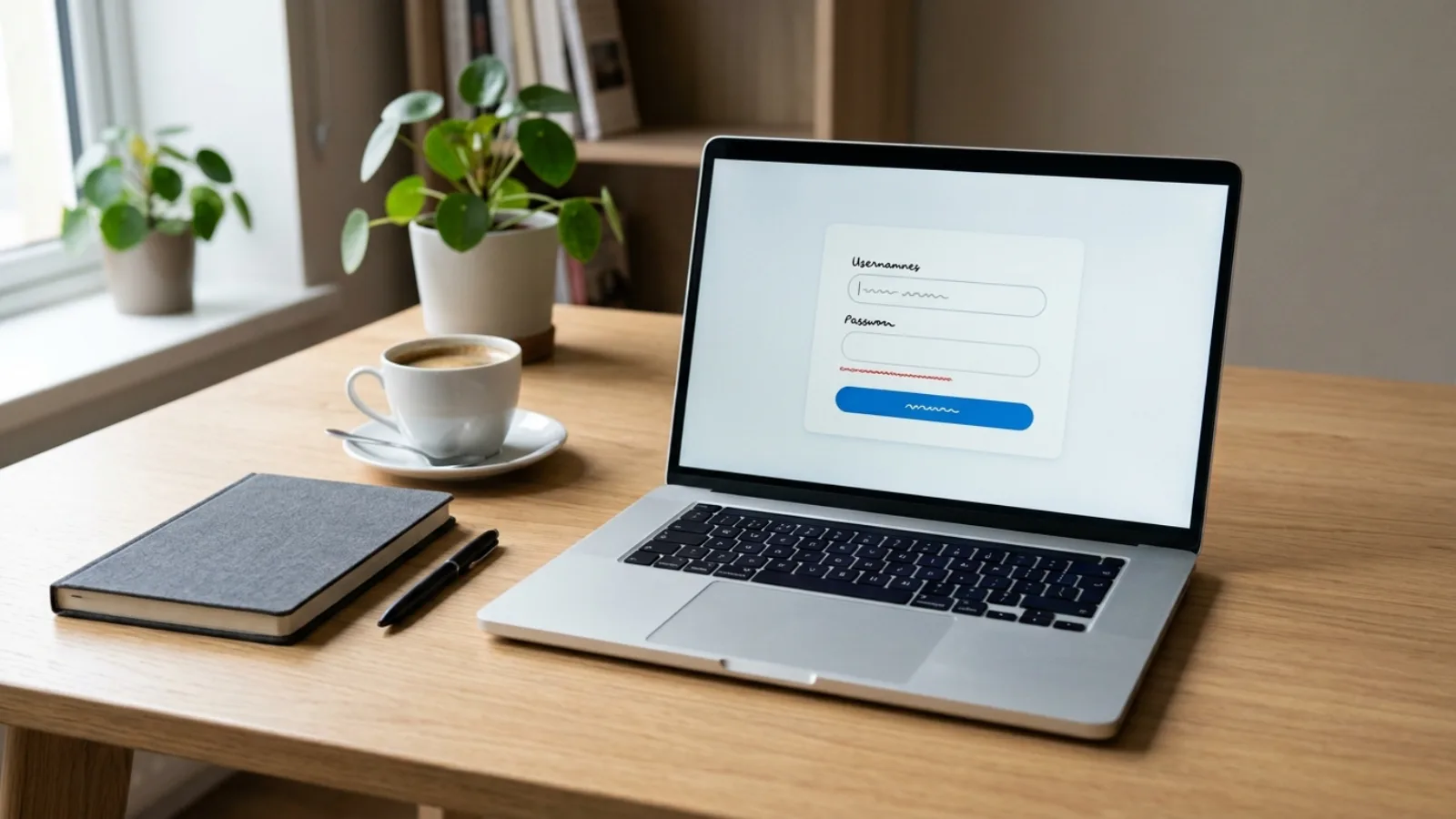
On this page 10 sections
You type the address, enter the password you have used for months, and WordPress either says it is wrong, sends you straight back to the form, or shows an error page instead of a dashboard. WordPress login not working is alarming because it blocks every other fix, but the causes are limited and most can be worked through in order without touching code.
This guide uses official WordPress documentation checked in October 2026 and is written for business owners and site maintainers. It is not a report about any specific client site. Where a step needs hosting-panel or file access, it says so, and where a step is risky, it tells you what to back up first.
Start by naming what you actually see
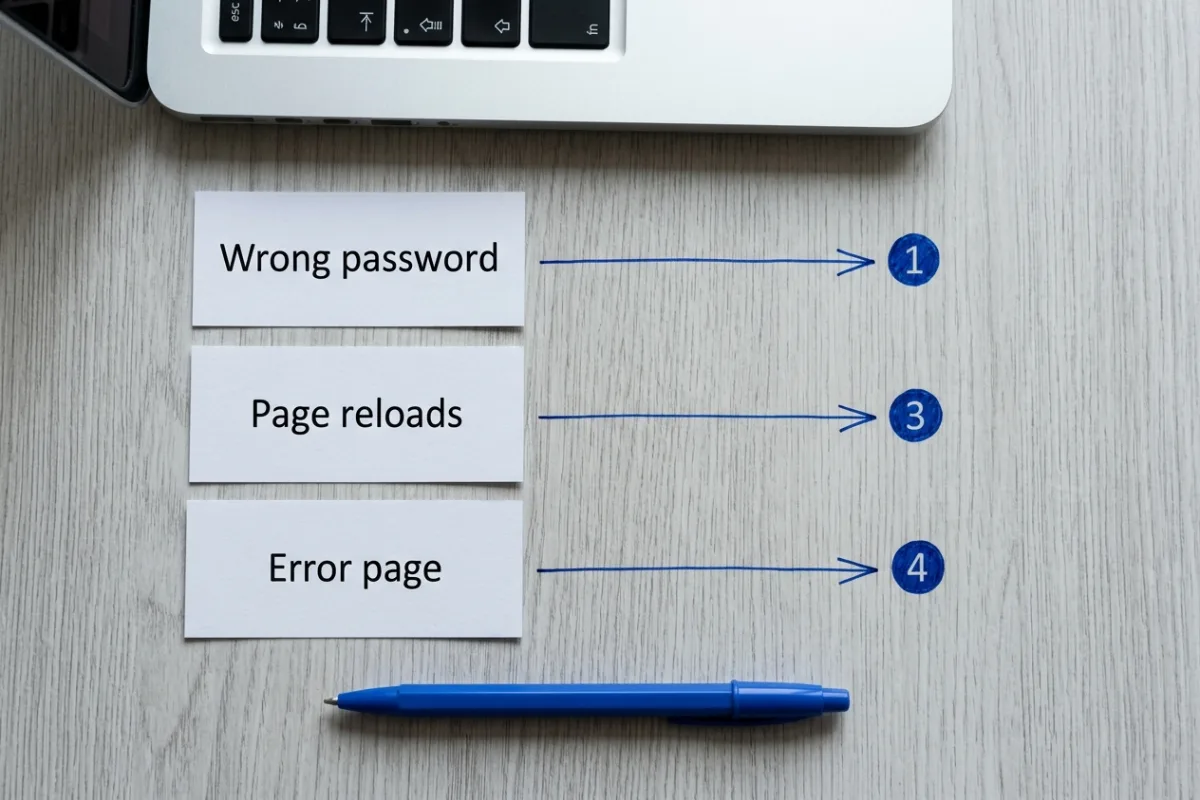
Five different problems all get described as "I can't log into WordPress admin". Write down which one matches before changing anything, because the fixes do not overlap:
- "The password you entered is incorrect" or "Unknown username": the credentials or the account are the issue. Go to steps 1 and 2.
- The form clears and reloads, or you land back on the login page after a correct password: WordPress cannot set or read its login cookie, or the site address does not match the address you are using. Go to step 3.
- Any message about cookies being blocked: same family as above; a browser, caching or security-plugin problem. Step 3.
- A blank white page, a critical-error message, "Error establishing a database connection" or a maintenance notice: the whole site is failing and the login page is just where you noticed. Step 4.
- The password worked last week, now nothing works and you did not change it: treat this as a possible account takeover until proven otherwise. Step 5.
Also note the timing. A login that broke right after a plugin update, a migration, an HTTPS change or a new security plugin usually broke because of that change, which makes the fix much shorter.
1. Rule out the password and the browser first
Before resetting anything, eliminate the simple causes. The WordPress login troubleshooting guide starts here for a reason: usernames and passwords are case-sensitive, and a browser that is blocking cookies will reject a correct password every time.
- 1Type the password into a visible text field first, then paste it, so you can see stray spaces or a Caps Lock problem. Try your email address as the username if the username fails; WordPress accepts either.
- 2Check you are on the right login page. Staging copies, old installations in a subfolder, a development site and the live site all show the same form. The address bar must match the site you are trying to administer.
- 3Open a private window and try again. This bypasses stored cookies and most browser extensions. If the private window works, clear cookies and cache for the site in your normal browser; Google's Chrome instructions cover the Delete browsing data dialog, and other browsers have the equivalent.
- 4If you use a password manager, check the entry is for this exact domain, including www or non-www, and that it has not saved an old password alongside the new one.
- 5If a security plugin or host firewall has temporarily blocked your address after several failed attempts, wait out the lockout period rather than trying more guesses, which usually extends it.
If a correct password still fails in a private window, move on. Repeating the same attempt only adds failed-login entries that can trigger a longer lockout.
2. Reset the password a different way
The normal route is the Lost your password? link, which emails a reset link to the address on the account. WordPress documents this and several alternatives in its password reset guide, because a password reset only helps if the email arrives.
If the reset email never comes, the usual reason is not the login system but mail delivery. WordPress sends password emails using the server's basic mail function, and the troubleshooting FAQ notes that messages from a generic sender address are often rejected or filed as spam. Check the spam folder and the exact address on the account before anything else. If the site's contact forms also never arrive, the cause is the same and is covered in the form email guide.
When email is not an option, pick the alternative that matches the access you still have:
- 1Another administrator: ask them to open Users → All Users, edit your account and generate a new password. This is the safest option and needs no technical access.
- 2Hosting panel with a WordPress tool: many hosts provide a one-click password reset or a "log in as administrator" button in their control panel. Use it in preference to database edits.
- 3Database access through phpMyAdmin: WordPress's guide shows how to edit the
user_passvalue for your user in the users table and select the MD5 function before saving. Back up the database first, and treat this as a last resort if you are not comfortable in phpMyAdmin. - 4File access over SFTP: the same guide describes adding a one-line
wp_set_passwordcall to the active theme'sfunctions.php, logging in, and then removing the line immediately, because it resets the password on every page load until you do. - 5Command line: if your host provides WP-CLI,
wp user updatewith a new password is quick and leaves no file to clean up.
WordPress also documents an emergency reset script that works without logging in. It changes the administrator password even if the confirmation email never arrives, and the documentation is explicit that you must delete the script from the server when you are done, because anyone who finds it can use it. If you do not know the administrator username, that script will not help; use the database route instead.
3. Fix the login page that reloads or redirects
When the password is accepted but you land back on the form, WordPress has set a login cookie that the next request cannot read. Three causes account for almost all of these loops.
The site address does not match the address you are using. WordPress stores a WordPress Address and a Site Address. If they say http://example.com but you are logging in at https://www.example.com, or they still point at an old domain after a move, the cookie is set for one address and checked against another. The site URL documentation gives four ways to correct this without the dashboard. The gentlest is to define WP_HOME and WP_SITEURL in wp-config.php; the wp-config reference notes these override the saved values without changing the database, so the General settings page becomes read-only for those two fields while the lines exist. The alternative is two update_option lines in functions.php. Remove those two lines once the site is back, as the documentation instructs. A third option, the RELOCATE constant, updates the saved address to whatever you use to reach the login page; WordPress warns that leaving it in place is insecure, so remove it as soon as you are back in.
A plugin is interfering. Security, redirect, membership and caching plugins all touch the login flow. If the loop began after installing or updating one, deactivate it. When you cannot reach the Plugins screen, the troubleshooting FAQ documents two methods: rename the wp-content/plugins folder to something like plugins.hold over SFTP or the host file manager, log in, rename it back and reactivate plugins one at a time; or set the active_plugins option to a:0:{} in the database. The folder rename preserves every plugin's settings.
A cache is serving a stale login page. Page caches should never store wp-login or wp-admin, but misconfigured rules sometimes do, and a CDN in front of the site can hold an old copy. Purge the caching plugin, host cache and CDN, then retry in a private window. The cache layers guide explains how to clear each one and confirm it worked.
If WordPress keeps logging you out shortly after a successful login rather than refusing the first attempt, the same three causes apply, with the address mismatch being the most common. Confirm both addresses use the same scheme and hostname, with no trailing slash.
4. Get past an error page or a blank login screen
If wp-admin is not loading at all, the login is not the problem; the site is. WordPress's common errors guide covers each of these screens, and the right response depends on which one you see.
- "There has been a critical error on this website": WordPress has caught a fatal error, usually from a plugin, theme or PHP version. Check the site administrator's inbox for the recovery-mode email, which contains a special link that lets you log in with the failing component paused. The full process is in the critical error guide.
- A completely white page: the guide's first suspects are a plugin or theme conflict. Rename the plugins folder as in step 3, or rename the active theme's folder so WordPress falls back to a default theme, then log in and investigate.
- "Error establishing a database connection": the guide lists three causes in order: wrong database details in
wp-config.php, a database that the host has stopped or that has hit its quota, and a compromised site. Contact the host before editing anything if you did not change the configuration yourself. - "Briefly unavailable for scheduled maintenance": an update was interrupted and left a
.maintenancefile in the site root. Delete that file over SFTP and the site returns; then rerun the update so it finishes properly. - Internal Server Error (500): the guide's most likely cause is a corrupted
.htaccessfile. Rename it, load the site, and if that works, reset permalinks from Settings → Permalinks to generate a clean one.
The wp-config.php file deserves a specific warning. The reference says a non-developer is unlikely to need to edit it, and a single missing quote or a space after the closing tag can take the whole site down. Download a copy before you touch it, edit in a plain-text editor, and if the site fails afterwards, upload the original back.
5. Recover an account someone else changed
If your password stopped working and you did not change it, if your email address on the account has changed, or if you see administrator accounts you do not recognise, assume a compromise rather than a glitch. WordPress's hacked site guide addresses this case directly: a bad actor can hijack administrator accounts, and the way back in is the same database or panel reset from step 2. If you prefer not to edit a password hash, the guide suggests changing the account's email address in the database and then using the normal lost-password link.
Getting back in is the start, not the finish. The guide's sequence matters:
- 1Document what you saw and when, including any new users, changed emails or unexpected redirects. This becomes the incident record whether you clean the site yourself or hire help.
- 2Scan your own computer for malware before anything else. The guide notes that stolen credentials often come from a compromised laptop rather than the website, and cleaning the site without cleaning the device invites a repeat.
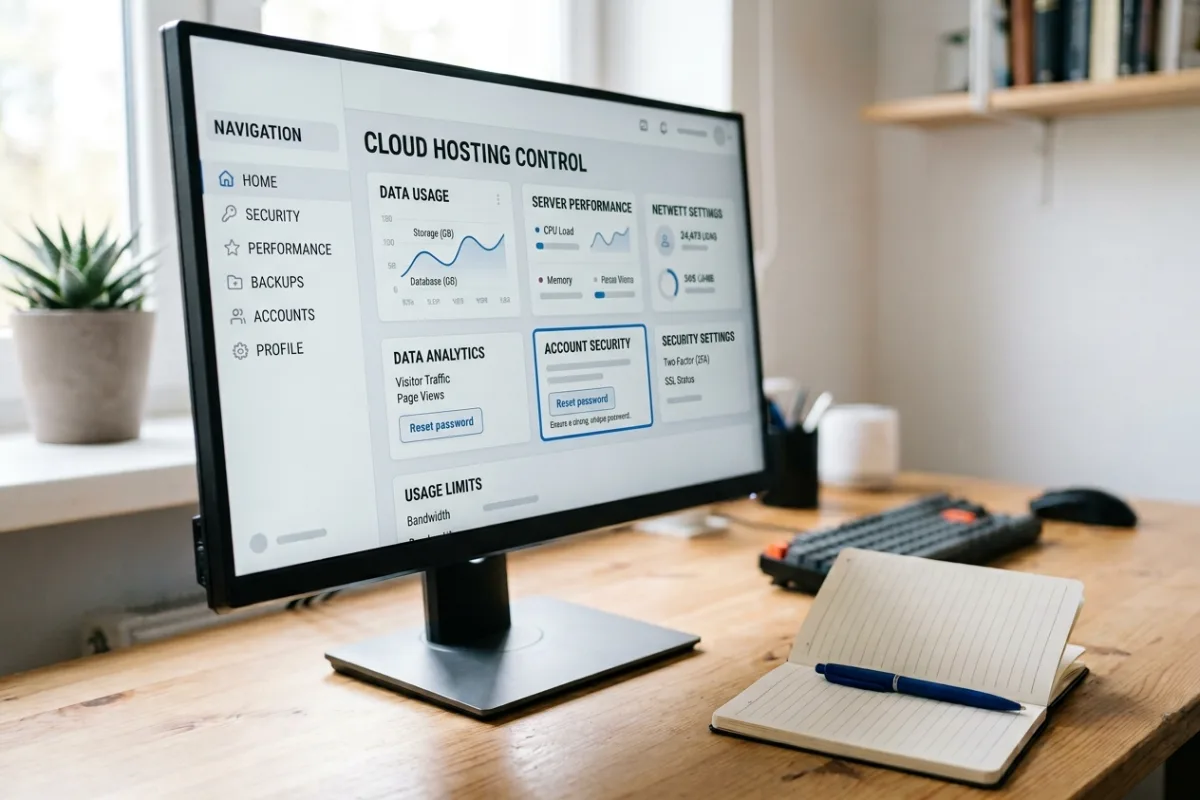
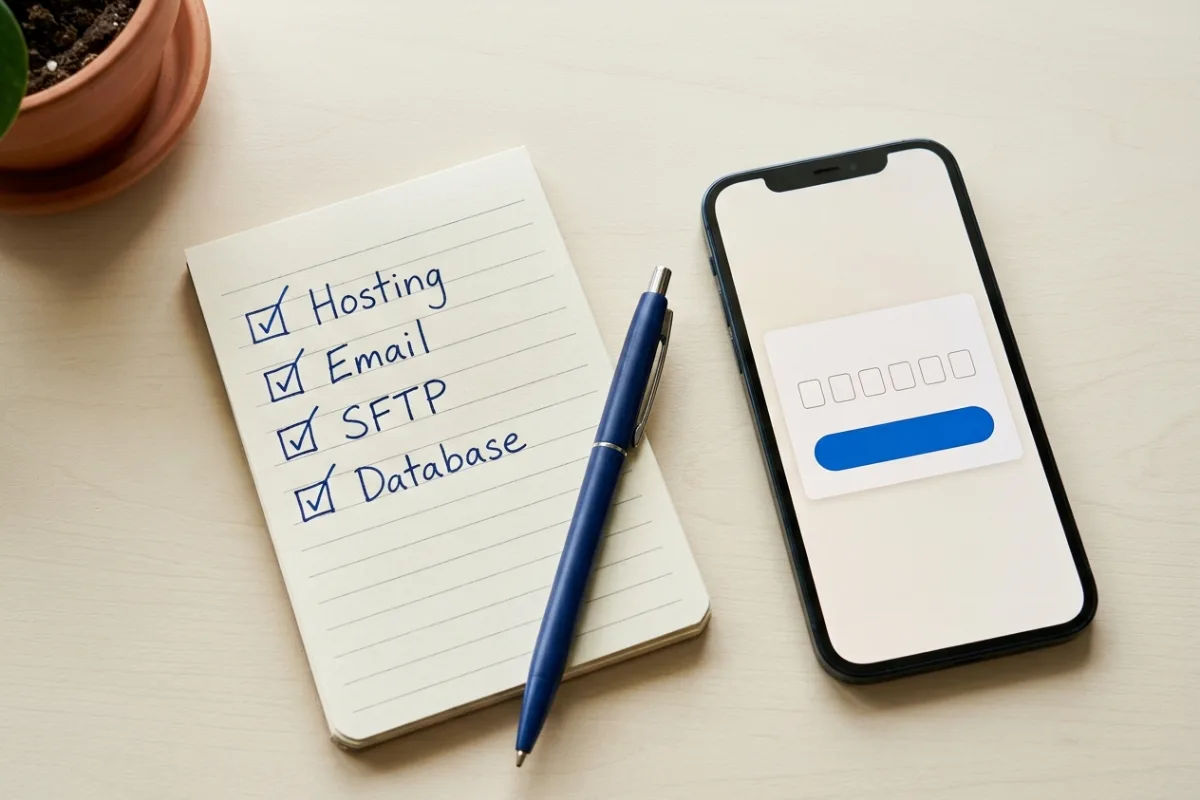
- 3Change every access point, not just WordPress: hosting panel, SFTP, database and any email account tied to the site. Review Users → All Users and remove or demote any account you did not create.
- 4Log everyone out by generating new security keys and replacing the existing ones in
wp-config.php, as the guide describes. Existing sessions, including an attacker's, stop working immediately. - 5Scan the site with at least one external scanner and one plugin-based scanner; the guide lists several maintained options. If the site is serving malware or redirecting visitors, your host may already have disabled it, and search engines may have flagged it.
- 6After the site is confirmed clean and updated, change the passwords again. The guide is explicit that a password changed before the clean-up may already have been captured.
If your host has suspended the site, or visitors report being redirected to other sites, do not restore an old backup as a shortcut. A restore removes recent orders and content and may reintroduce the same vulnerable plugin. The broader context, including what to ask a host for, is in the small business security guide.
6. Lock the door behind you
Once you are back in, spend ten minutes making sure the next lockout is harder to cause and easier to recover from. The WordPress brute-force protection guide, updated in 2026, lists the defences that currently matter and retires several older ones.
- Add two-factor authentication for every administrator. WordPress core does not include two-factor authentication, so this means a reputable plugin or your identity provider. Enrol a backup method so 2FA itself cannot lock you out.
- Use long, unique passwords from a password manager and do not keep an account named
admin; the guide recommends creating a properly named administrator and removing the legacy user. - Limit who is an administrator. Day-to-day editing does not need the administrator role. Fewer privileged accounts means fewer ways in and fewer people who can accidentally break access.
- Rate-limit login attempts, ideally at the host or CDN edge rather than only through a plugin, which the guide notes still consumes server resources under attack. If you already use a login-limiting plugin, make sure you know how to unblock your own address.
- Serve the login over HTTPS only. The guide lists HTTPS everywhere as a baseline so passwords and cookies are never sent in the clear. If the site shows a not-secure warning, the website not secure guide covers the fix.
- Treat hiding the login URL as noise reduction, not protection. The guide is clear that obscuring the address should not be the only defence, and that blanket password-protecting all of wp-admin can break plugins that rely on it.
Verify access, then record what happened
Before closing the laptop, confirm the fix is complete rather than lucky:
- 1Log out and log in again in a private window, then on a phone using mobile data, so a cached session is not hiding a still-broken login.
- 2If you renamed the plugins folder, confirm it is renamed back and that each plugin you reactivated still logs in cleanly. Leave the suspect plugin off until its author has a fix or you have a replacement.
- 3If you added any temporary lines to
functions.php,wp-config.phpor uploaded a reset script, confirm every one of them is removed. These are the most common things left behind after a rescue. - 4Check Settings → General shows the correct WordPress Address and Site Address, both with the same scheme and hostname.
- 5Note the cause in one line: wrong credentials, blocked cookies, address mismatch, plugin conflict, site error or compromise. If it was a compromise, keep the incident record with the date.
Recurring lockouts from the same cause are a configuration problem worth fixing once, usually as part of a maintenance arrangement that includes access records, update testing and someone to call.
Frequently asked questions
Why can't I log in to WordPress when my password is correct?
Most often the browser is blocking or holding a stale cookie, a security plugin has temporarily blocked your address after failed attempts, or the site's saved address no longer matches the one you are using. Try a private window first; if that works, clear cookies for the site. If the page reloads without an error, follow step 3 for address and plugin causes.
How do I reset the WordPress admin password without email?
Ask another administrator to set a new password from the Users screen, use your host's WordPress password tool if one exists, or edit the password in the database through phpMyAdmin using the MD5 function as WordPress documents. File-based and WP-CLI methods also exist. Back up before database edits, and remove any temporary code afterwards.
Why is the WordPress password reset email not sending?
Usually because the server's basic mail function is unreliable or the message is treated as spam, not because the reset failed. Check spam and confirm the email address on the account. If contact forms on the same site also fail to arrive, configure proper outgoing email through an SMTP or email API service; until then, use one of the non-email reset routes.
Why does WordPress keep logging me out?
WordPress sets a login cookie for the site address it has saved. If you visit under a different scheme or hostname, such as www versus non-www or http versus https, the cookie is not read and you appear logged out. Make both saved addresses match the address you use. Caching the admin area or a conflicting security plugin can produce the same effect.
Is wp-admin not loading the same as a login problem?
No. A blank page, a critical-error message or a database-connection error means the site itself is failing. The fix is to resolve that error, usually a plugin or theme conflict, a database or hosting issue, or an interrupted update, after which the login page returns on its own.
Should I delete my security plugin to get back in?
Deactivate it temporarily if it is causing the lockout, by renaming its folder if you cannot reach the dashboard, then reactivate and adjust its settings once you are in. Deleting it removes its configuration and any protection it was providing. If you cannot find a setting that unblocks you, the plugin's documentation usually explains how to allow-list your own address.
When to involve a WordPress developer
Get help when you have no hosting or file access and nobody knows who does, when the site is showing a database or critical error you did not cause, when you suspect a compromise, or when the site takes orders and you would rather not experiment on it. Ask for the cause in writing, the exact changes made, confirmation that any temporary code was removed, and a short list of the access routes and credentials holders so the next lockout is short.
Written by
Ali Rehman - Freelance Web Developer
I work on WordPress websites, practical fixes and scoped web applications. Read my background and skill scope, or send a project brief to discuss a written plan and quote - start here.
More articles by Ali Rehman →