
Elementor Editor Not Loading? Fix a Stuck Loading Screen (2026)
A working website and a stuck Elementor editor can exist at the same time. Identify the failed part, run the lowest-risk checks, and collect useful evidence before changing plugins or server settings.
 Ali RehmanFreelance Web Developer
On this page 10 sections
You open a page to change a price, replace a photo or fix a heading, but Elementor never gets past the loading screen. The public website may still look normal. That distinction matters: an Elementor editor not loading is not automatically a broken website, a hosting failure or a reason to reinstall WordPress.
This guide brings together Elementor's official troubleshooting documents, checked in October 2026, into an owner-facing decision sequence. It is not a report of a particular client repair. The aim is to find a reproducible cause without turning an editor problem into a public-site outage.
First, identify which part of Elementor is stuck
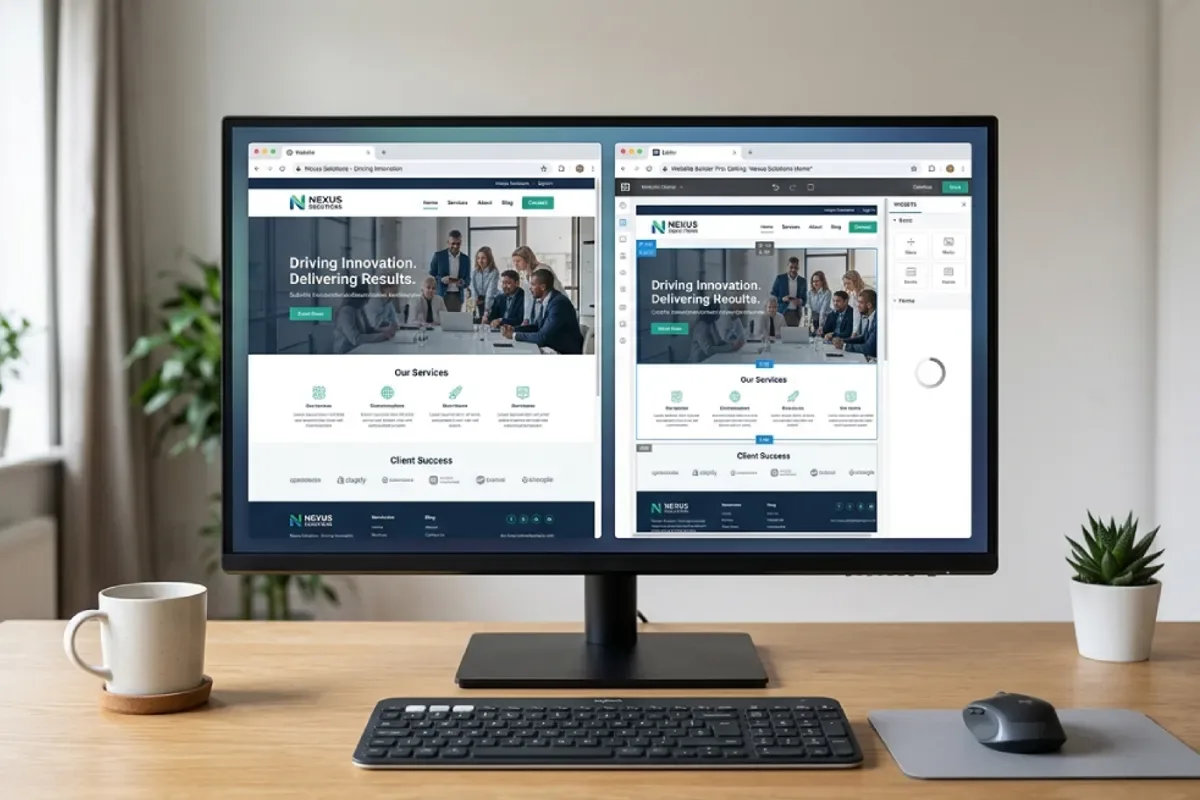
Open the affected public page in a separate, logged-out browser window. Then compare it with what fails inside the editor. Elementor maintains separate guides for the loading screen, widget panel and preview because the same spinner can hide different problems.
- The public page works, but the whole editor is grey or keeps loading: start with the browser check, then the canvas Safe Mode test below.
- The canvas appears, but the widget sidebar keeps spinning: use the panel branch in the requirements check. A partially loaded editor is a different symptom from an entirely blank one.
- The editor says the preview could not be loaded: inspect the preview request, redirects and frame restrictions with your host rather than changing unrelated design settings.
- Only one page fails: record that. A widget, custom HTML, template or unusually heavy page may be involved, even when a smaller page works. Test a copy, not the original.
- The public website also shows a fatal error: use the WordPress critical-error recovery guide first. Protecting the public site takes priority over opening its editor.
Also note when this began and what changed: an Elementor or Pro update, a new add-on, a performance setting, a host migration, or a change made to just one page. A timestamp and one clear symptom are more useful than a list of fixes tried simultaneously.
1. Test the browser before changing WordPress
First preserve any unsaved work you can still access. Use an up-to-date, supported browser on a desktop computer, sign into your own authorised WordPress account, and open the affected editor once. Try a clean browser profile or a private window, checking that browser extensions are not allowed to run there. Elementor's loading guide lists browser add-ons as a possible source of interference.
If it works in the clean session, compare the original browser's extensions, session and cached assets before altering the server. Re-enable extensions one at a time to narrow the difference. Private browsing is a comparison test, not proof that one specific extension or cache caused the fault; cookies and login state also change.
If both sessions fail, stop repeatedly clearing caches and move on. A public page that loads slowly is a separate performance investigation: the WordPress speed guide covers that. A better speed score does not establish why an authenticated editor fails to initialise.
2. Use Elementor Safe Mode for a stuck canvas
Before changing settings, confirm you have a restorable backup of both files and database, not just a page export. That is the scope described in WordPress's backup guidance. Know who can restore it if you lose dashboard access. A backup on the same failing server should not be your only copy.
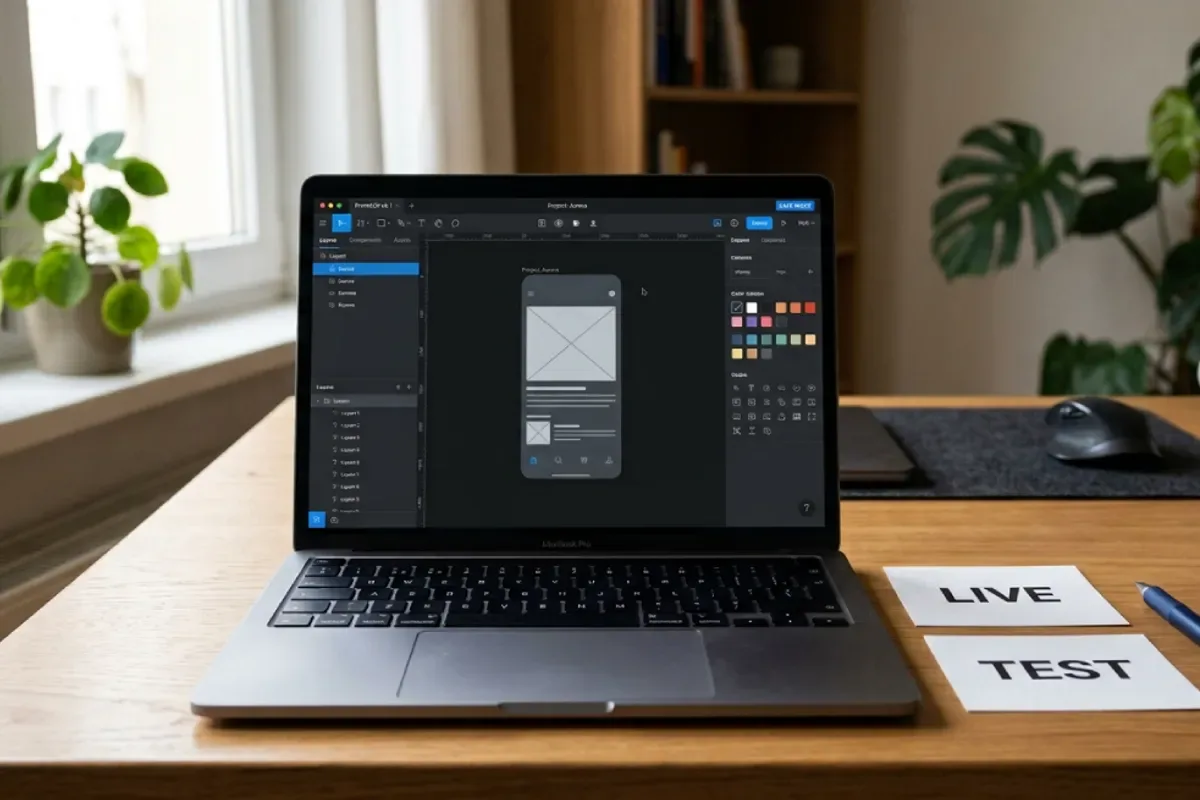
Elementor's Safe Mode loads an isolated editing environment for logged-in administrators. It does not permanently deactivate plugins across the site, and public visitors continue seeing the normal site. This is not the same as WordPress recovery mode or a public maintenance page.
- 1Sign in with an Administrator account, or ask the site administrator to run the check. On Multisite, this requires a Super Admin.
- 2In the current documented menu, open Elementor → Editor → Tools → General. Set Safe Mode to Enable and save changes. Menu organisation can differ in older installations.
- 3Reopen the same page with Elementor and check for the Safe Mode badge. Where offered, the editor's error prompt can also enable this mode.
- 4Record whether the canvas opens. Leave Safe Mode after diagnosis; it temporarily disables Elementor Experiments as well, so it is not the normal working environment.
If the canvas works only in Safe Mode, interference from the normal editing environment becomes a useful lead, not a named culprit. Follow the controlled isolation check later in this guide. If it still fails, record that result and check requirements and the failed request instead of assuming the database must be restored.
3. Check real memory limits and compatible versions
Open Elementor → Editor → System Info and record the installed WordPress, Elementor, Elementor Pro and PHP versions, plus the reported memory limits. The official System Info guide explains this report. WordPress's Tools → Site Health → Info is another useful environment view. Neither report needs to be published online.
Check the current Elementor requirements, not a years-old blog snippet. As checked in October 2026, Elementor lists these WordPress memory levels:
- 256 MB: the minimum listed for Elementor and Elementor Pro alone.
- 512 MB: the recommended level; other plugins can add requirements of their own.
- 768 MB: listed for best performance, not as a universal minimum or a guaranteed fix.
For an Elementor widget panel that is not loading, the vendor specifically points to memory, plugin conflicts and server settings. Record both the WordPress allowance and the host's PHP limit. A value in WordPress configuration cannot make a lower host-enforced cap disappear. Ask the host which limit applies to the failing editor request and whether its log shows memory exhaustion.
Enough memory does not rule out broken JavaScript, a blocked preview or a bad widget. Likewise, do not paste memory directives into configuration files just because a tutorial recommends a larger number; different hosting stacks accept different settings. If limits need changing, have the host apply and verify the supported change.
For version changes, use Elementor's update guidance: review compatibility, back up and test a staging copy. Check Elementor and Pro as a pair, including third-party add-ons; their version numbers do not have to be identical. Use a currently supported PHP release compatible with the stack, rather than treating an old compatibility minimum as a secure long-term choice.
4. Trace preview errors instead of disabling security
The editor displays your page inside a preview frame. The public homepage returning normally does not mean that this authenticated preview request succeeded. Elementor's preview troubleshooting guide covers routing, redirects, server responses and frame restrictions as well as conflicts.
If you are comfortable using browser developer tools, open Inspect → Console and Network, then reproduce the failure once. Note the relevant error, request path, status and time. Do not paste commands into the Console. If these tools are unfamiliar, ask your host or developer to collect the same evidence through authorised access.
- 403 or an access-denied response: a request was refused. Ask the host or security operator to match it to the relevant permission, firewall rule or authentication check. Do not turn off the whole firewall or publish an unrestricted admin endpoint.
- 429: requests are being rate-limited. Stop repeatedly reloading; follow the provider's retry guidance and ask why this editor request is being limited.
- 500 or another server error: ask for the matching PHP/server log entry. The code alone does not identify a plugin or prove memory exhaustion.
- A blocked frame or origin error: have the host compare the preview and admin origins, redirects and response headers. HTTP versus HTTPS or www versus non-www can matter.
- A JavaScript error or failed asset: record the relevant file and timing. An optimisation setting, custom script or add-on is a lead to test, not automatically the guilty component.
Elementor's requirements say the preview needs same-origin framing: X-Frame-Options: SAMEORIGIN and a suitable frame-ancestors 'self' policy are relevant. Have the host inspect the actual headers, including duplicates, rather than removing all security headers. Do not change WordPress addresses blindly; some legitimate installations use a separate WordPress directory. If the symptom is a browser HTTPS warning, use the separate website-not-secure guide.
5. Isolate conflicts on a protected staging copy
A staging site is a separate test copy, not a backup by itself. Restrict access with authentication and keep it out of search indexes; noindex alone is not access protection. Prevent real outgoing email, live payments and production webhooks or scheduled actions. Remove or anonymise customer data unless retaining it is necessary and authorised. Copy the relevant versions and settings so the failure can be reproduced before trying fixes. If you do not have staging, ask your host or developer to arrange a controlled test rather than disabling everything on a working business site.
Following the principle in Elementor's Safe Mode debugging guide, compare a minimal Elementor environment with the normal one. On staging, keep Elementor and Pro active if Pro is used, temporarily deactivate other plugins, and reopen the affected editor. Reactivate them individually, checking after each change. Test the theme separately with a known-compatible default theme; do not switch it on the live site as a casual experiment.
Record a simple test log: setting changed → canvas result → widget-panel result → public-page result. If the failure returns when a particular add-on is active, reproduce it once more on the copy and report both version numbers to its maintainer. Several extensions can interact, so one successful reload is not sufficient evidence of a permanent repair.
For a page-specific failure, compare an unpublished blank test page with a duplicate of the affected page on staging. Remove or simplify suspected widgets and custom HTML on the duplicate, not on the original. If a clean page also fails, broaden the investigation again. Avoid replacing a business homepage just because one imported template will not open.
If you suspect JavaScript delay, minification or a CDN optimisation, test that particular setting on staging and record its original state. A confirmed conflict calls for a documented, narrow exclusion or compatible update, not permanently disabling every cache or security feature. Restore unrelated settings after the test.
6. Apply the smallest verified fix, then retest
The useful fix follows the evidence: a compatible add-on update, a corrected preview restriction, an approved memory change, or a repaired widget. Recheck the original failure after the change with Safe Mode off. Then save a harmless edit on a test page, reopen it, and verify the saved version rather than stopping as soon as the spinner disappears.
If a particular update reproducibly caused the problem, Elementor provides an official version rollback tool. Use it only with a backup and a compatibility plan, ideally first on staging. A short-term rollback is not a reason to keep a known-vulnerable release indefinitely. Do not install unofficial or cracked Pro packages as a troubleshooting shortcut.
- 1Reopen the originally failing page and a second Elementor page with Safe Mode disabled; check both canvas and widget panel.
- 2Check the public page while logged out, on desktop and on a phone. Review the header, footer, layout and important links.
- 3If the work touched forms or commerce, run an authorised end-to-end test using test details and the provider's test mode; do not create real customer orders as a casual check.
- 4Confirm diagnostic settings were reverted, access to staging remains protected, and the cause and applied fix are recorded with a fresh backup.
A successful form message is not proof of an email reaching the business inbox; the contact-form email guide covers that check. For wider release checks, use the website launch checklist without confusing a small editor repair with a complete redesign.
Send support a useful diagnostic record, not your passwords
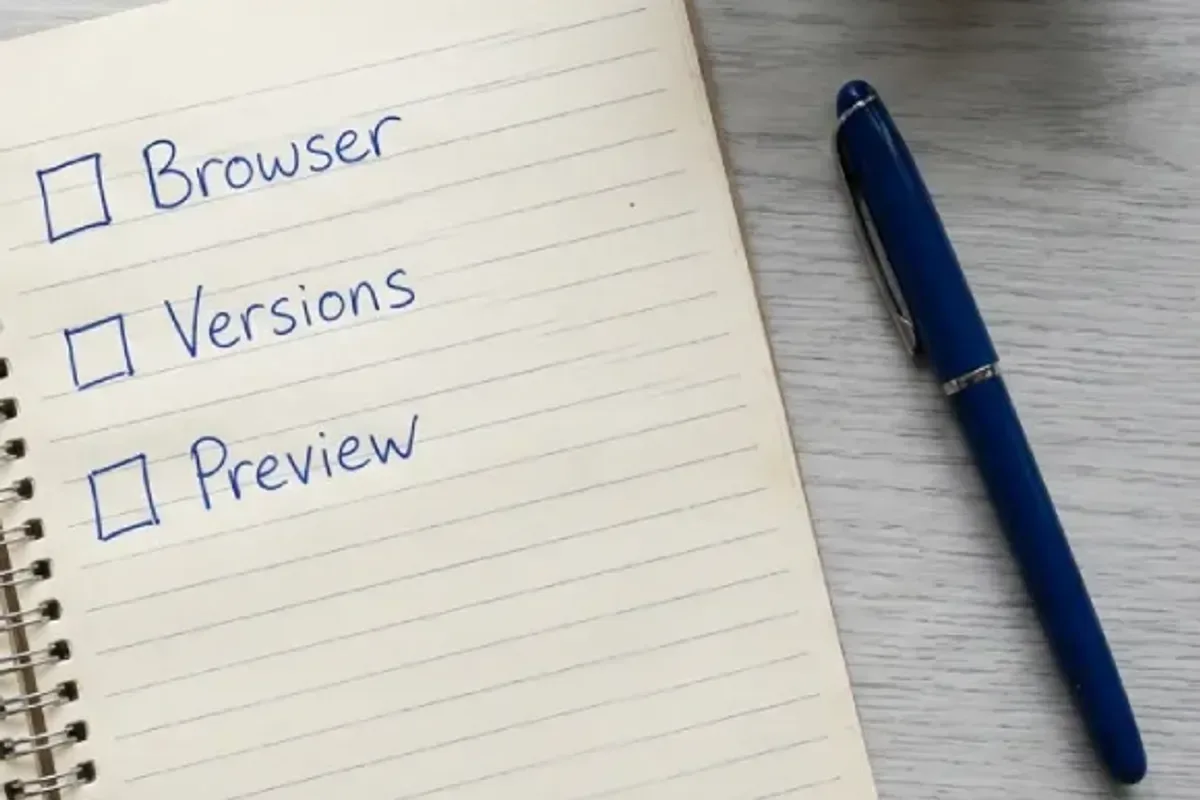
Copy these headings into your support request and fill in only what you know. This is a diagnostic worksheet, not a list of settings to change:
- Scope: public page working or broken; canvas, panel or preview affected; one page or all pages.
- Timing: when it last worked, when it failed, your timezone and any recent update or configuration change.
- Environment: WordPress, Elementor, Pro if used, theme, relevant add-on and PHP versions; measured WordPress and server memory limits.
- Tests: clean-browser result, Safe Mode result, and whether the same issue reproduces on staging.
- Error evidence: the relevant response status or redacted Console/log line, with its timestamp; avoid unrelated logs.
- Recovery: date of the latest restorable backup and whether new orders or content must be preserved.
Review screenshots and System Info before sharing: they can contain private URLs, email addresses and logs. Remove passwords, cookies, nonces, authorisation headers, tokens and customer details. Do not post a raw HAR file in a public forum. If access is needed, use a separate, time-limited account or the provider's secure access-sharing process, then revoke it after the work.
Recurring conflicts are a reason to review update ownership, compatible add-ons, backups and testing, not buy another random plugin. The maintenance cost and checklist guide separates routine care from incident work; the maintenance service explains how ongoing support can be scoped.
Frequently asked questions
Why does Elementor work in Safe Mode but not normally?
Safe Mode removes parts of the normal canvas environment, including theme/plugin interference and experiments. A working canvas there narrows the search; it does not name the conflicting extension or prove the public page is fixed. Reproduce and isolate the change on staging.
Why is Elementor still not loading in Safe Mode?
The failure may involve the browser, memory, preview routing, headers or a server response outside that isolation test. If only the widget panel is stuck, Safe Mode does not isolate its third-party scripts. Use the matching symptom branch and collect the actual error instead of repeating the same test.
Do I need to reinstall Elementor or buy Pro?
Neither is a first diagnostic step. A browser extension, blocked frame or incompatible add-on does not become compatible because you buy a licence. Consider a trusted-source reinstall only if the evidence points to damaged files and a developer has confirmed the backup and recovery path. Keep licensed Pro components compatible if your site already uses them.
Can I use Elementor's editor on a phone?
The current official requirements support editing on desktop computers, not phones or tablets. Use a supported desktop browser to diagnose editor loading. That restriction does not mean the published website should fail on mobile; check its responsive layout separately.
The editor opens, but my changes do not show on the live page. Is this the same fault?
No. First confirm the correct page was actually saved or published, then investigate the public version and its caches. Do not treat an old-looking live page as evidence that the editor cannot load, and do not restore the database merely to refresh a cached page.
When to involve a WordPress developer
Get help when the site is taking orders, access is restricted, the evidence points to server configuration, or you cannot reproduce the issue safely. Ask for a diagnosis, a narrow proposed change, a backup/recovery plan and a verification list. You should know what will be changed before granting access.
Written by
Ali Rehman - Freelance Web Developer
I work on WordPress websites, practical fixes and scoped web applications. Read my background and skill scope, or send a project brief to discuss a written plan and quote - start here.
More articles by Ali Rehman →