
WooCommerce Emails Not Sending? Follow the Order Before Changing SMTP (2026)
A missing order email is not always an SMTP problem. Follow one order from its payment status to the right notification, recorded sending attempt and receiving inbox before changing your store.
 Ali RehmanFreelance Web Developer
On this page 10 sections
The order is in your dashboard, but the customer has no confirmation. Or the customer receives a message while your packing team hears nothing. When WooCommerce emails are not sending, replacing the mail plugin immediately can miss the real problem: an unpaid order, the wrong notification, a missing recipient or a template that fails before there is any email to deliver.
This guide follows current WooCommerce documentation checked on October 7, 2026. It covers transactional order notifications, not newsletter campaigns or abandoned-cart marketing. It is a troubleshooting framework, not a claim about a particular client's store. Menu labels and available logs depend on your installed WooCommerce version and extensions.
Before changing anything, identify the missing message
Open one affected order under WooCommerce → Orders. Write down its number privately, approximate checkout time and time zone, payment method, current status and which person did not receive which email. Compare it with one recent working order if available. This small record makes it possible to match an event to a log instead of guessing from an empty inbox.
- Neither the customer nor the store receives an order email: start with the order status, then the sending log. A shared mail-path failure is possible, but an untriggered order event looks the same.
- The store receives it but the customer does not: check the relevant customer notification and that order's billing email. Delivery can also fail for one receiving domain.
- The customer receives it but the store does not: inspect the New order notification's recipient list and the staff mailbox or group receiving it.
- A test email arrives but checkout emails do not: the tested sending path worked once. The real order status, recipient, template or routing can still be different.
- Messages arrive late or several copies arrive together: compare order events, any relevant queued work and provider timestamps before resending anything.
1. Confirm the order reached the expected email event
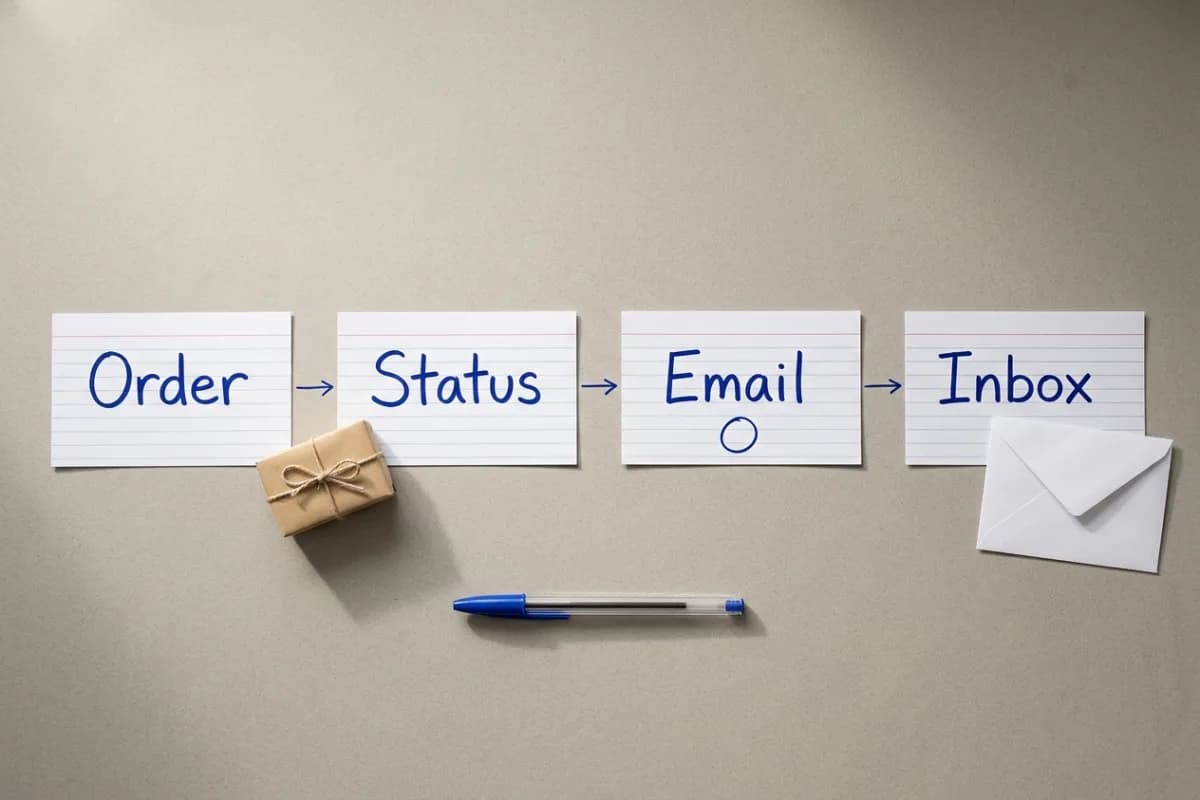
An order record is not proof of successful payment. Read the status alongside the order notes and the payment provider's record. WooCommerce's order-status reference distinguishes the stages below. The exact transition matters more than the fact that something appears in the Orders screen.
- Draft: a temporary checkout state, not evidence of a completed purchase. Do not expect a paid-order confirmation just because a draft exists.
- Pending payment: the submitted order is still awaiting payment. The normal paid-order notification has not been earned simply by reaching this status; a manually sent payment request is a different email.
- On hold: payment confirmation may be pending, especially for offline or delayed payment methods. An on-hold notification is different from a processing notification.
- Processing: normally a paid order awaiting fulfilment. If the appropriate notification is enabled, this is a useful event to investigate.
- Completed: fulfilment is complete. Orders containing only products that are both virtual and downloadable can bypass Processing, so check the Completed notification rather than assuming a processing email is always required.
If the gateway records payment but WooCommerce remains Pending payment, investigate the gateway's notification or webhook and the matching order notes. WooCommerce's email troubleshooting documentation explicitly separates this from a mail-delivery problem. Ask the gateway or host whether the callback reached the site and was processed; do not create a second payment to see whether an email appears.
Do not mark an unpaid order paid just to trigger an email. Status changes can affect stock, fulfilment and connected services. Where a legitimate payment needs manual reconciliation, first verify it against the provider and follow that gateway's documented process. If the status is correct, continue to the notification settings.
2. Check the exact notification and its recipient
Go to WooCommerce → Settings → Emails and open the notification you expected. The official email settings guide lists the standard notifications and their purposes. New order is normally a store notification; Processing order, Completed order and Order on-hold are customer notifications. They are not interchangeable copies of one universal confirmation.
- 1Confirm that the relevant notification is enabled. Check this specific message rather than enabling every email or marketing feature on the site.
- 2For a store notification, inspect Recipient(s). Correct misspellings, old staff addresses or unintended groups, then save. The address configured for this notification is more useful evidence than the WordPress administrator address alone.
- 3For a standard customer order email, inspect the billing email saved on the affected order. It may differ from a person's account email or current profile. Confirm any correction with the customer before sending their order details somewhere else.
- 4Check any email customiser, automation or mail-routing extension. It may replace the standard notification, disable it or route that message differently. Confirm which component actually owns this email.
The From address identifies the sender; it does not choose the customer who receives the message. Reply-to determines where replies go. Changing either is not a substitute for fixing a wrong recipient. Also, typing a new address into From does not create a working mailbox: the business email address guide explains the difference between a domain, mailbox and website sending service.
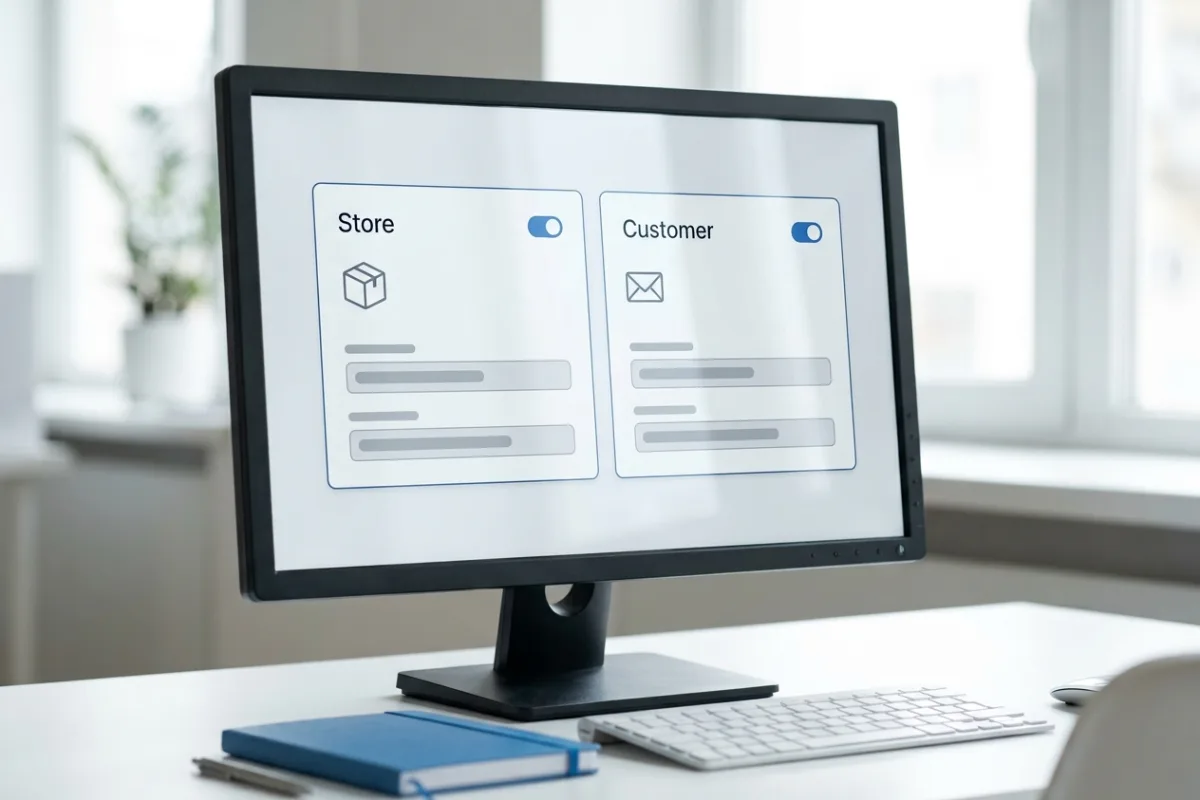
Where available, the email preview's Send a test email option helps check rendering and the mail path to your chosen test address. It bypasses the actual checkout event. Keep that result, but do not close the investigation until a controlled order triggers the correct automatic message too.
3. Read the sending evidence before changing SMTP
Current WooCommerce documentation describes a transactional-emails source under WooCommerce → Status → Logs. Where your installed version provides it, find the entry for the affected order and email type. It separates four outcomes, which point to different next steps:
- Sent: WooCommerce successfully handed the email to the site's mail system. This does not prove that the recipient's inbox received it; continue to provider and receiving-mailbox evidence.
- Failed: the sending attempt returned an error. Read its reason and compare it with the mailer's record at the same time before changing settings.
- Disabled: the notification is turned off. Revisit the relevant notification rather than installing a different mail service.
- Skipped: a required condition was missing, such as a recipient. Find and correct that condition first.
No entry is not conclusive by itself. Check the logging settings and level threshold; they may exclude informational or notice-level events. Older versions may not provide this source. In that case, inspect your existing mail provider or mailer logs, or arrange short-lived logging with a maintained tool. Do not buy a premium logging plan or update a busy store solely because a screenshot in a tutorial differs from your installation.
When a valid event produces no attempt, look for a matching error under WooCommerce → Status → Logs. The PHP error-log guide explains the available timestamps and error details. Some web-server failures, including timeouts, need the host's logs instead. A fatal error can stop message generation even while other parts of the store appear normal; a wider outage belongs in the WordPress critical-error troubleshooting guide.
Keep diagnostic access restricted and retention short. Third-party mail logs may store complete messages, addresses, order details or attachments. Do not enable full-content logging or open/click tracking by default just to troubleshoot one missing email. Redact sensitive details before sharing a log excerpt; a timestamp, notification type and error code are usually a better first support message.
4. Repair the mail handoff, then check the receiving inbox
Only now ask how the email leaves the site. WooCommerce normally uses WordPress's wp_mail() path, which can be connected to the host's mail system or a configured provider. WooCommerce's SMTP-provider explanation separates creating the message from transporting it. SMTP is a delivery mechanism, not a repair for an order event that never happened.
- No usable sending service: configure a maintained mailer with an authorised provider, following that provider's current instructions. Avoid several unrelated plugins competing to handle the same mail.
- A provider already exists: inspect its current connection, verified sender, account status and sending limits. An expired authorisation, invalid credential or provider restriction should have specific evidence; do not reset the entire setup blindly.
- The provider accepted the message: inspect any subsequent delivery, deferral, bounce or suppression event. Use the message identifier and timestamp to avoid confusing two attempts.
- Only one customer or domain fails: verify the destination, then check spam, mailbox rules, quarantine or the recipient organisation's mail administrator. A working test at another provider does not prove this route works.
Use a branded sender your mail service is authorised to send for. WooCommerce's authentication guidance covers SPF, DKIM and DMARC. Follow your actual provider's DNS instructions, preserve other legitimate senders and check authentication on a test message. Do not copy generic DNS values or weaken an existing policy to make one error disappear. If a mailer forces From globally, check the actual sent header rather than assuming the WooCommerce field won.
A Sent label is not an inbox guarantee. Even a provider's Delivered event normally records acceptance by the receiving server, not a promise about the folder or whether somebody read the email. Conversely, a blocked message may never appear in the visible spam folder. Resolve the recorded rejection or filtering cause rather than repeatedly sending the same message. Authentication is important, but does not guarantee inbox placement.
For the shared sender and transport checks, use the WordPress email troubleshooting guide. Keep this order-specific investigation focused on the event, notification and recipient; repeating a general SMTP installation tutorial will not explain why a preview succeeds and a paid-order email does not.
5. Isolate template errors, conflicts and delayed background work
If this started after an update or only affects one email type, compare the relevant template and extensions. Follow WooCommerce's conflict-testing guidance on staging: preserve a backup, reproduce the same order process, use a default theme and the minimum components needed for that test, then re-enable candidates one at a time. Keep the sandbox gateway and controlled mail route needed to reproduce the issue.
For classic PHP email templates, inspect System Status for outdated overrides and compare the affected child-theme template with the matching core version. The template-structure guide explains why child-theme overrides survive updates but do not receive newer template changes automatically. Do not edit WooCommerce core files or delete custom templates without a backup. If your store uses the block email editor, use its own preview and template-update workflow instead; it is not the same override mechanism.
For delayed messages, establish whether an extension or configuration actually queues the affected work. If it does, WooCommerce → Status → Scheduled Actions shows pending or failed tasks and their logs. The scheduled-actions guide describes the screen. Match the hook, group and time to the relevant integration; a future scheduled task is not automatically a fault.
Not every order email uses Action Scheduler. A mail provider may also have its own queue, separate from WordPress. For relevant overdue work, ask the host or extension maintainer to inspect scheduling, loopback requests and the recorded failure. Staging password protection or deliberate mail blocking can affect this test, so record those differences rather than assuming the live site has the same problem.
Clearing a browser or page cache does not repair rejected SMTP authentication. If the screen is showing old settings, the WordPress cache guide can help with that separate symptom. Similarly, deploy a tested file/configuration fix deliberately; do not replace the live order database with an older staging copy and erase orders received during the investigation.
6. Recover a missing message without replaying the order
After fixing the cause, decide whether a resend is still needed. Confirm the customer's identity and correct destination, look for an already queued copy, and check whether the original message now contains outdated information. Repeated resends can create confusion even if they do not charge the customer again.
WooCommerce's single-order guide describes the Order actions panel and sending order details to a customer. That action is not necessarily a replay of the original Processing or Completed notification. An unpaid order's details can include a payment link. Choose the appropriate available action or your mailer's documented resend feature after checking its content and destination.
Send one needed message deliberately and record that recovery. Do not cycle a real order through statuses to resend a notification, and do not add a customer-visible note just to test delivery: customer notes can send another email. Keep an internal note private. If many orders were affected, plan a reviewed recovery list instead of replaying every failed record; some messages may already have been delivered or become irrelevant.
Verify the complete order-notification path
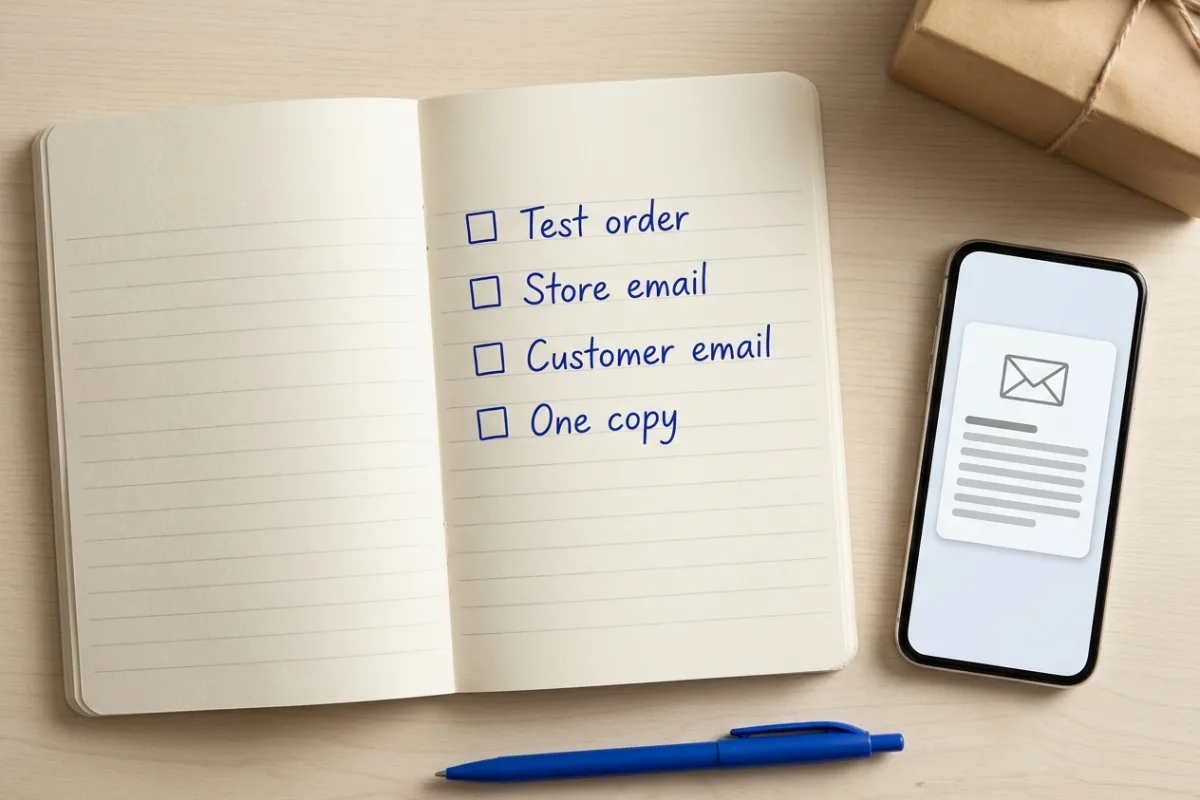
- 1On isolated staging, use the sandbox gateway and addresses you control. Confirm that fulfilment, accounting, external webhooks and other production integrations cannot act on the test order.
- 2Place a controlled checkout order through the relevant path. Confirm the expected status and matching notes, then check the correct store and customer notifications separately.
- 3Match each notification to its sending log and, where available, provider event. Check the receiving inboxes, correct order content and duplicate count rather than trusting only a green test banner.
- 4Test the affected variation: guest versus account checkout, the relevant payment method or virtual/downloadable product. Do not assume one passing path covers every gateway and extension.
- 5Apply only the reviewed fix to production. Confirm production-specific sender and gateway configuration, then observe the next genuine eligible order through authorised logs; do not create surprise test payments or message real customers without permission.
Record the cause, change, test environment and remaining limitations. Remove temporary logging or test data according to the agreed retention plan. Add this paired store/customer check to your website launch checklist; recurring connection and template checks can also form part of an agreed maintenance scope.
Frequently asked questions
Why does a WooCommerce test email work but order emails do not?
A test preview uses a chosen template and address, not necessarily the checkout event and recipient of a real order. Check the order status, the particular notification, billing email and matching log. A different template, extension or routing rule may explain the difference. Test the actual path on isolated staging.
Why is WooCommerce not sending emails to customers while admin emails arrive?
The store notification and customer notification are separate. Check that the appropriate customer email is enabled and inspect the billing address stored on that order. Then compare its sending attempt and receiving-domain response. A delivered admin message does not prove the customer's notification was generated or accepted.
Why is the WooCommerce new order email not sending to the store owner?
Inspect New order under WooCommerce → Settings → Emails, including its enabled state and Recipient(s). Confirm the order reached an eligible event and review the log. If a staff group receives the email, check that group's delivery rules too; changing a customer's billing address will not repair a staff notification.
Why are WooCommerce order emails going to spam or missing in Gmail?
Check the actual sender, authentication, provider result and the recipient's filtering rules. An unauthorised From address is one possible cause, not the only one. A message can be rejected before the spam folder. Follow the recorded failure and your provider's current requirements rather than assuming installing SMTP guarantees delivery.
Do I need a paid SMTP plugin to fix WooCommerce emails?
Not necessarily. A disabled notification, incorrect recipient or missing order event is not solved by buying a mailer. A reliable sending service may help a transport problem, but plugin features, provider fees and usage limits are separate. Use available logs and the identified cause before choosing paid features.
Why did order emails stop after a WooCommerce update?
A template override, extension conflict or changed configuration is worth checking, but timing alone does not prove the cause. Compare one affected order with its logs and reproduce the same path on staging. Review classic template overrides or the block editor as appropriate, and preserve live orders when deploying the fix.
When to involve a WordPress developer
Get help when paid orders are not updating, a template throws errors, queued work includes payments, or nobody can explain the gap between the order and the mail log. Ask for a written diagnosis, a controlled test and a scoped change that preserves current orders, not just a new plugin and a screenshot of a successful preview.
Written by
Ali Rehman - Freelance Web Developer
I work on WordPress websites, practical fixes and scoped web applications. Read my background and skill scope, or send a project brief to discuss a written plan and quote - start here.
More articles by Ali Rehman →