
WooCommerce Checkout Not Working? 6 Checks to Find the Cause (2026)
A blank checkout, missing payment method and endless spinner are different problems. Follow the failed step, check what happened to the order, and test a focused fix without experimenting on live payments.
 Ali RehmanFreelance Web Developer
On this page 9 sections
Your customer reaches the last step, presses Place order, and nothing useful happens. Perhaps the page keeps spinning. Perhaps the payment options disappear. When WooCommerce checkout is not working, the safest first move is to identify the failed stage, not install a checkout plugin or tell the customer to pay again.
This guide covers six checks for store owners: the checkout page, available methods, browser requests, order evidence, extension conflicts and final verification. It follows official documentation reviewed on October 12, 2026. Interfaces vary by version and gateway; the examples are diagnostic guidance, not a report of a particular client's incident.
Find the point where checkout stops
Record the first visible failure, its time and time zone, the device, whether the customer was signed in, and the chosen payment method. Keep one redacted screenshot. These details make a support request actionable without collecting card information or asking the customer to keep reproducing the problem.
- Blank page or checkout content missing: inspect the assigned page, its block or shortcode, and template errors. Start with check 1.
- No payment methods or shipping options: inspect eligibility and configuration before treating the button as broken. Start with check 2.
- Spinner, disabled button or totals that never update: inspect the earliest validation or request failure. Start with check 3.
- Error after payment, but a bank notification arrived: reconcile the actual order and provider event first. Jump to check 4.
- Problem started after an update or only affects one browser: record the difference, then reproduce it safely rather than changing everything together. See check 5.
First protect the store. Make a current backup and use an isolated staging copy for changes and test purchases. WooCommerce's testing-orders guidance explains that test orders can still send emails, enter analytics and activate fulfilment. Sandbox payments alone do not isolate those integrations. Use addresses you control; disable live shipping-label purchases, fulfilment, accounting writes and other production side effects. Retain the rate-calculation logic being tested, using its supported test mode where available.
1. Confirm the correct checkout page and checkout type
Open WooCommerce → Settings → Advanced → Page setup. Confirm that Cart and Checkout point to the intended published pages, not a deleted page or a page created only for a design preview. WooCommerce's Advanced settings documentation describes these assignments. Follow the checkout link from a cart containing a product; inspecting an empty-cart redirect is not the same test.
Next identify what actually renders checkout. A page title saying Checkout does not establish the implementation. Open the page or relevant template in the editor and look for one of these:
- Checkout block: the block-based experience with its own payment and extension integrations.
- Classic checkout: a classic shortcode placeholder or the
[woocommerce_checkout]shortcode. - A checkout builder: an extension or theme may own parts of the page and add its own compatibility requirements.
WooCommerce's Cart and Checkout documentation explains why an extension that works with classic checkout may not work with blocks. For example, an incompatible gateway can disappear from the Checkout block even though it is installed. Check the exact extension and version, not a general claim that it supports WooCommerce.
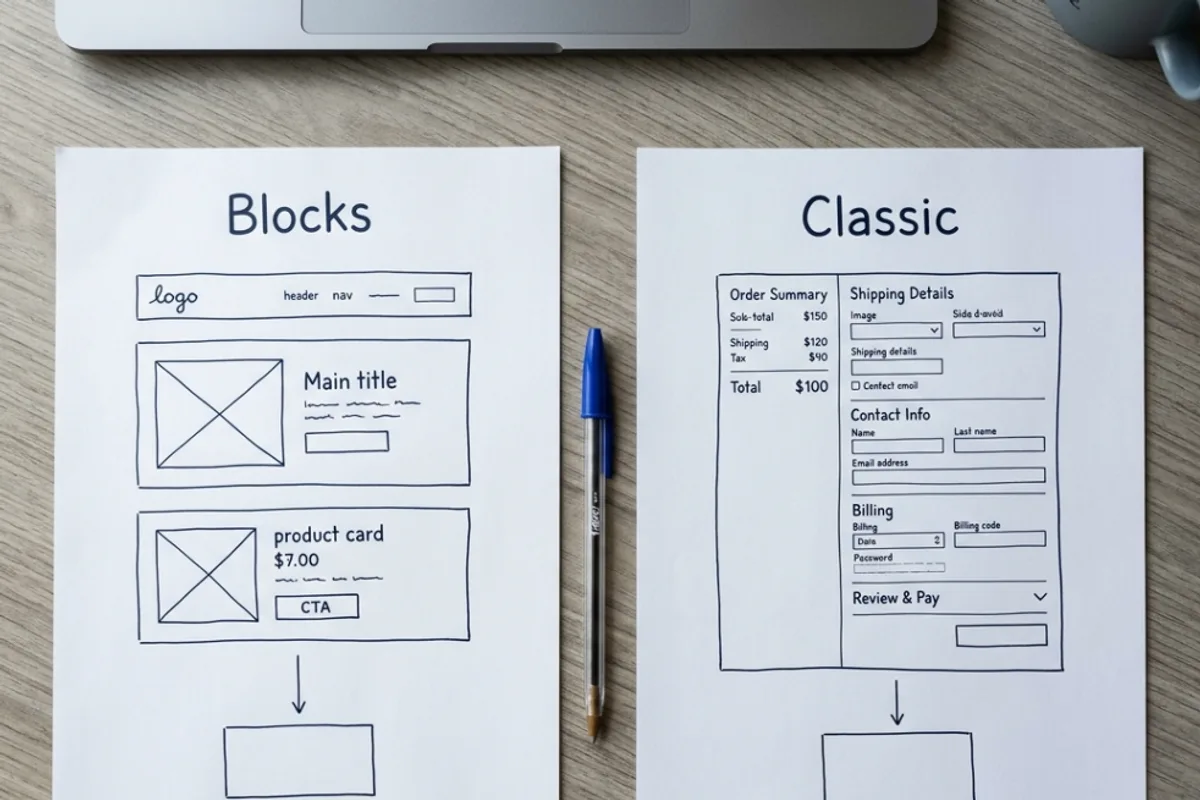
Do not add a second checkout shortcode beneath an existing block as a quick fix. If a required extension cannot support your current checkout, test a documented switch on staging and review the cart, custom fields and payment flow together. A successful classic test is useful compatibility evidence, not a reason to replace a working checkout blindly.
2. Check why a payment or shipping option is unavailable
A page that renders correctly can still have no eligible way to complete the purchase. WooCommerce's settings reference places payment-provider setup under WooCommerce → Settings → Payments. Confirm that the intended provider is enabled and its setup is complete. Installation alone does not prove the connection is ready.
- Check the gateway's own requirements: verify the connected account, test versus live mode, supported currency and any customer or product restrictions relevant to that method. These rules differ by provider.
- Check checkout compatibility: use the extension's current documentation to confirm support for your block, classic or builder checkout. A store with only incompatible gateways may show no payment methods in blocks.
- Check the same basket and address: conditional-payment extensions, shipping choices, subscriptions or other product types can change which options appear. Compare the failing case with a simple supported test case on staging.
- Check the account path: if guest checkout is intended, confirm Accounts & Privacy permits it. A working administrator session does not prove a signed-out customer can buy.
For physical products, investigate shipping separately. Under WooCommerce → Settings → Shipping, inspect the zone matched by the test delivery address and whether it contains a suitable enabled method. WooCommerce matches a customer to the first matching shipping zone, not every possible zone. Its shipping-zone guide recommends ordering specific regions before broader ones.
An address can match an existing zone that offers no method, even when a different zone looks correctly configured. Check postcode restrictions, method conditions and any external rate-service errors. Do not add free shipping everywhere merely to make the warning disappear; that changes the offer, not just the interface.
Use a fictional address that fits the service area on isolated staging. If that route works but another does not, you have narrowed the investigation to a condition rather than proved checkout is fixed universally. Keep a short note of which basket, address and method each result applies to.
3. Trace loading errors, caching and the failed request
If totals keep refreshing or Place order stays busy, note the earliest error rather than the last visible spinner. Required fields, an unchecked acceptance control or a validation message outside the current viewport may explain a disabled button. Test keyboard access and the same route on a real phone; do not force-enable the button with CSS or remove required validation.
Check your host, page-cache plugin and CDN settings together. The official caching guidance says Cart, Checkout and My Account need to remain dynamic. Review the store's actual assigned URLs, sessions and checkout requests; a setting for /checkout/ does not protect a differently named checkout page. Some hosts add these exclusions automatically, but verify rather than assume.
This is different from clearing every cache repeatedly. A guest may receive a cached page while a logged-in administrator bypasses it. A script-delay or optimisation feature may also postpone a dependency needed by payment fields. On staging, adjust one relevant setting and reproduce the same failure. The WordPress cache guide explains the layers; the WordPress speed guide covers broader performance work.
A developer can inspect the Console and Network panels in browser developer tools. WooCommerce's endless-spinner guide covers JavaScript errors and AJAX responses that should contain JSON but return HTML instead. Its classic AJAX examples are not a universal checklist for every checkout implementation.
- Classic checkout: requests can use
wc-ajax. Inspect the failed request and its response rather than opening a copied URL from an old tutorial. - Checkout block: investigate the relevant Store API requests. The checkout endpoint uses
/wp-json/wc/store/v1/checkout; extensions may make additional requests. - HTML where JSON is expected: look for a login page, security challenge, server error or other intermediary response. An HTTP 200 alone does not prove the response was usable.
- 403, 429 or a server error: preserve the error and timestamp and ask the host or extension maintainer to identify its source. These codes are clues, not proof that one named plugin is at fault.
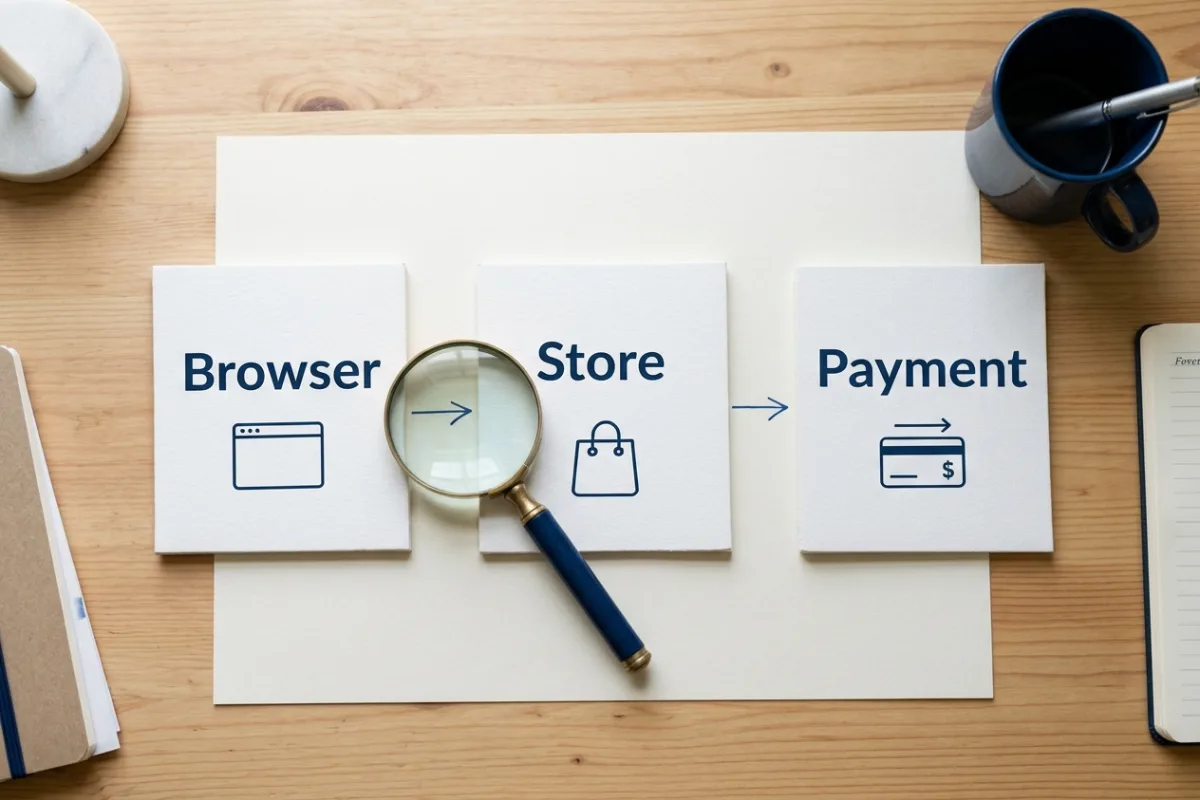
The Store API checkout reference requires a valid nonce or cart token. Do not disable nonce checks, payment authentication or firewall protection to hide the error. Fix stale sessions, cache rules or the specific blocked legitimate request with the responsible provider. Never paste checkout tokens, request bodies or an unredacted HAR file into a public forum.
4. Reconcile the order and payment before retrying
If payment was submitted, inspect WooCommerce → Orders and the gateway's authorised dashboard. Compare the time, order reference and transaction record privately. A browser timeout, a provider decline and a successful charge followed by a failed redirect need different responses. A bank notification can also represent an authorisation rather than a settled charge; use the provider's recorded state.
Read the order notes as well as the badge. WooCommerce's order-status documentation distinguishes Pending payment, On hold and Processing. Some methods confirm later, and authorised payments may await capture. Do not mark an order paid just to clear the support queue or make a confirmation email appear.
- No successful payment recorded: identify whether the provider rejected the attempt, the request never reached it or checkout validation stopped earlier. Absence of a success record is not permission to retry: treat pending or uncertain attempts as unresolved until the provider establishes their outcome. Follow its recovery instructions.
- Payment recorded, order not updated: investigate the gateway-to-store communication and matching logs. The notification or callback mechanism is gateway-specific; there is no universal webhook URL to paste into every store.
- Order and payment are correct, confirmation is wrong: inspect the return route, order-received page and related errors without replaying the charge.
- Purchase completed, only the email is missing: use the separate WooCommerce order-email troubleshooting guide. Do not treat inbox silence as evidence that the customer must purchase again.
For server evidence, inspect WooCommerce → Status → Logs and the relevant gateway log if available. The PHP error-log documentation notes that fatal-error logs do not include every web-server failure, such as a timeout. Ask the host for the matching record when WooCommerce's log is empty. Broader site failures belong in the WordPress critical-error guide.
Keep diagnostic logging limited and access-controlled: logs can contain personal or transaction data. Do not share card details, session cookies, credentials or customer addresses. If the transaction outcome remains uncertain, tell the customer you are checking it rather than promising they were not charged. Resolve the existing attempt before inviting another one.
5. Isolate the change on staging, not on paying customers
If the failure followed an update, list what actually changed: WooCommerce, the gateway, theme, checkout-field extension, cache settings or custom code. Timing is evidence to investigate, not proof. Restore a reproducible staging case with a recorded configuration before trying fixes.
Follow WooCommerce's conflict-testing process: back up, compare with a default theme, and keep WooCommerce plus the extensions necessary to reproduce the issue active. For a gateway failure, removing that gateway makes the test meaningless. Re-enable other candidates one at a time and repeat the same basket and payment path.
Must-use plugins and host-managed drop-ins can remain active after ordinary plugins are disabled. Ask the host about those layers. For a custom field or classic template override, have its maintainer compare it with the installed checkout version; avoid editing WooCommerce core files or copying unrelated snippets into a live theme.
A staging-only failure may reflect password protection, disabled outbound connections or a different payment environment. Record those differences. Conversely, a staging success does not prove production credentials, callbacks or cache rules are correct. Apply the smallest reviewed file or configuration change and confirm the production-specific setup separately.
6. Verify the full purchase path and record the result
A green gateway connection test is not a checkout acceptance test. On isolated staging, use the provider's documented test mode and test payment details, never a real customer's card. Verify the route that originally failed before expanding to other supported routes.
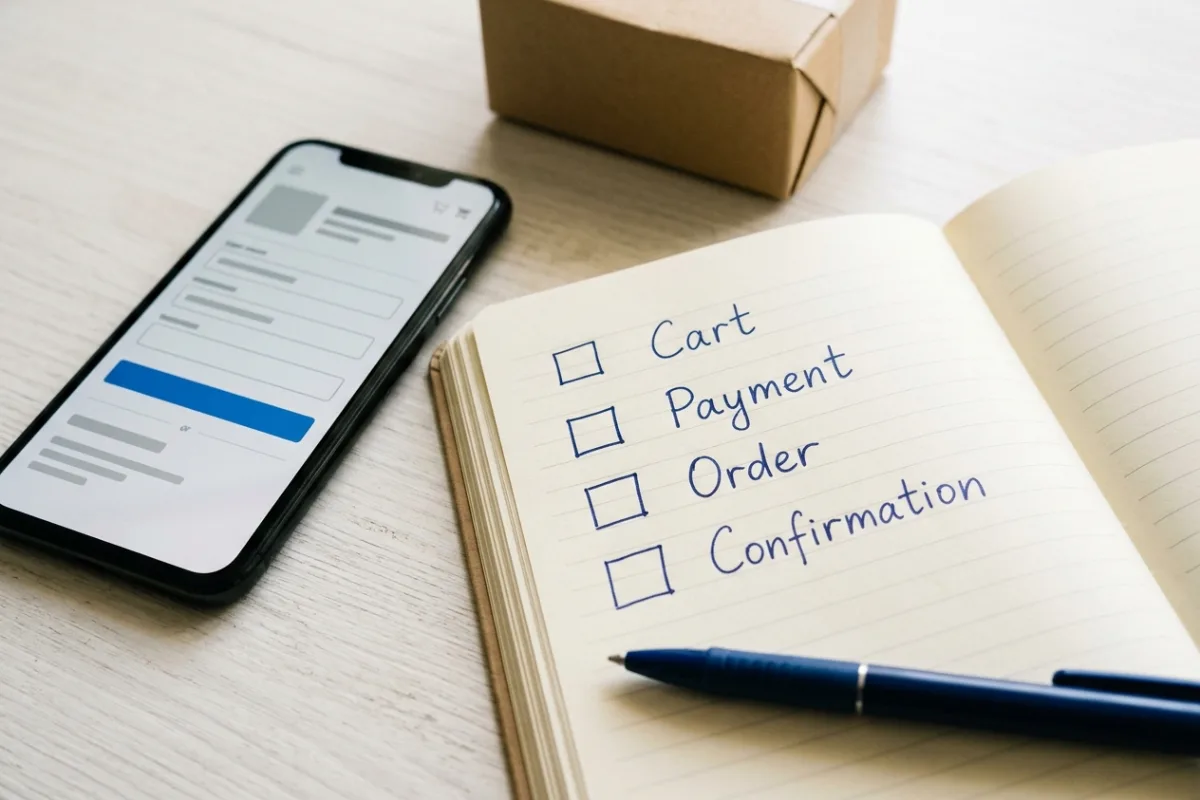
- 1Add the relevant product and variation, apply any relevant coupon, and confirm the cart retains its contents and calculates the expected totals.
- 2Complete shipping and billing using controlled test details. Check that only the expected delivery and payment methods appear.
- 3Submit one controlled test attempt. Confirm the gateway's expected test result and the matching order status and notes; offline methods do not become paid merely because checkout completed.
- 4Verify the return or confirmation page, stock behaviour and intended notification path. Keep email and fulfilment integrations isolated; inspect controlled outputs rather than sending to real customers.
- 5Repeat the affected variation: guest versus account, phone versus desktop, and each relevant gateway or special product type. Record which combinations were actually tested.
- 6Release only the reviewed fix. Check production-specific configuration and monitor the next normal purchase through authorised logs; do not recruit a customer to repeat checkout as a test. Any live test payment, refund or customer message needs the owner's explicit agreement.
Keep a short result record: original symptom, root cause if established, changed setting or file, test environment and remaining gaps. Add the checks to your website launch checklist. If recurring update and purchase-flow checks are needed, include them explicitly in your maintenance scope rather than assuming every support plan covers every gateway.
Frequently asked questions
Why is my WooCommerce checkout page blank?
Confirm the assigned Checkout page and its block, shortcode or builder template. Test with a non-empty cart, then inspect errors at the matching time. A removed checkout component, template failure or blocked script can produce a similar screen. Do not create duplicate checkout pages before identifying which page customers actually use.
Why does WooCommerce say no payment methods are available?
Check the enabled provider's setup and eligibility for the basket, address and currency. If you use the Checkout block, confirm that the gateway supports it. A plugin can be active without a compatible block integration. Check conditional-payment extensions too; enabling another provider is not always the right solution.
Why does checkout keep spinning after Place order?
A validation, JavaScript, AJAX or Store API error can leave the interface waiting. Inspect the earliest failed request and its server evidence. Cache rules, security responses and gateway errors are different causes. If payment was submitted, verify its outcome before retrying, even if the screen never showed a confirmation.
Why does checkout work for me but not for guests?
Logged-in administrators and signed-out visitors may receive different caching, permissions or account requirements. Use a fresh signed-out session, confirm that guest checkout is intended and enabled, and reproduce the same basket and address. Do not conclude that guests need accounts unless that is your deliberate store policy.
Should I replace Checkout blocks with the classic shortcode?
Only after checking the actual compatibility problem. If an essential extension requires classic checkout, test the documented change on staging and verify custom fields, cart and payment behaviour. Switching implementations does not resolve every cache, credential or server error, and can introduce different compatibility requirements.
Can I disable plugins on the live store to find the problem?
That can interrupt active purchases and remove shipping, tax or payment functionality. Use an isolated staging copy with the affected components retained, then test other plugins one at a time. For an urgent live incident, agree a controlled maintenance and recovery plan with the store owner instead of experimenting during customer checkouts.
Get help with a specific checkout failure
Useful troubleshooting ends with an explanation and verified scope, not a pile of new plugins. A developer should be able to show which step failed, what was changed and which purchase paths were checked. If payment state or live data is involved, resolve that uncertainty before making more changes.
Written by
Ali Rehman - Freelance Web Developer
I work on WordPress websites, practical fixes and scoped web applications. Read my background and skill scope, or send a project brief to discuss a written plan and quote - start here.
More articles by Ali Rehman →