
WooCommerce Product Images Blurry? Fix Size, Crop and Quality
A larger upload is not always the fix. Compare the original photo with the image your browser receives, separate crop problems from lost detail, and adjust the right WooCommerce, theme or gallery setting.
 Ali RehmanFreelance Web Developer
On this page 12 sections
Your product photograph looks clear on your computer, but the shop grid makes it look soft. On another product, the image is sharp but cuts off the top of the bottle. These can look like the same WooCommerce image problem, yet increasing the upload size will not solve both.
This guide is for images that load but look wrong. If you see a broken-image icon, an empty gallery or a failed request, start with WordPress images not showing. The photographs here are real stock images used to explain focus, detail and composition; they are not screenshots of a customer's store or fabricated before-and-after results.
First separate blur, pixelation and cropping
Pick one affected product and note exactly where it looks wrong: the shop grid, category page, main product image, variation, gallery thumbnail or enlarged view. Those locations can request different files and use different layout rules. A clear zoomed image does not prove that the smaller catalog image is correct.
- Soft everywhere, including the original: investigate focus, camera movement, shallow depth of field or an already-compressed source.
- Blocky edges or smeared detail only on the site: compare the delivered file's dimensions and compression with its display size.
- Sharp, but the product is cut off: check the generated crop and the template's aspect-ratio or fitting rules.
- Stretched or squashed proportions: inspect fixed width/height rules or distortion in the source export.
- Wrong only on mobile, before hover or after choosing a variation: inspect that specific state; it may load a different image candidate.
Record the product URL, affected view, device/browser, current theme or builder, and when the problem began. A recent theme change or image-optimisation setting is useful evidence, but not proof of the cause. Work on a protected staging copy for template changes and keep original photos backed up.
1. Check the original photograph before changing WooCommerce
Open the best available source file at a sensible viewing scale, not just a tiny preview. Examine a meaningful detail: a label edge, stitching, surface texture or the boundary of the product. If it is already out of focus, enlarging it cannot recover detail that was never captured.
Then compare it with the attachment you uploaded. A photograph sent through a messaging app, copied from a small social preview or repeatedly saved as a low-quality JPEG may no longer match the photographer's original. Check pixel dimensions in the Media Library and keep a high-quality master outside WordPress. A file's megabyte size or 300-DPI label alone does not tell you how sharp it will appear on a screen.
Distinguish an error from the photographer's intention. A sharp product with a softer foreground or background can be deliberate depth of field. Website settings cannot bring every object into focus. If the detail shoppers need is outside the focal area, use another photograph or arrange a reshoot rather than presenting invented detail as the real product.
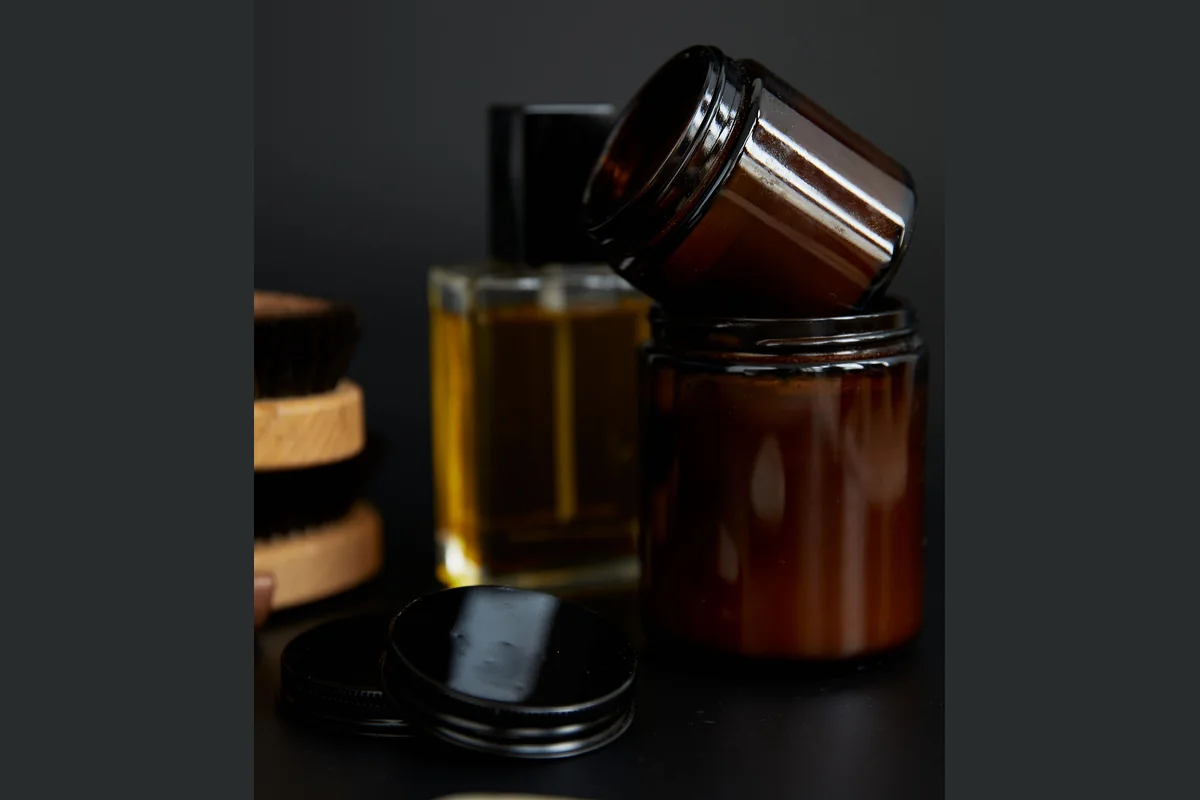
For a better replacement, upload it as a new attachment and assign it to one test product first. Keep the old attachment until you have checked its other uses, gallery positions and variation assignments. Deleting a shared photo first can break unrelated pages. The WooCommerce product-image guide explains main-image and gallery assignment. If new photography is needed, include that separately in the store's content budget.
2. Find the image file the browser actually loads
A large original in the Media Library does not mean the browser receives that file. WordPress creates image variants, and a theme, gallery extension, optimisation service or CDN may select or transform one. You need to inspect the storefront request, not infer it from the upload.
- 1Open the affected product or shop page while logged out. Set the browser to the viewport where the problem occurs and reload it.
- 2Inspect the image element with browser developer tools. Note its rendered width and height, its source attributes, and the image request in the Network panel.
- 3If
srcsetis present, inspect the element'scurrentSrcproperty or the actual Network request to identify the chosen file—not just the fallbacksrc. - 4Open that selected image and check its pixel dimensions and appearance. Compare it with the source upload and with the intended on-page size.
For example, a 150-pixel-wide generated file displayed in a 500-pixel-wide product slot is a strong lead for undersizing. A large file that is already smeared when opened directly points more toward source quality or the transformation pipeline. If the file is clear but the page clips it, move to the cropping section instead.
WordPress responsive images use srcset and sizes to help browsers choose a file. MDN documents currentSrc as the selected URL; it does not by itself prove that the request loaded successfully. A developer should also verify the response and decoded image dimensions.
Do not disable responsive images globally just to force the original onto every device. Correct the available variants, the template's requested size or inaccurate layout hints. A permanently oversized download may hide the symptom while making the storefront slower.
3. Match image dimensions to the real display size
There is no single best WooCommerce product image size for every theme. The official blurry-image guide recommends checking the dimensions your theme renders and accounting for high-density screens and zoom. Its general 800 × 800 starting point is not a requirement to crop every product square or a guarantee that every gallery will be sharp.
Start with the largest display area that genuinely needs the detail. For a landscape image rendered 600 CSS pixels wide, a source around 1,200 pixels wide is a useful initial comparison for a 2× display. That is an illustrative calculation, not a universal upload rule: 600 × 2 = 1,200. The crop, image height, device density and enlarged-view behaviour can change the requirement.
Use responsive variants so a small catalog card is not forced to download the largest master. Check the product page and full-screen gallery separately; a file that looks fine in a card can run out of detail when enlarged. Conversely, a high-resolution source can still look poor if the theme selects a small derivative.
Changing a generated image width does not automatically widen the product layout. The first controls requested pixels; CSS controls displayed size. Uploading a very large file also cannot correct missed focus. Keep dimensions and file weight proportionate to a measured use, then compare the result visually rather than chasing an arbitrary pixel count.
4. Change the setting that controls your theme or gallery
Classic themes and theme-declared widths
For classic themes, the usual path is Appearance → Customize → WooCommerce → Product Images. Depending on theme support, you may see main-image width, thumbnail width and thumbnail-cropping controls. Record the existing values and change only the setting connected to the failing view.
If the main image width or thumbnail width is missing, do not assume WooCommerce is broken. A theme can declare these widths and hide the corresponding controls. The current theme-width reference distinguishes catalog thumbnails, gallery thumbnails and the uncropped main image. Its example numbers are not a prescription for your store. Have a developer review overrides without editing a third-party parent theme.
Block themes and product templates
With a block theme, inspect the relevant template under Appearance → Editor and identify the gallery or Product Image block actually in use. The newer Product Gallery block has separate thumbnail and viewer controls, including aspect ratio, hover zoom and pop-up behaviour. Some saved templates still use an older gallery block, so the available controls can differ.
A block theme may hide the Customize menu even though some underlying image-generation settings still exist. Do not assume a visible block aspect-ratio control regenerates every image file, or that an old Customizer screenshot describes the entire current setup. Confirm both the generated file and the rendered template after changing either layer.
Page builders and gallery extensions
An Elementor widget, theme builder or replacement gallery may request its own named image size or apply additional cropping. Check that component's current settings and documentation instead of installing a second gallery plugin at random. If switching a widget to a larger available size resolves the example, still inspect mobile delivery and loading cost before rolling it out.
5. Fix cropping without distorting the product
A square card and a tall product photograph have different aspect ratios. Something must give: the full photograph can fit with spare space, or the frame can fill by cutting off part of the image. More pixels do not remove that geometric trade-off.
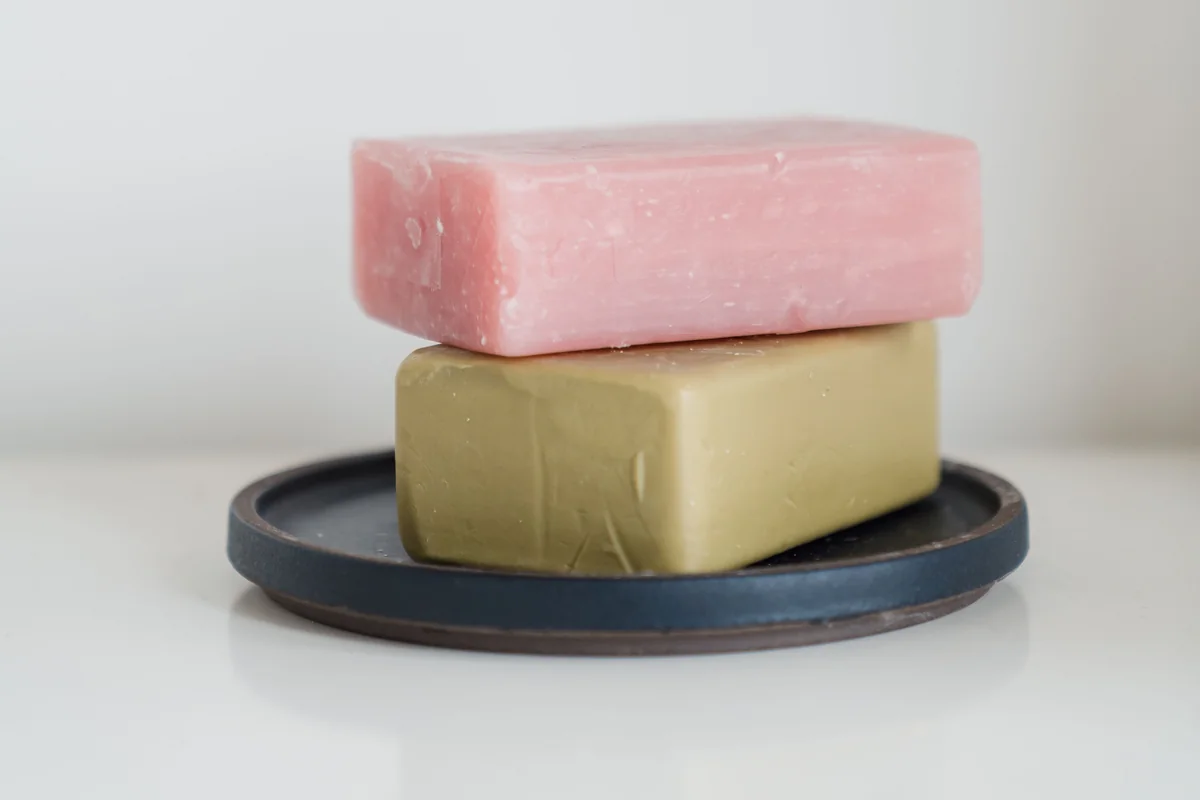
The classic thumbnail controls provide square, custom-ratio and uncropped options. Choose a consistent catalog presentation that preserves the information shoppers need. Uncropped images can have different heights; a uniform card may require intentional source framing rather than squeezing every photograph into the same shape.
Also inspect CSS. object-fit: cover fills a box and can clip the edges. contain keeps the whole image visible but can leave spare space. fill can distort proportions when the box and photo differ. A fixed-size wrapper can therefore crop a perfectly good file even when WooCommerce's generated thumbnail is correct.
Check the downloaded derivative too. If it was already hard-cropped, changing CSS cannot restore the missing edges. Keep a complete original, choose the appropriate crop or source composition, then regenerate affected sizes where necessary. Avoid stretching product proportions or inventing missing parts with generative fill.
6. Regenerate only the image sizes that need updating
Regeneration creates new sizes or crops from existing source images. It does not reconstruct lost photographic detail. It becomes relevant when a theme or size setting has changed but previously uploaded media still has old derivatives. Confirm the desired settings and one suitable source first; otherwise you can regenerate the wrong result across the catalog.
- 1Back up uploads and the database, and confirm the original files are available. Record the settings you intend to change.
- 2On staging, test a representative product and check which generated sizes are missing or outdated.
- 3Use the site's supported regeneration process. Core WooCommerce documents WooCommerce → Status → Tools → Regenerate shop thumbnails; theme or offloaded-media setups may require their own workflow.
- 4For a large library, coordinate timing, disk capacity and job progress with the host. If a background regeneration is already running, inspect it rather than repeatedly starting another job.
- 5After completion, verify actual output files, clear the affected caches and retest the same product views before applying the change more widely.
Do not delete the uploads directory, purge originals or run a media-cleanup tool as a blur fix. If attachments are shared with pages or variations, keep those references in mind. A staging success is not permission to overwrite the live shop database and lose new orders; transfer only the reviewed change through the store's normal release process.
7. Review compression and stale cached versions
Compression can be another source of lost detail. Compare the original export, the generated WordPress file and the delivered CDN/optimiser version. Look at texture, fine printing, edges and smooth gradients at the size shoppers use. Aggressive lossy settings can smear texture or create blocky artefacts even when the pixel dimensions are large enough.

Changing a file extension to WebP does not make an image sharper. Proper encoding can reduce transfer size, but quality still depends on the source and settings. Repeatedly compressing an already-compressed file is not the same as exporting once from a good master. Avoid pushing every photo under one rigid byte limit: a simple soap photograph and detailed knitted fabric do not compress equally.
After replacing an asset or changing its derivatives, purge only the relevant page/image/CDN caches where supported and recheck the requested URL. A private window does not bypass a shared cache. If the storefront still serves the old version, use the cache troubleshooting guide. For wider delivery work, the WordPress performance guide covers more than product photos.
Product image SEO without keyword stuffing
Image SEO starts with an accurate, useful photograph on a relevant page—not repeating the product keyword everywhere. Google's image guidance recommends crawlable HTML images, descriptive filenames and alt text, nearby context, responsive delivery and a balance of quality and speed.
- Filename: use a short description such as
olive-soap-bar-side-view.webp, notIMG0042-final-final.jpg. Avoid unnecessary renaming of existing public assets without handling their references. - Alt text: describe what the image communicates in context. For an informative product detail, identify the visible feature; do not insert unrelated keywords or claim a material, size or result the image does not establish.
- Dimensions and responsive delivery: provide accurate intrinsic width/height and appropriate responsive candidates. Reserve layout space instead of stretching a thumbnail.
- Context: place a detail photo near the relevant product description. Captions can explain what to inspect, while alt text remains a useful alternative for the picture.
- Access: use image URLs that the intended visitors and crawlers can fetch. An image sitemap can help discovery; it does not guarantee indexing or rankings.
For licensed photography, record who created it and what use is permitted. Google's image-metadata documentation supports creator, credit and licence information and recommends retaining important rights metadata. Do not claim that a free-use licence transfers the photographer's ownership or that the photographer endorses your business.
The photos in this article are licensed editorial examples. They are not permission to use a stock photograph as a misleading picture of a different product you sell. For accessibility decisions beyond one alt field, see the website accessibility guide.
Verify the fix across your storefront
Choose a simple product, one with fine detail and a variation if the store uses them. Check the shop/category card, main product view, gallery thumbnails, zoom or pop-up where available, and the variation change. Repeat on desktop and a real phone when possible. A desktop window narrowed to phone width does not reproduce every device's display density or browser behaviour.
Confirm both sharpness and honest product presentation: the expected file loaded, important edges are not cut off, proportions are intact, the correct variant appears, and the page did not acquire unnecessarily heavy image downloads. Record observations, not just a green score or the fact that a regeneration job ended.
Product image verification record

Product URL / item: [public reference]
View: [shop / product / variation / enlarged gallery]
Device, browser and viewport: [recorded]
Source upload dimensions: [width x height]
Browser-selected image URL: [public URL, no secret query]
Selected file dimensions: [width x height]
Displayed dimensions: [CSS width x height]
Observed issue: [soft / pixelated / cropped / distorted]
Single change made: [setting or asset]
Result after refresh: [observed, not assumed]
Other views checked: [list]
Rollback: [prior setting or retained attachment]
If the original and delivered image are adequate but the storefront remains wrong, send this record to the theme developer or a WooCommerce maintainer. WordPress and WooCommerce help can cover template or image-delivery changes; maintenance support can cover a controlled repair. Describe the affected public page without sending passwords, private customer screenshots or a full database export.
Frequently asked questions
Why is the photo sharp in the Media Library but blurry on the product page?
The storefront may select a smaller generated image, apply extra compression or stretch it beyond its intended size. Inspect the actual browser-selected file and the displayed dimensions. The Media Library preview alone does not tell you which version a customer receives.
What is the best WooCommerce product image size?
Use dimensions appropriate to the largest intended view, crop and display density, with enough source detail for your gallery. WooCommerce's general 800 × 800 starting guidance is not a universal square format or a guarantee for larger layouts. Measure your theme and compare representative products.
Why are product images blurry only on mobile?
A mobile layout or responsive candidate may differ from desktop, and a high-density phone can expose undersizing. Check the actual request, device density, image state and template. Increasing every upload or disabling responsive images without those checks can add weight without solving the cause.
Why is the Main image width setting missing?
A classic theme can declare an image width and hide the corresponding Customizer field. A block theme or builder can also expose different controls. Identify the template and gallery in use; a missing field alone is not a reason to replace the theme or edit its parent files.
Will regenerating thumbnails fix an out-of-focus original?
No. Regeneration derives sizes and crops from available source files. It cannot recreate photographic detail missing from the original. Use a better source or reshoot when needed, and reserve regeneration for missing or outdated variants after the correct settings are established.
Review scope
The example photographs illustrate focus, fine detail and composition. They were cropped or framed for landscape presentation and resized proportionally, without stretching, AI generation or generative retouching. They are illustrative examples, not photographs of products owned or sold by the author.
Technical documentation was reviewed on 19 October 2026. This is a source-grounded diagnostic guide, not a report of a tested repair on a customer's WooCommerce installation. Theme, plugin and platform versions can change the available controls. Confirm changes on your own supported setup before applying them widely.
Written by
Ali Rehman - Freelance Web Developer
I work on WordPress websites, practical fixes and scoped web applications. Read my background and skill scope, or send a project brief to discuss a written plan and quote - start here.
More articles by Ali Rehman →